Overview
Inviting users is straightforward in the Spendflo App, follow the steps mentioned in the article to invite your team members.
You can invite other users from your organizations to the Spendflo App by:
Step 1. Log in to the app and click on the settings icon located in the top right corner.

Step 2. Navigate to Organization Settings → Configure Users. If you are adding users for the first time, the Invite User button will be available on this page. If users have already been added, the Invite User button will appear above the table listing all existing users on the platform. 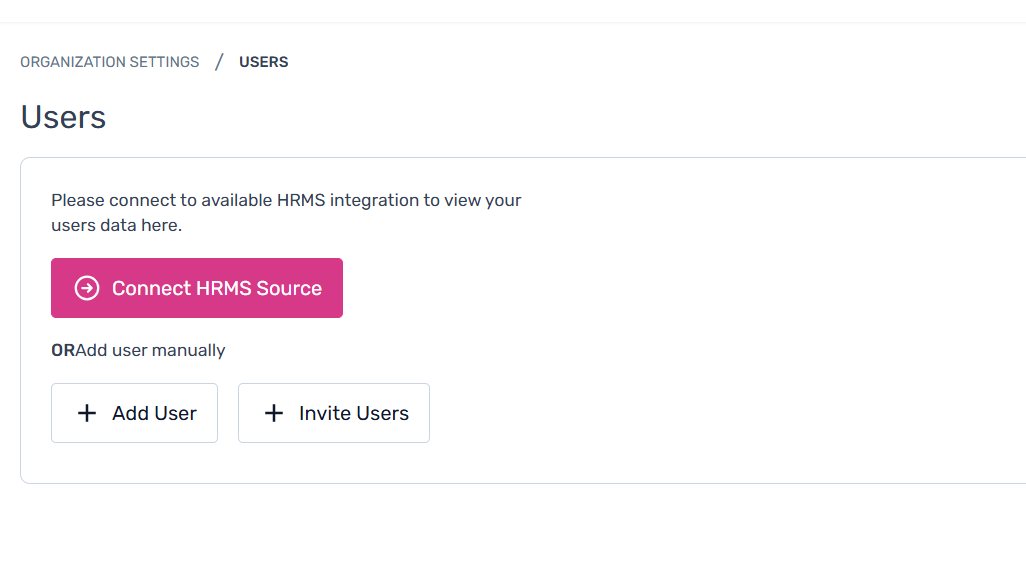

Step 3. Click on "+Invite Users" CTA.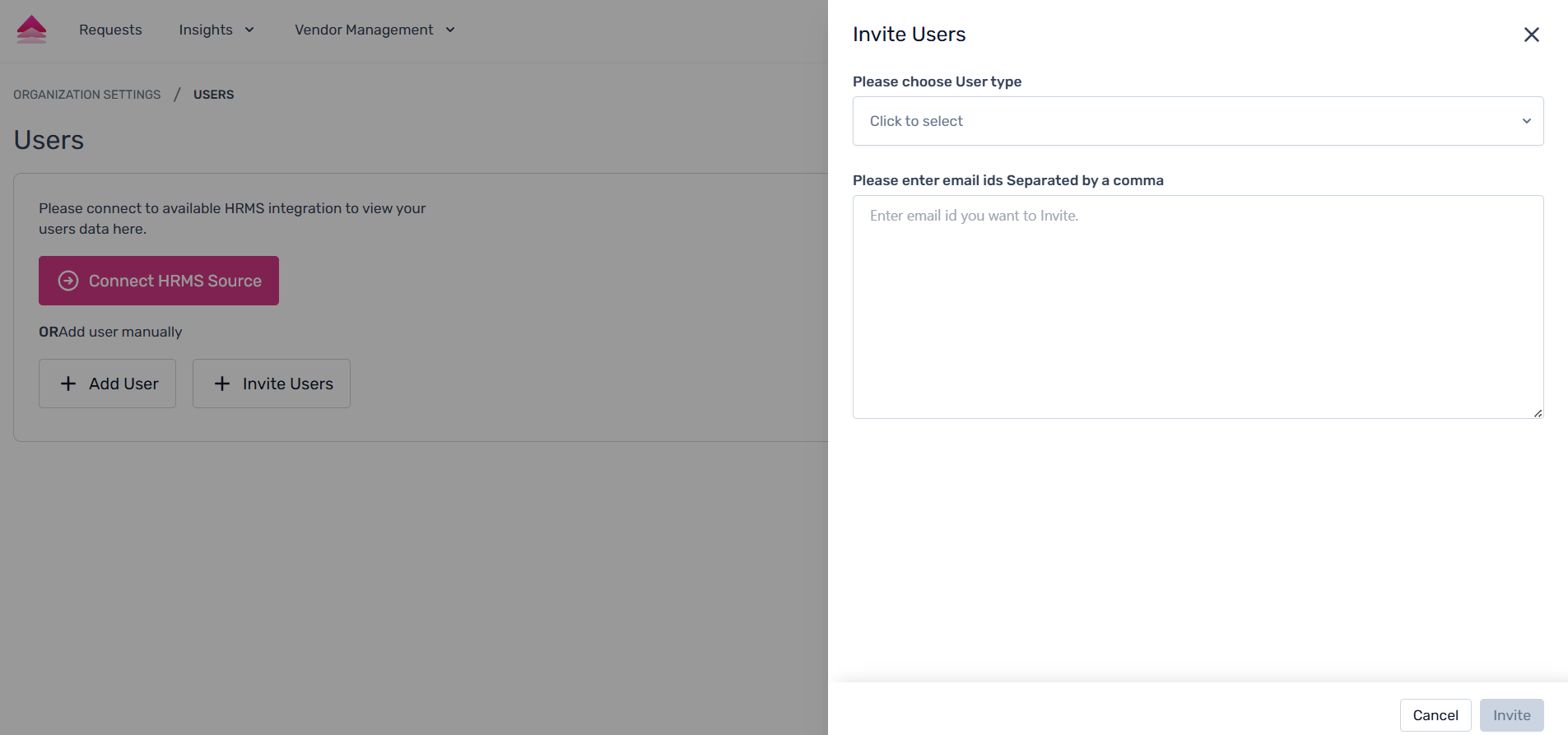
Step 4. On the slider that opens, assign them appropriate roles such as Admin or Requestor to define their permissions and responsibilities.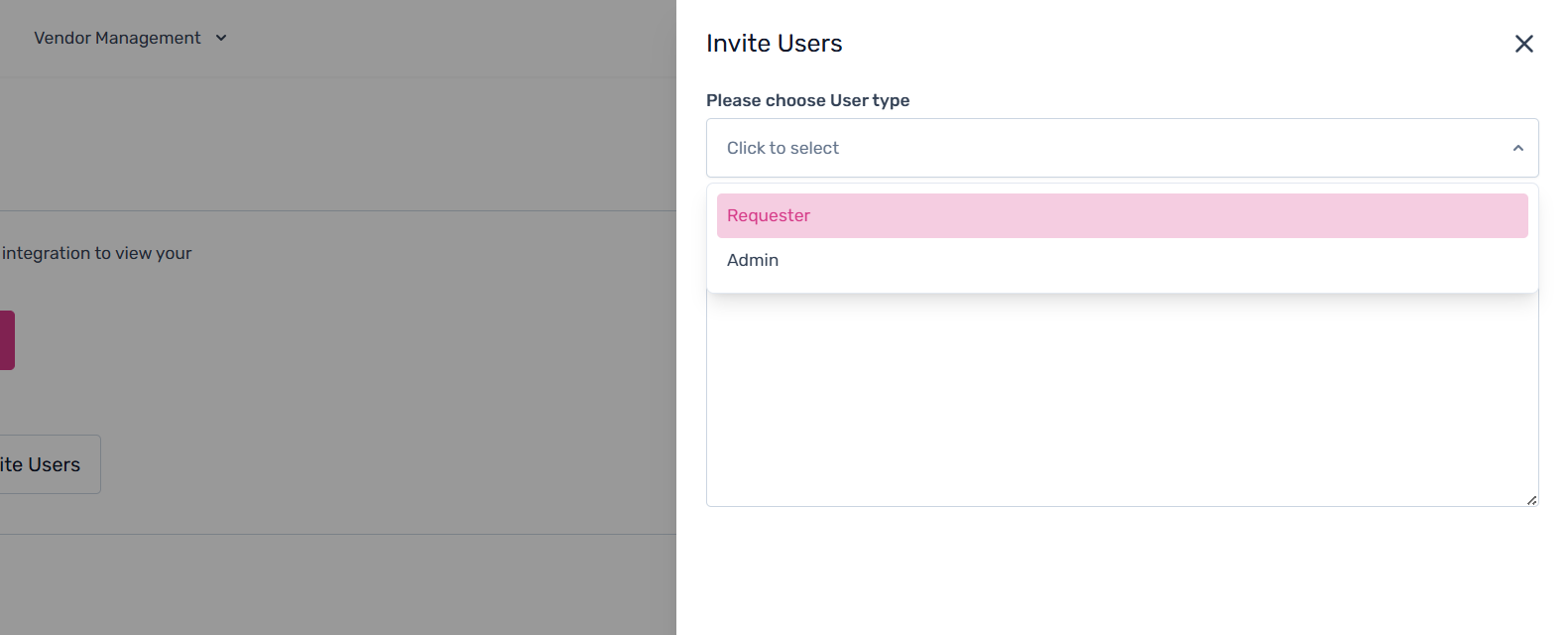
Step 5. Enter their email id and click on invite users, you can invite multiple users by writing their email id separated by comma.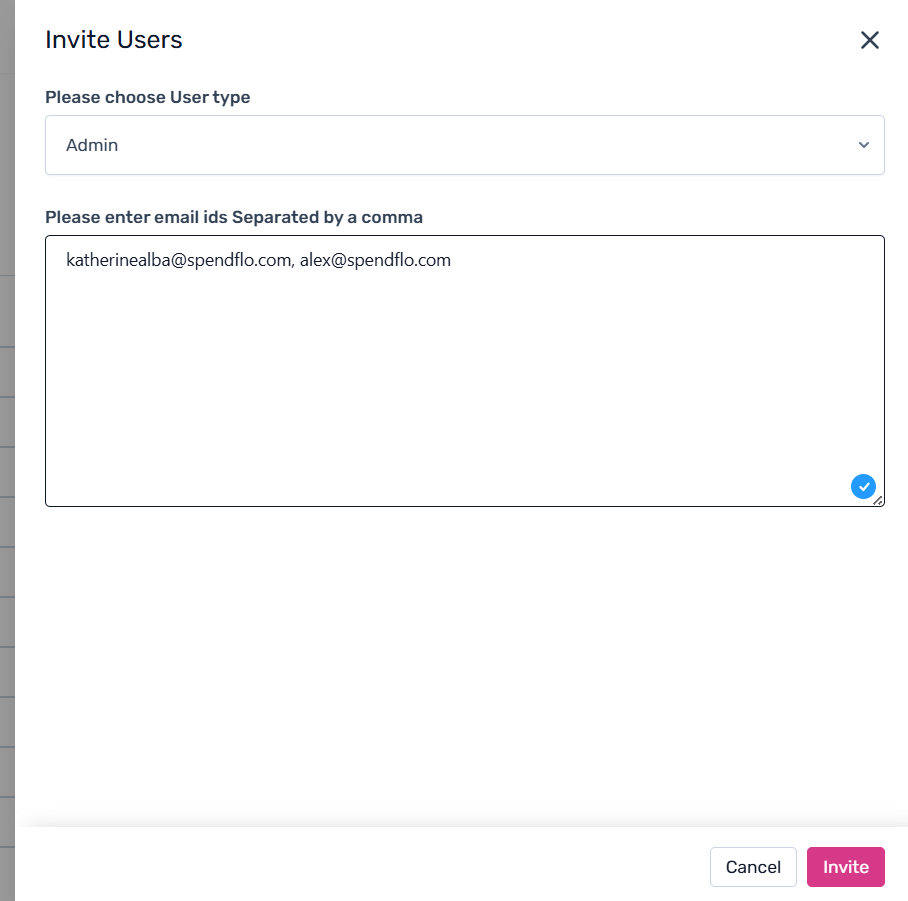
For more details on all General Settings, click here.
Was this article helpful?
That’s Great!
Thank you for your feedback
Sorry! We couldn't be helpful
Thank you for your feedback
Feedback sent
We appreciate your effort and will try to fix the article