Overview
Coupa Integration streamline procurement by automating purchase requisition (PR) generation and management, ensuring seamless data flow and operational efficiency. The Spendflo-Coupa integration simplifies PR creation, allowing Spendflo to send structured data to Coupa, ensuring accurate PR generation. Once a PR is created, Spendflo fetches and displays its ID and URL, offering complete visibility. Since PRs convert into purchase orders (POs) in Coupa, Spendflo performs daily syncs to update PR statuses and capture PO details, ensuring real-time tracking.
This integration further enhances compliance by allowing Spendflo to generate PRs with predefined Coupa statuses, maintaining standardization across procurement processes. The mapping interface enables admins to seamlessly map Spendflo fields to Coupa’s PR structure, ensuring all mandatory data is correctly transmitted. Spendflo enforces accuracy by preventing the deletion of required fields and ensuring admins complete mappings before publishing workflows.
The Spendflo-Coupa integration reduces manual intervention, improves data accuracy, and provides real-time visibility into procurement processes. By automating PR and PO workflows, organizations enhance financial control, accelerate approvals, and align purchases with budgetary and operational goals. This automation optimizes procurement efficiency, improves vendor negotiations, and drives cost savings, making Spendflo a powerful procurement enabler.
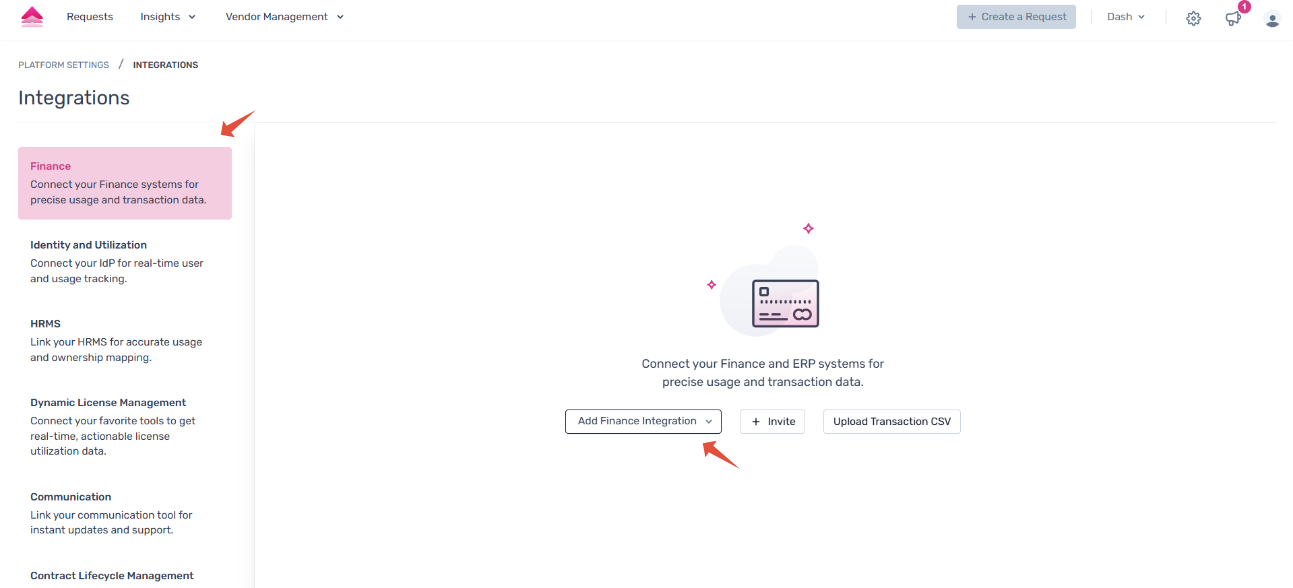
Prerequisites
Before setting up the integration, make sure the following is in place:
You must be a Coupa Administrator to access OAuth2 credentials and configure the integration.
You must have Admin access in Spendflo to connect integrations.
Your Coupa instance must have OAuth2/OpenID Connect enabled.
Part 1: Setting Up Credentials in Coupa
Before connecting in Spendflo, you'll need to retrieve or create OAuth2 credentials from your Coupa account. Here's how to find them.
Step 1: Navigate to OAuth2/OpenID Connect Clients
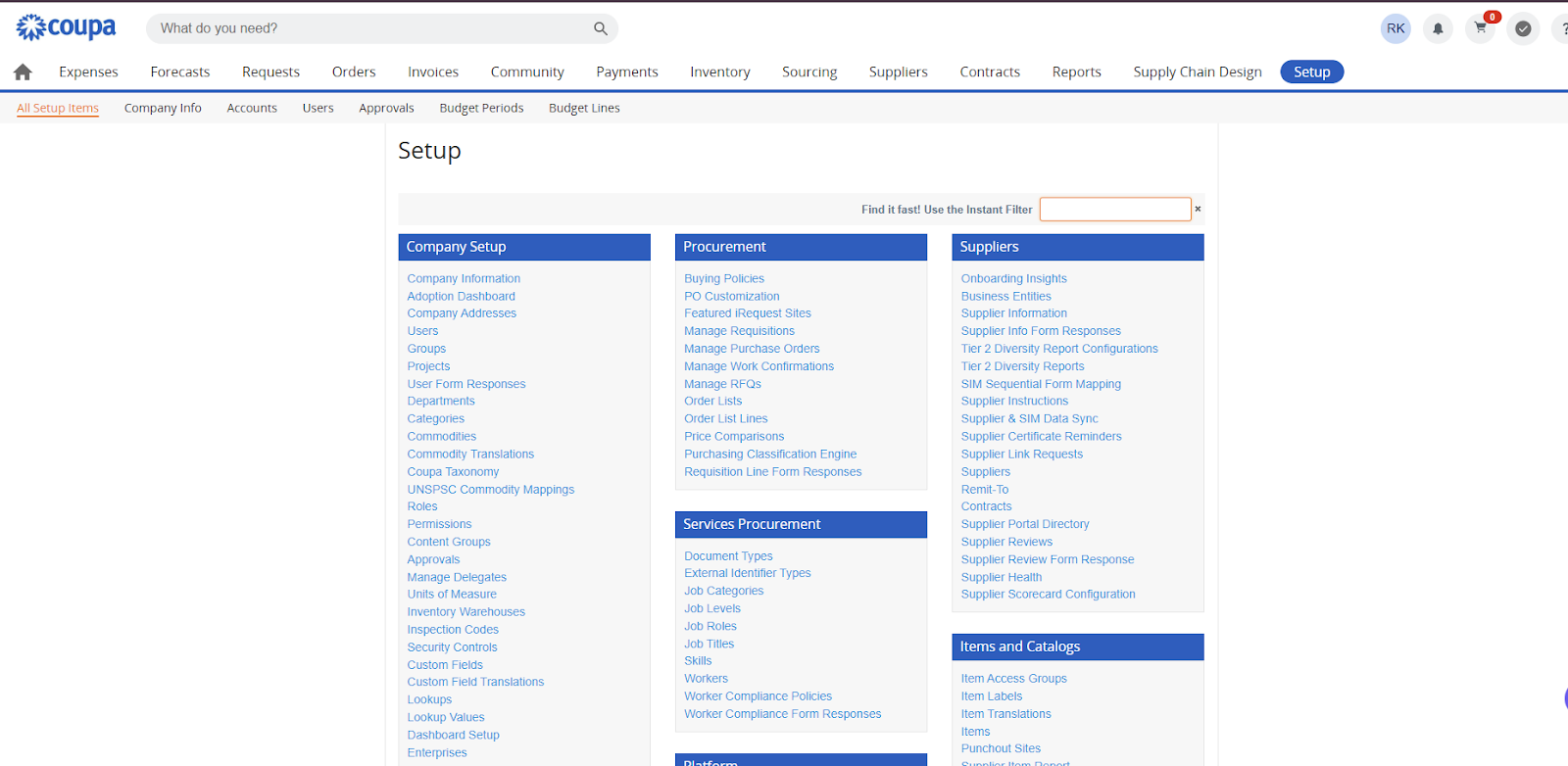
Log into your Coupa account. Click Setup in the top navigation bar.
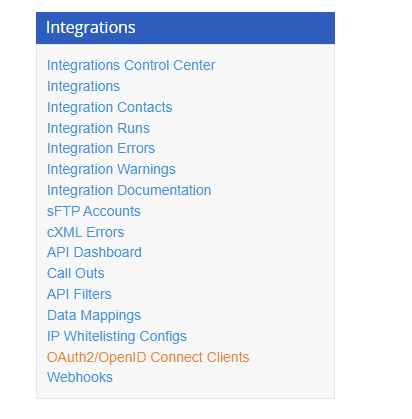
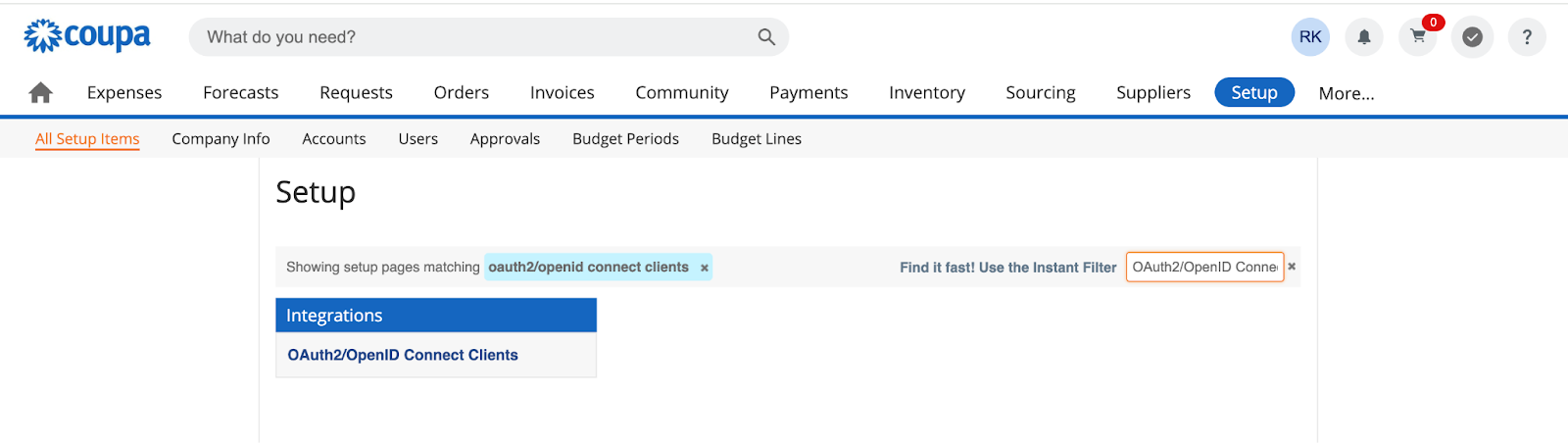
On the Setup page, use the Instant Filter to search for OAuth2/OpenID Connect Clients, or scroll down to the Integrations section and click on it.
Step 2: Get Your Client Credentials
You can either use an existing OAuth2 client or create a new one specifically for Spendflo.
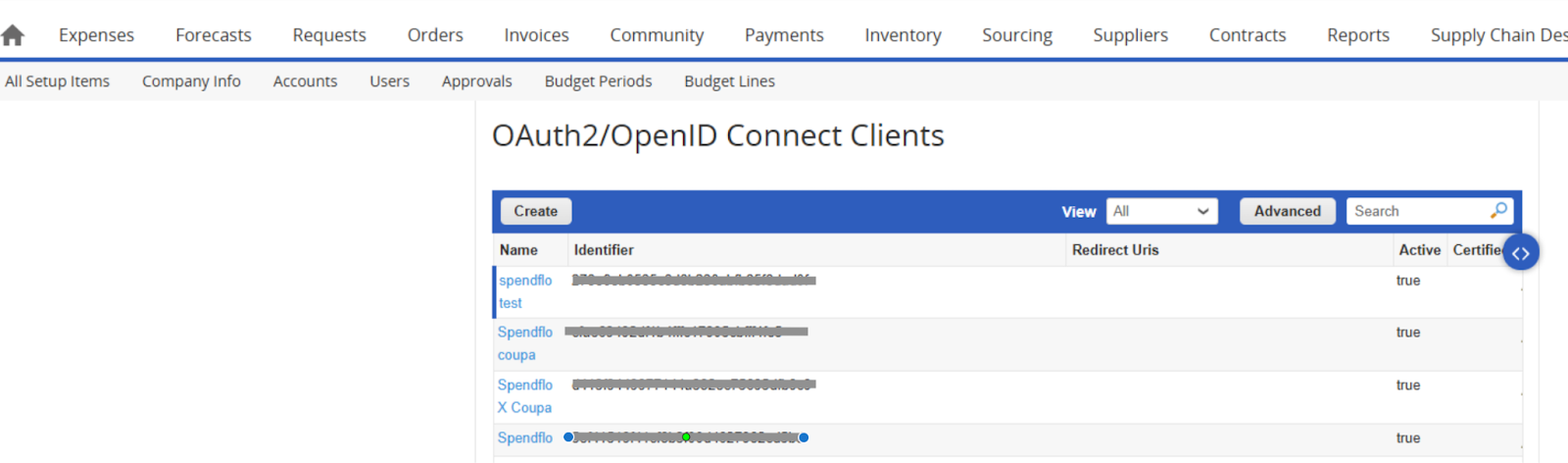
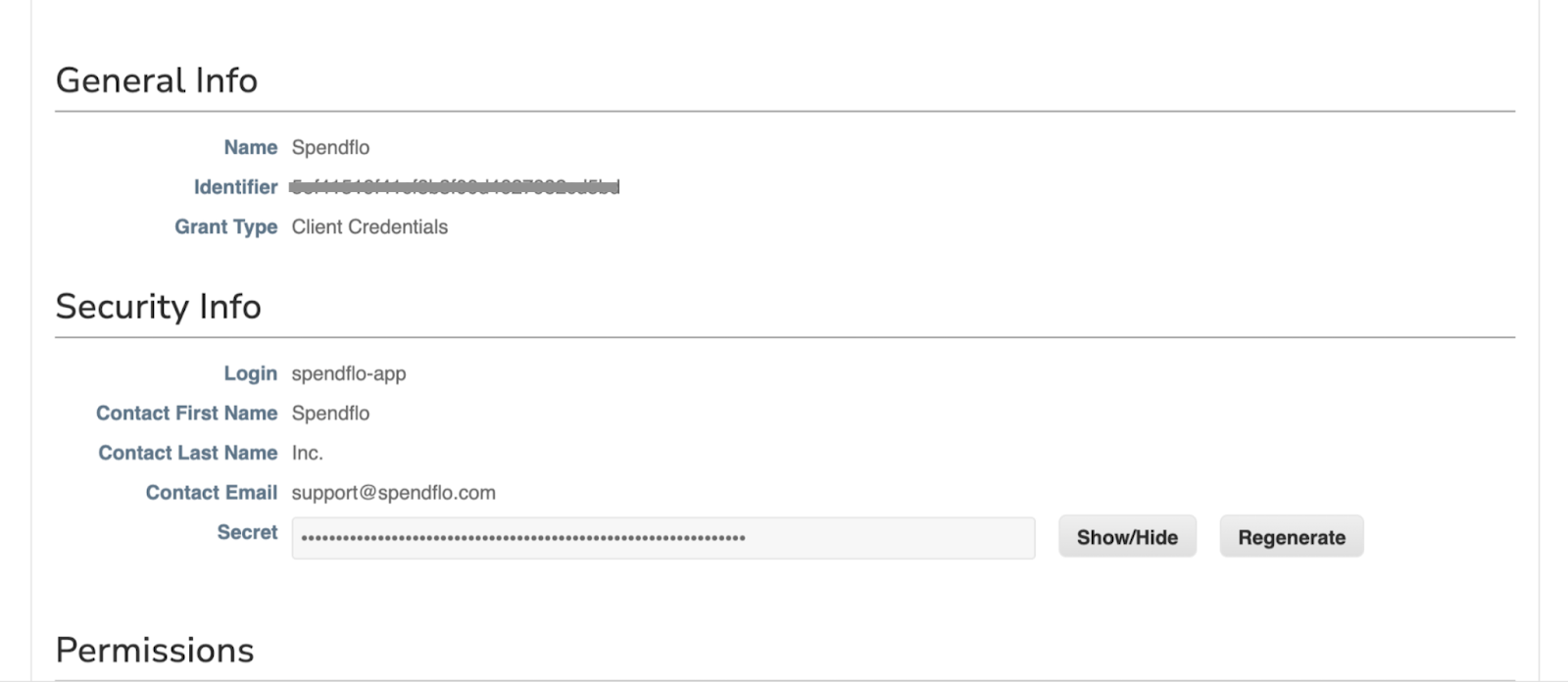
Option A: Use an Existing Client
In the OAuth2/OpenID Connect Clients list, click on an existing client entry. From the General Info section, copy the Identifier — this is your Client ID. From the Security Info section, click Show/Hide to reveal and copy the Secret — this is your Client Secret.
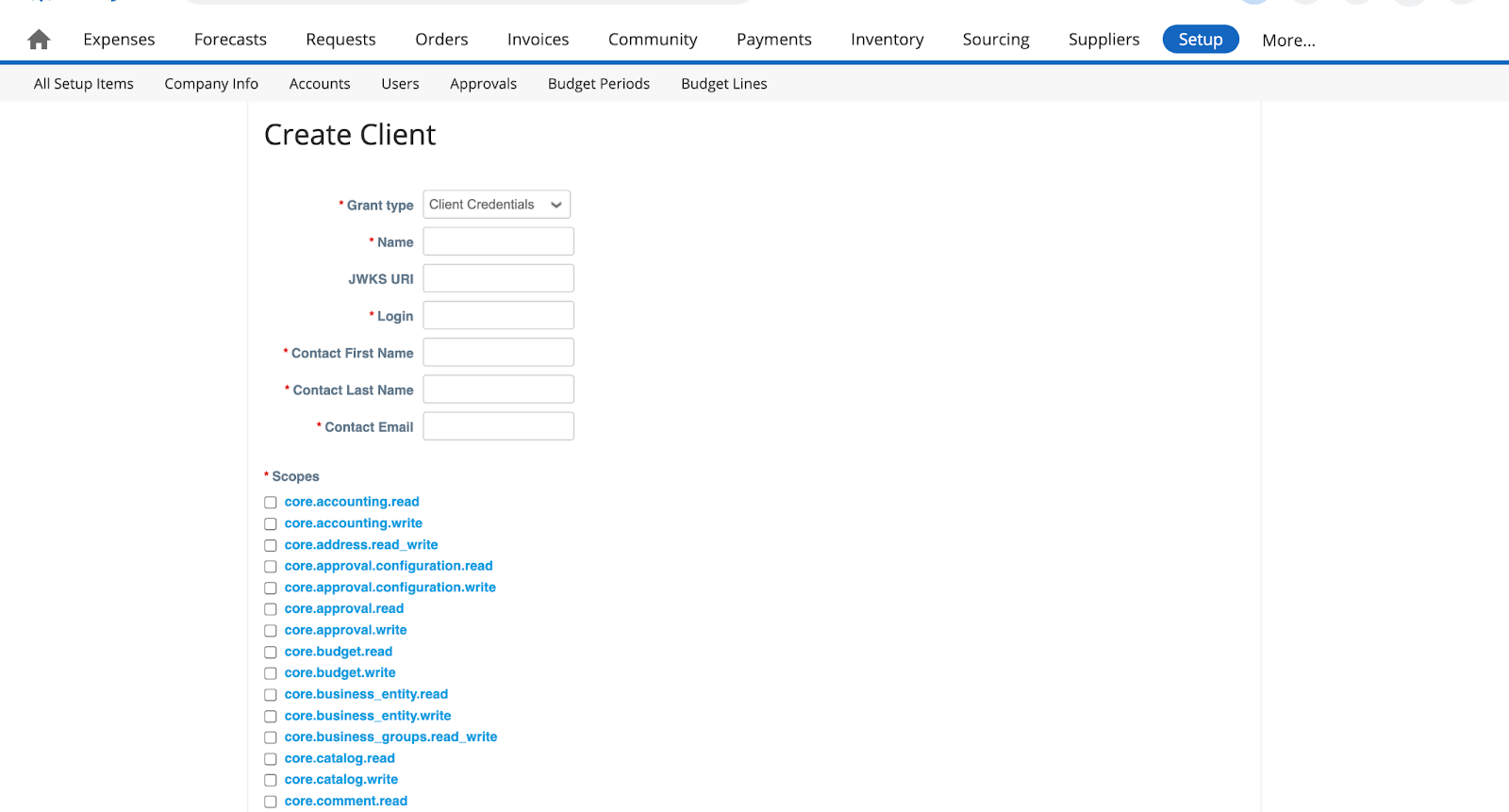
Option B: Create a New Client for Spendflo
Click Create on the OAuth2/OpenID Connect Clients page.
Give the client a name (e.g., Spendflo).
Set the Grant Type to Client Credentials.
Add the following required OIDC scopes. You may add additional scopes as needed, but these are mandatory for the integration to work:
core.accounting.read
core.approval.configuration.read
core.approval.read
core.budget.read
core.business_entity.read
core.catalog.read
core.comment.read
core.commodity.read
core.common.read
core.contract_party_role.read
core.contract.read
core.contracts_template.read
core.data_tables.read
core.easy_form_response.approval.write
core.easy_form_response.read
core.easy_form.read
core.estimated_tax.read
core.expense.read
core.expense.secure.read
core.financial_counterparty.read
core.global_navigation.read
core.globalization.read
core.integration.read
core.inventory.adjustment.read
core.inventory.asn.read
core.inventory.balance.read
core.inventory.common.read
core.inventory.consumption.read
core.inventory.pick_list.read
core.inventory.receiving.read
core.inventory.return_to_supplier.read
core.inventory.transfer.read
core.invoice.assignment.read
core.invoice.read
core.item.read
core.pay.charges.read
core.pay.payments.read
core.pay.statements.read
core.pay.virtual_cards.read
core.payables.expense.read
core.payables.external.read
core.payables.invoice.read
core.payables.order.read
core.project.read
core.purchase_order_change.assignment.read
core.purchase_order_change.assignment.write
core.purchase_order_change.read
core.purchase_order_change.write
core.purchase_order_only.read
core.purchase_order_only.write
core.purchase_order.assignment.read
core.purchase_order.assignment.write
core.purchase_order.read
core.purchase_order.write
core.requisition.assignment.read
core.requisition.assignment.write
core.requisition.read
core.requisition.write
core.sourcing.read
core.supplier.read
core.supplier.write
core.user_group.read
core.user_group.write
core.user_recent_activity.read
core.user.read
core.user.write
email
login
offline_access
openid
profile
Click Save. Copy the Identifier and Secret that are displayed — you will need these in Spendflo.
Note: Store the Client ID and Secret securely. The Secret is only fully visible immediately after creation.
Part 2: Connecting Coupa in Spendflo
Once you have your Coupa credentials ready, follow these steps to complete the connection in Spendflo.
In Spendflo, go to Settings → Integrations → Procurement.
Find Coupa and click Connect.
Spendflo uses Truto to connect securely. In the connection form, enter:
Coupa Domain – Your Coupa account URL (e.g., spendflo-us-appmarketplace.coupacloud.com)
Client ID – The Identifier copied from Coupa
Client Secret – The Secret copied from Coupa

Click Connect. Spendflo will begin validating the connection.
Once validation completes, Coupa will be successfully connected to Spendflo.
Part 3: Post-Integration – Configuring Your Data
Selecting Your Chart of Accounts
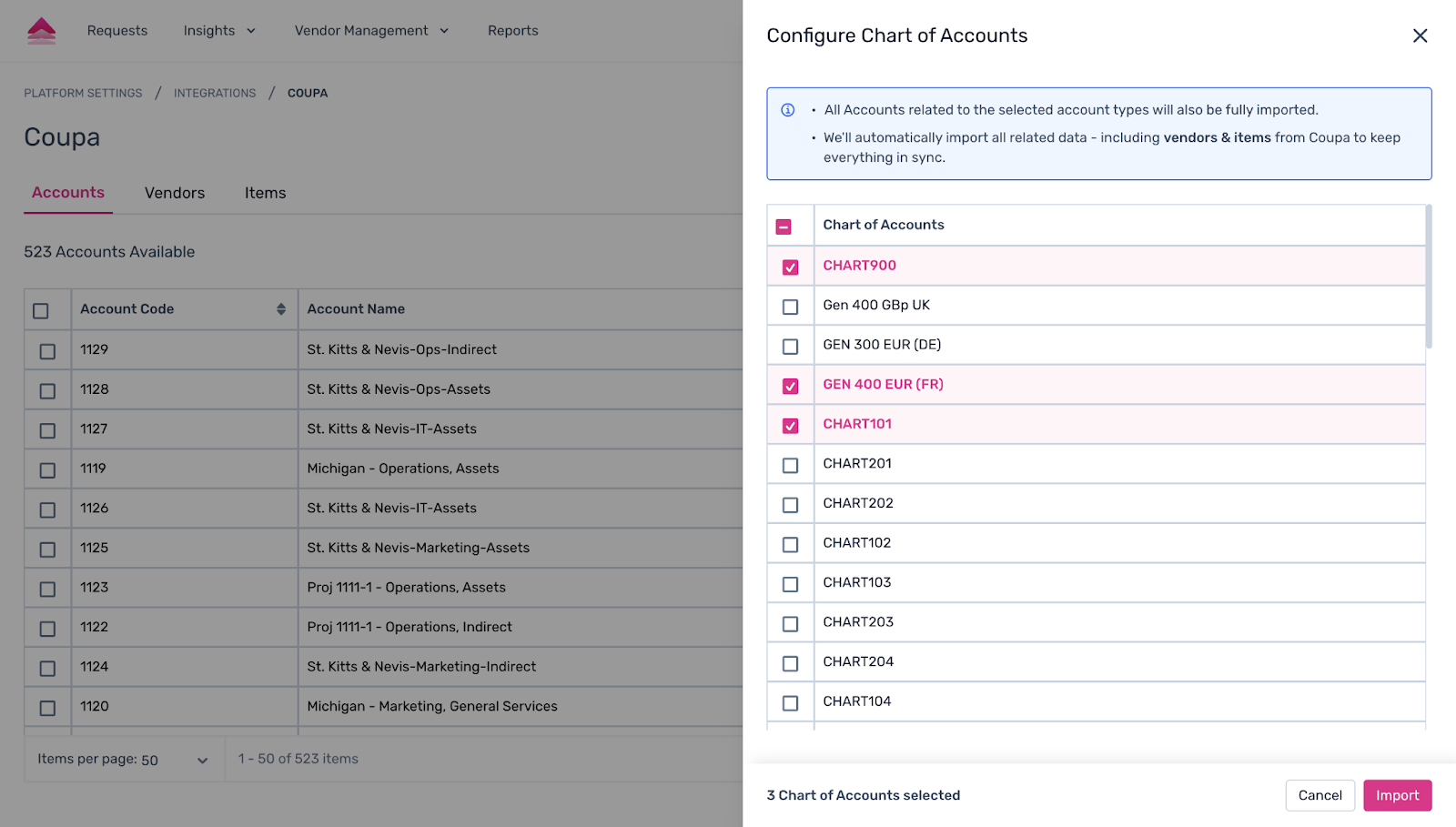
After a successful connection, a slider will appear prompting you to select the Chart of Accounts you want to import into Spendflo. Only active charts of accounts from your Coupa instance will be shown.
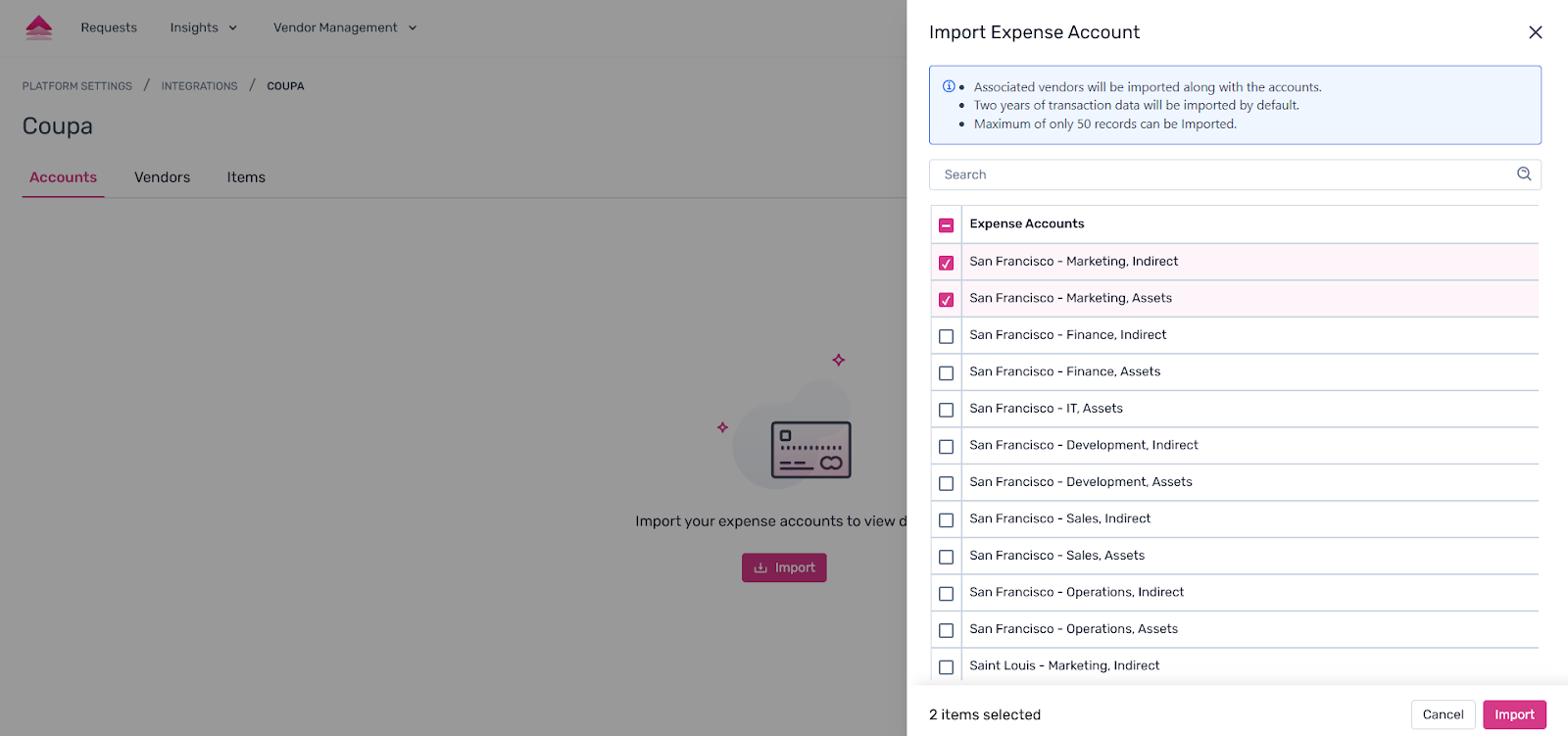
Select the relevant chart(s) of accounts and confirm. All active accounts associated with the selected charts will be imported automatically.
What Gets Imported Automatically
Once you select the Chart of Accounts, the following data is automatically imported from Coupa into Spendflo — no manual selection needed:
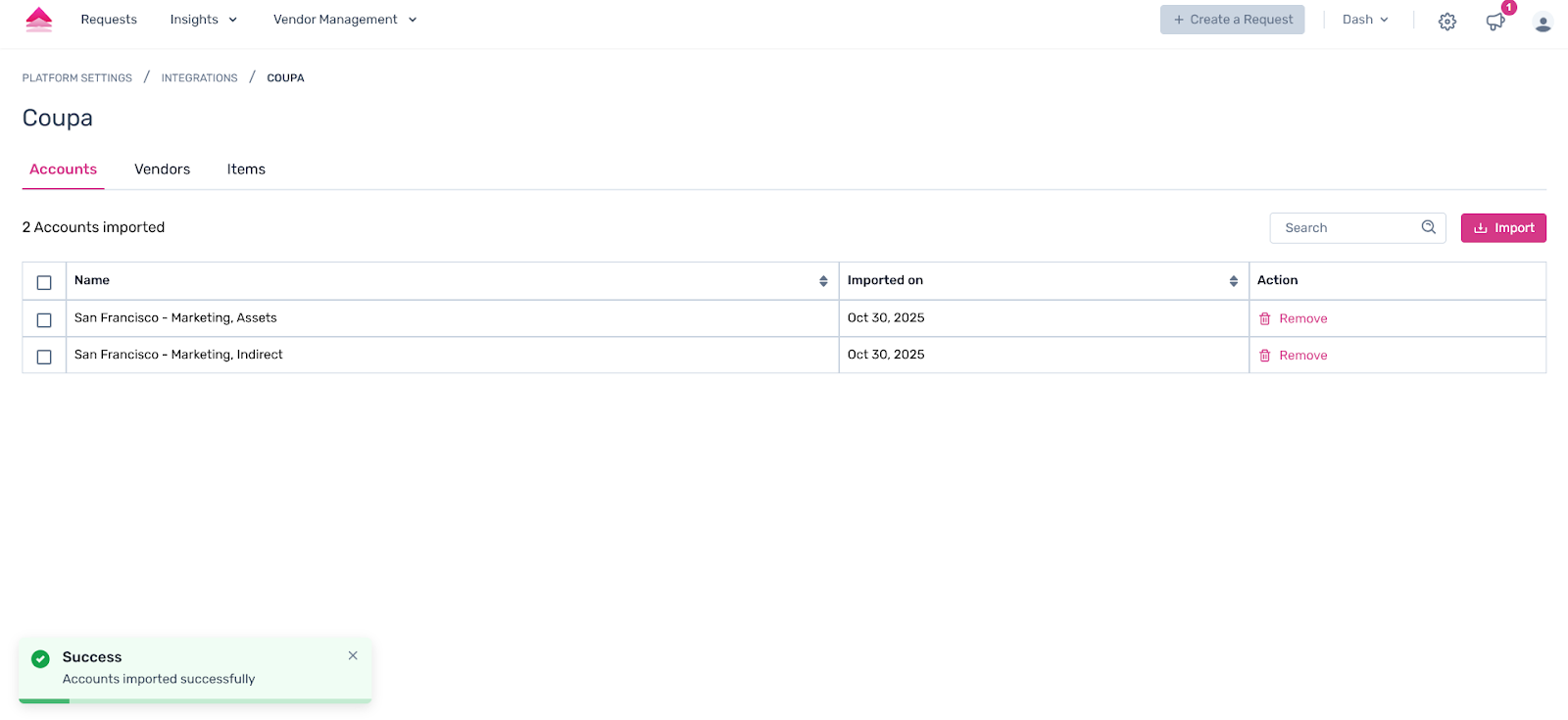
Accounts – All active accounts linked to the selected Chart of Accounts, including Account Code, Account Name, and Chart of Accounts details.
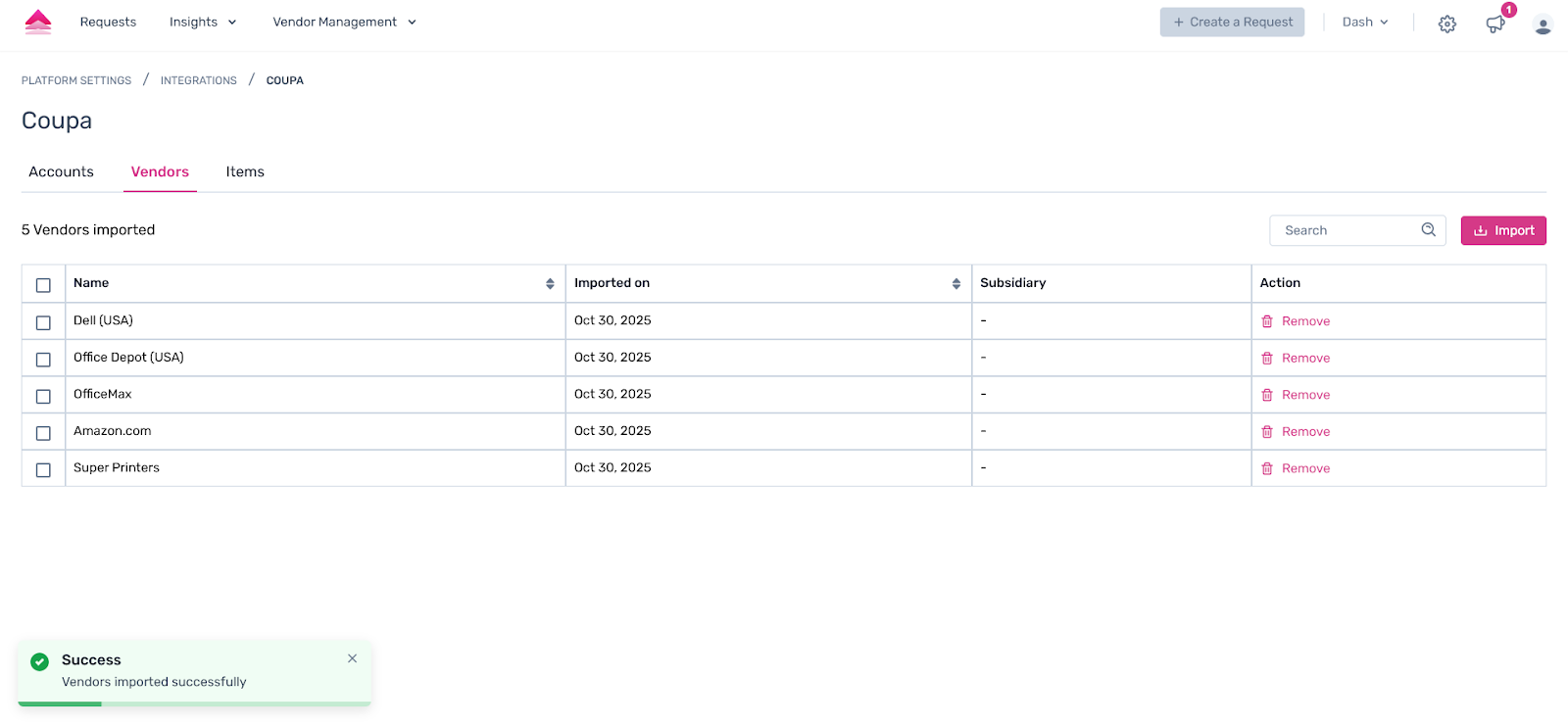
Vendors – All active vendors from your Coupa instance.
Items – All active items from your Coupa catalogue.
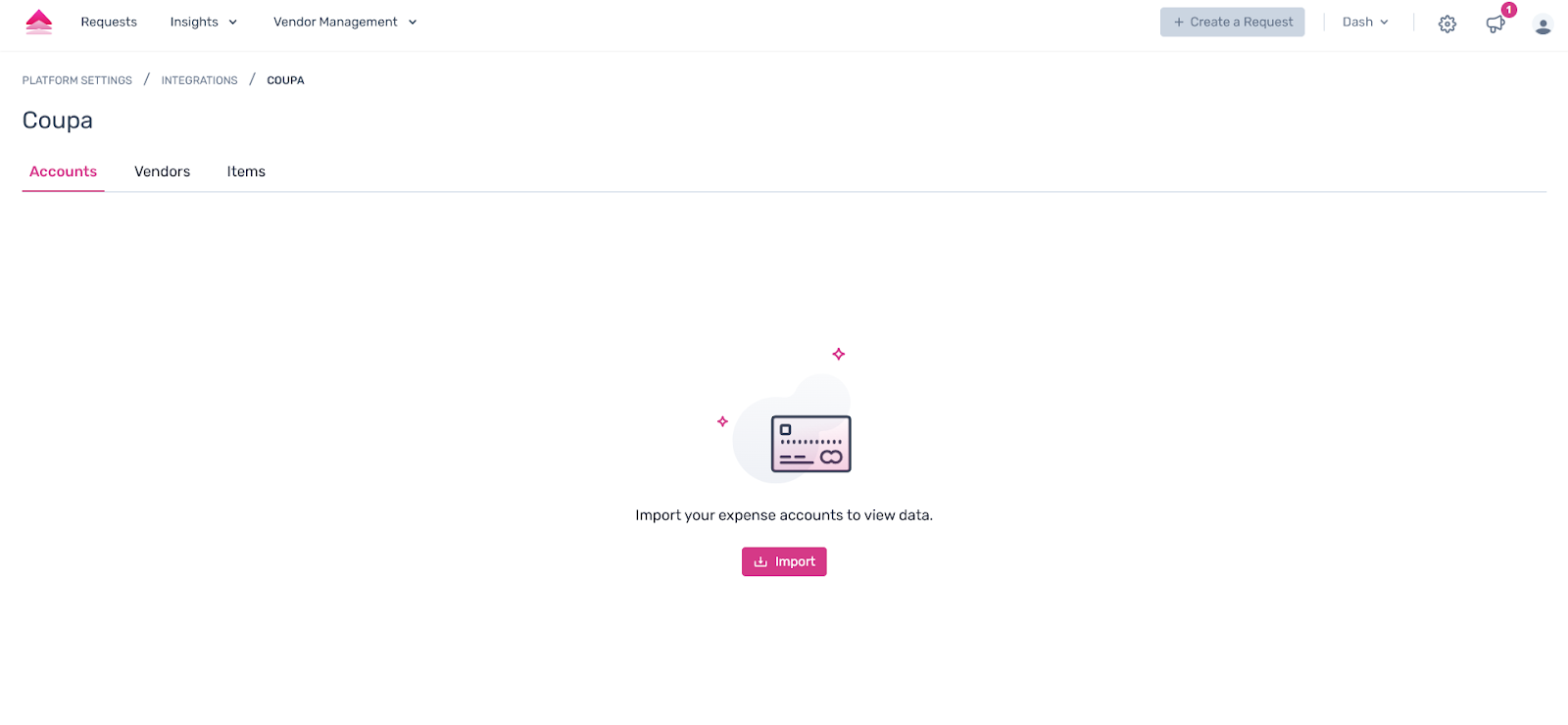
You can view all imported data on the Coupa integration page under the Accounts, Vendors, and Items tabs.
Updating Your Chart of Accounts
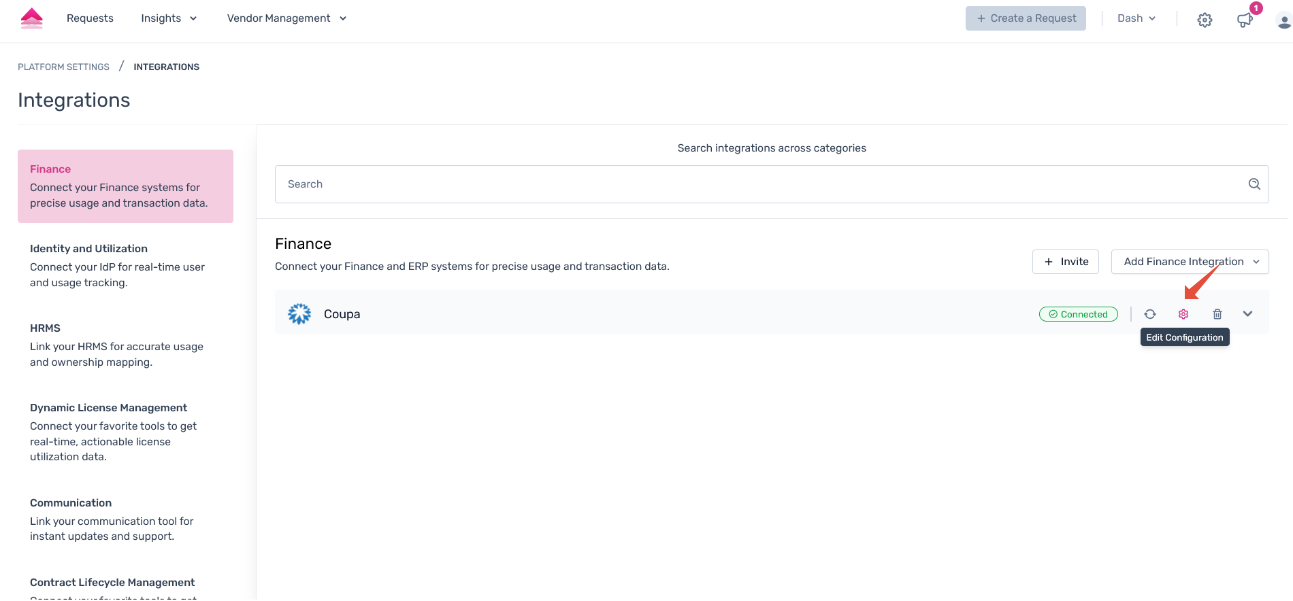
You can add or update the Chart of Accounts selection at any time. Go to Integrations → Coupa → Edit Configuration and click Configure Chart of Accounts to open the selection slider and make changes.
Controlling What Users See – Show to Users
Each imported account, vendor, and item has a Show to Users toggle. Use this to control which values are visible to end users in request forms and workflows:
Toggle ON – The value is visible and available for use in request flows.
Toggle OFF – The value is hidden from end users but remains in the system for reference.

Keeping Your Data Up to Date
Spendflo keeps your Coupa data current in two ways:
Auto Sync – Spendflo automatically syncs with Coupa every hour.
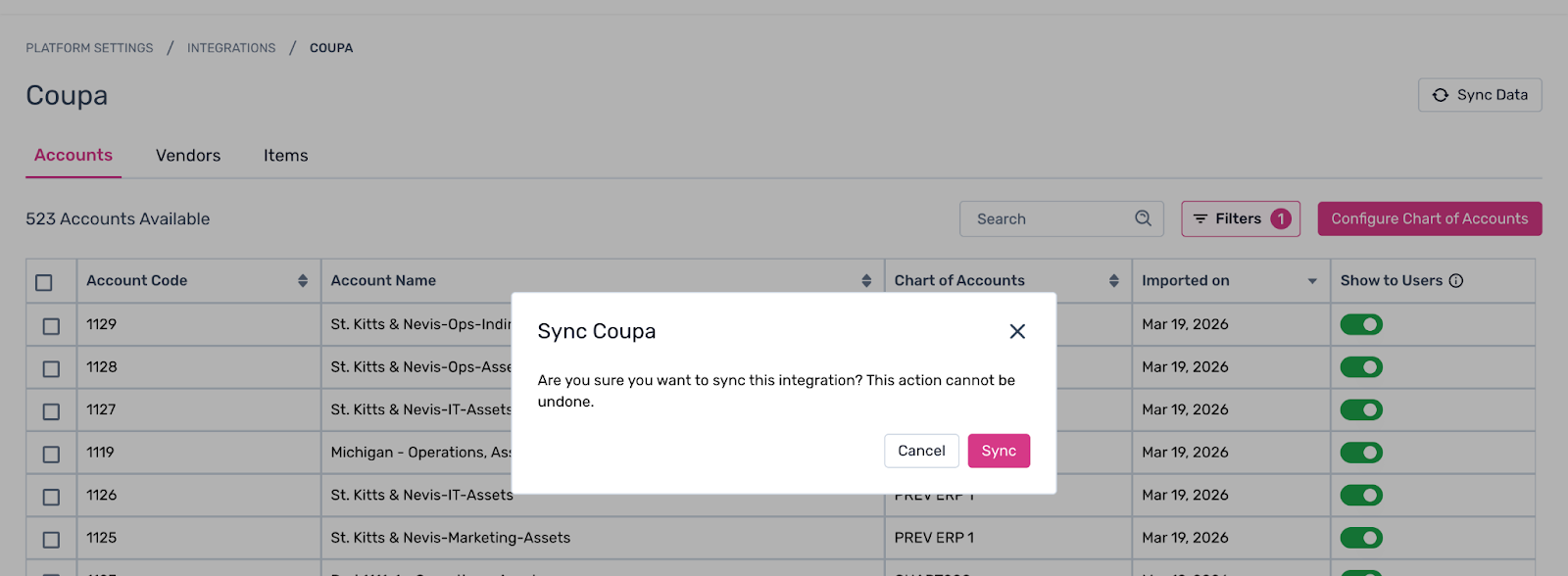
Manual Sync – Click the Sync Data button at the top right of the integration page to trigger an immediate sync at any time.
Was this article helpful?
That’s Great!
Thank you for your feedback
Sorry! We couldn't be helpful
Thank you for your feedback
Feedback sent
We appreciate your effort and will try to fix the article