Overview
The Agreements module in Spendflo enables organisations to centrally store, manage, and track all their vendor agreements — including Master Services Agreements (MSAs), Order Forms, Statements of Work (SOWs), Invoices, and Amendments — from a single unified platform.
Agreement ingestion refers to the process of importing agreement documents into Spendflo from various sources. Once ingested, Spendflo's AI engine automatically takes over — it reads each document, classifies it by type (e.g., MSA, Order Form, SOW), extracts key metadata, and establishes parent-child relationships between related documents. This eliminates the need for manual data entry and ensures your contract repository is structured, accurate, and ready for lifecycle management, renewal tracking, and spend analysis from day one.
Powered by AI: The entire post-ingestion workflow — document classification, metadata extraction, vendor matching, and hierarchy linking — is handled automatically by Spendflo's AI, with no manual effort required from your team.
This document covers the three primary ingestion methods available to end users:
Google Drive – Import agreements directly from a connected Google Drive account
Gmail – Scan and import agreement attachments from a connected Gmail mailbox
File Upload – Upload agreement documents directly from your local device
Pre-Requisites & Permissions
Before initiating any agreement ingestion, ensure the following conditions are met.
Access & Role Requirements
Vendor Pre-Requisite
⚠️ Important: It is strongly advised to connect your ERP (e.g., NetSuite, Coupa, Xero) to Spendflo as a first step before importing documents. Spendflo uses the vendor list from your ERP to match and classify documents during ingestion. If a vendor is not found in the platform, Spendflo will create a new vendor record — however, connecting your ERP first ensures vendor data is clean, standardised, and free of duplicates.
Method-Specific Pre-Requisites
Google Drive
A valid Google account with access to the Drive folder(s) containing agreement documents
Authorisation to grant Spendflo read access to the selected folder(s) via OAuth
Gmail
A valid Gmail account
Authorisation to grant Spendflo the following read-only permissions upon connecting:
View email message metadata (sender, subject, date)
View and download attachments
ℹ️ Spendflo does not have the ability to send, delete, or modify emails, nor does it access contacts, calendar, or chat data. Email content is not stored — only attachments are scanned.
File Upload
Agreement documents saved locally on your device
Supported file formats: PDF, DOC, DOCX
Connected Accounts (Admin Pre-Requisite for Google Drive & Gmail)
For Google Drive and Gmail ingestion, the relevant accounts must be connected in advance under Organisation Settings → Connected Accounts. Admins can manage all connected accounts from this page, which displays:
To connect a new account, click "Connect Account" on the top right of the Connected Accounts page and select either Google Drive or Gmail. Complete the OAuth authentication flow to establish the connection.
Steps / How the Feature Works
Step 1 – Accessing the Agreements Module
From the top navigation bar, click Vendor Management to expand the dropdown, then select Agreements.
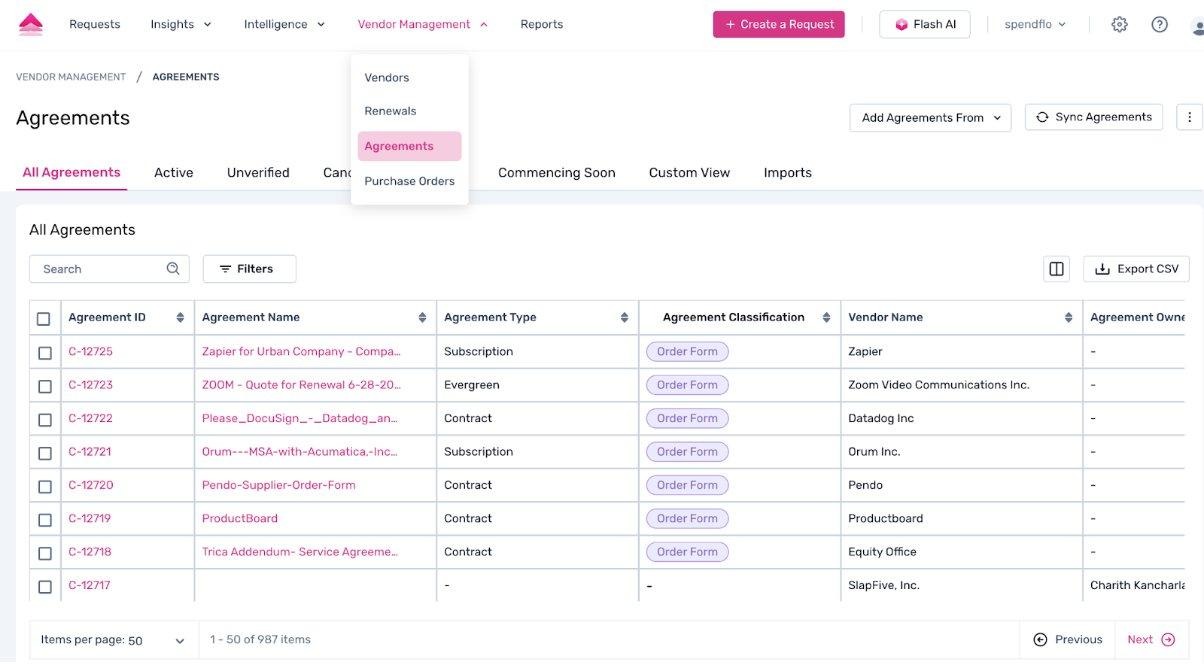
Figure 1 – Vendor Management dropdown showing Vendors, Renewals, Agreements, Assessments, Purchase Orders; and the Agreements listing page with all tabs and the "Add Agreements From" CTA visible in the top right
This opens the Agreements listing page, which displays all agreements with columns for Agreement ID, Agreement Name, Agreement Type, Agreement Classification, Vendor Name, and Agreement Owner. The page includes the following tabs:
All Agreements – Complete list of all agreements
Active – Agreements currently in effect
Unverified – Agreements pending verification
Cancelled – Cancelled agreements
Expired – Agreements past their end date
Commencing Soon – Agreements starting shortly
Custom View – User-defined filtered views
Imports – Log of all import batches
Step 2 – Initiating an Import
On the Agreements listing page, click the "Add Agreements From ▾" dropdown button in the top right. This reveals three ingestion options: Google Drive, Gmail, and File Upload.
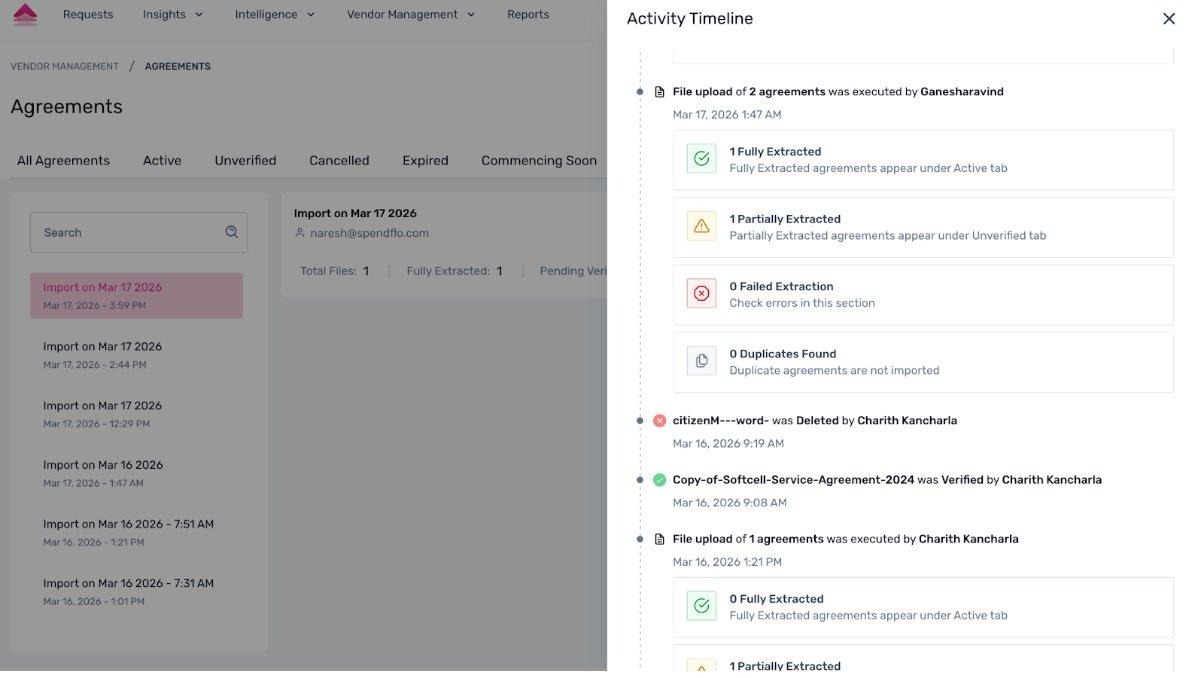
Figure 2 – "Add Agreements From" dropdown open showing Google Drive, Gmail, and File Upload options
Method 1: Import from Google Drive
Step 1 – Select Google Drive: From the "Add Agreements From ▾" dropdown, click Google Drive.
Step 2 – Authenticate and Connect: If no Google Drive account has been connected yet, a Google OAuth consent window will open. Select the Google account you wish to connect and grant the requested permissions. Once authenticated successfully, the account will appear in Organisation Settings → Connected Accounts with its status set to Active.
Step 3 – Select Folder(s) and Initiate Import: Once connected, the Drive folder/file selection modal opens. Select the folder(s) containing your agreement documents and confirm. The import will begin processing in the background.
Step 4 – Monitor Import via the Imports Tab: Navigate to the Imports tab on the Agreements listing page to track the status of your import. The left panel lists all import batches by date and time. Select a batch to view its details on the right.
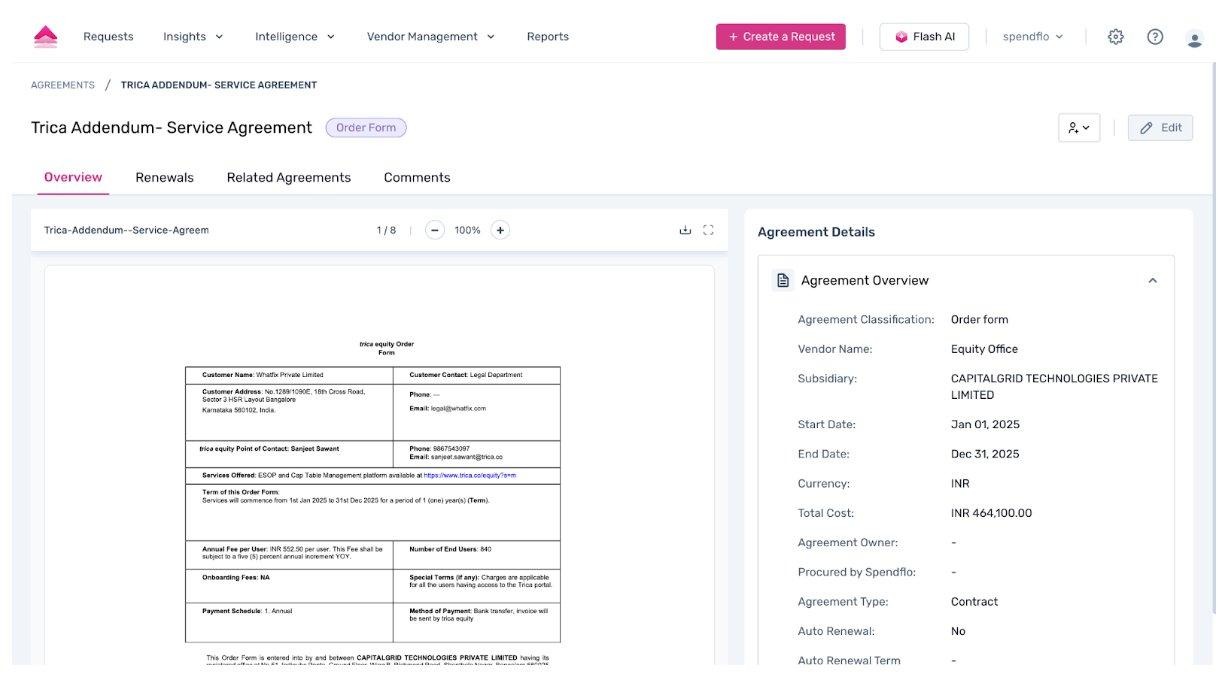
Figure 3 – Imports tab showing a list of import batches; selected batch shows Total Files: 1, Fully Extracted: 1, Pending Verification: 0, Failed Extraction: 0, Duplicate: 0
Each import batch displays:
Step 5 – Re-sync Connected Accounts: To trigger a fresh sync from all connected Google Drive and Gmail accounts, click the "Sync Agreements" button on the top right of the Agreements listing page. This opens the Sync Agreements panel, which shows each connected account, its last synced timestamp, and a refresh icon to initiate a manual sync per account.
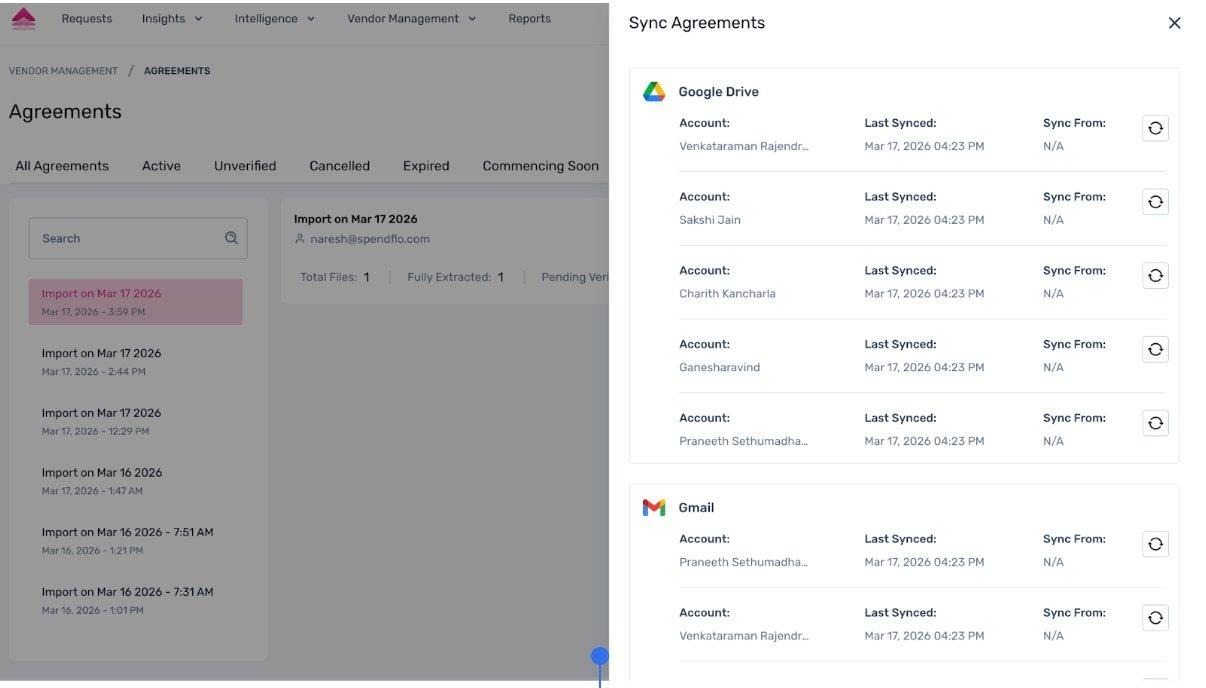
Figure 4 – Sync Agreements panel showing Google Drive and Gmail accounts with Last Synced timestamps and individual refresh controls
Step 6 – Review Extraction Results: After import, fully extracted agreements appear under the Active tab. Partially extracted agreements appear under the Unverified tab and require manual completion before they transition to Active.
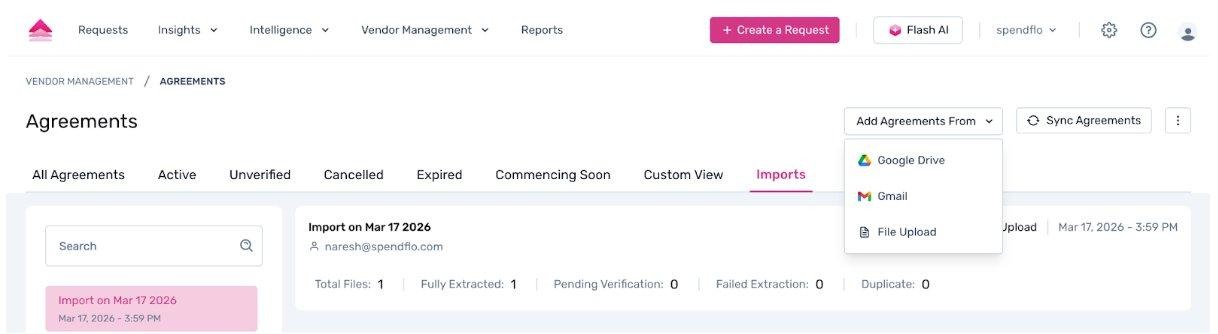
Figure 5 – Activity Timeline panel showing extraction summary: 1 Fully Extracted (Active tab), 1 Partially Extracted (Unverified tab), 0 Failed Extraction, 0 Duplicates Found
Method 2: Import from Gmail
Step 1 – Select Gmail: From the "Add Agreements From ▾" dropdown, click Gmail.
Step 2 – Authenticate and Connect: If no Gmail account has been connected, a Google OAuth consent window will open. Review the permissions requested — Spendflo only requests read access to email metadata and attachments, with no ability to send, delete, or modify emails. Click Allow to proceed.
Upon successful connection, a confirmation message will display:
Connected email address
Scan scope: Last 24 months, Attachments only
Supported file types: PDF, DOC, DOCX
Step 3 – Initiate the Import: Click "Start Import" to begin scanning your mailbox. The system will display the status: "Scanning email attachments... this may take some time." The import runs in the background — you may navigate elsewhere within Spendflo.
How Spendflo Filters Email Attachments
The system only processes attachments that meet all of the following criteria:
File type is PDF, DOC, or DOCX
Email sender domain is not a personal provider (e.g., @gmail.com, @yahoo.com are excluded)
Email is not categorised as "personal" or "social"
Attachments that do not meet these criteria are ignored. Documents that pass the filter are then analysed by Spendflo's AI for legal contract signals — such as defined terms, numbered clauses, and standard legal sections (Term, Payment, Termination, Confidentiality) — to determine whether they qualify as agreements.
? AI-Powered Filtering: Spendflo's AI intelligently distinguishes genuine legal contracts from noise in your mailbox — payslips, offer letters, HR policy documents, marketing PDFs, and personal correspondence are automatically excluded, so only relevant agreements are ingested.
Step 4 – Monitor Import via the Imports Tab: Navigate to Agreements → Imports to review the Gmail import batch. The batch details follow the same format described in Method 1, Step 4, with the source shown as Gmail and the connected mailbox address displayed.
Step 5 – Review Extraction Results: Fully extracted agreements will appear under the Active tab. Partially extracted agreements will appear under Unverified for manual completion.
Method 3: File Upload
This method allows you to upload individual agreement documents directly from your local device.
Step 1 – Select File Upload: From the "Add Agreements From ▾" dropdown, click File Upload. Supported formats: PDF, DOC, DOCX.
Step 2 – Review Extracted Metadata: Once uploaded, Spendflo's AI immediately processes the document and opens the Agreement Detail View. This view displays the document preview on the left (with pagination, zoom, download, and fullscreen controls) and the Agreement Details panel on the right, showing AI-extracted metadata under the Agreement Overview section.
AI-Powered Extraction: Spendflo's AI reads the full document and automatically populates key fields — including agreement classification, vendor name, dates, currency, and total cost — directly from the document content. You only need to review and fill in any fields the AI could not confidently extract.
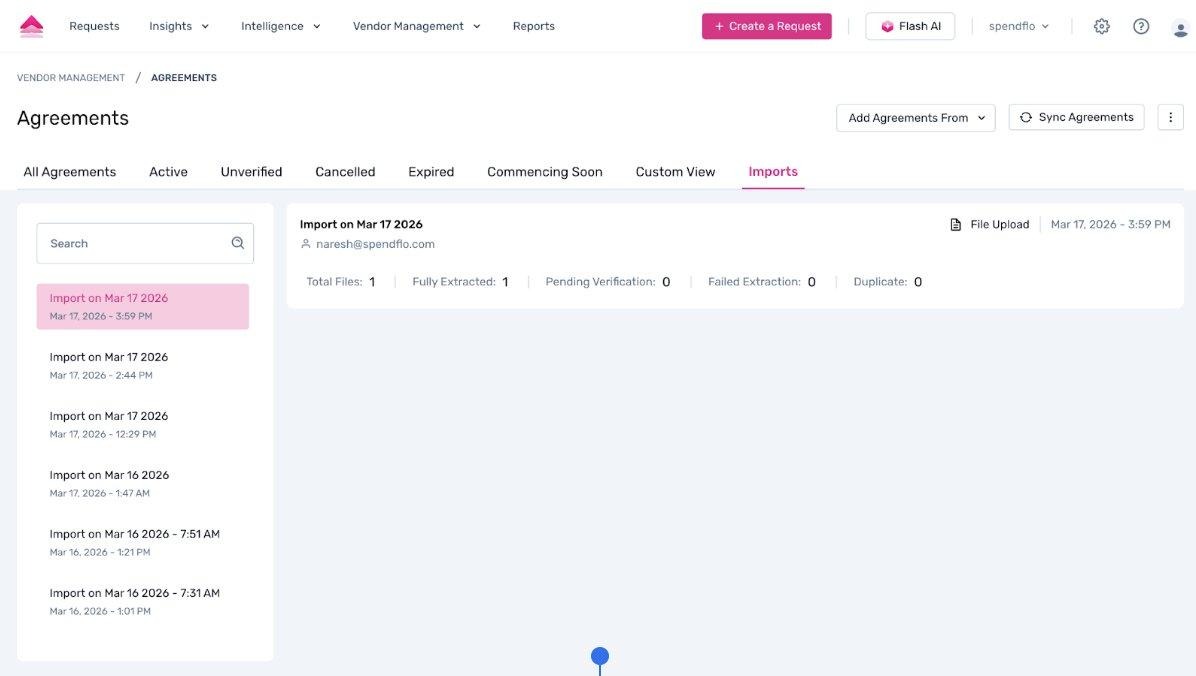
Figure 6 – Agreement Detail View: document preview on the left (pagination, zoom, download controls) and Agreement Overview fields on the right — Agreement Classification: Order Form, Vendor Name, Start Date, End Date, Currency, Total Cost, Agreement Type: Contract, Auto Renewal: No
The Agreement Overview section displays key fields including:
The detail view also includes four tabs:
Renewals Tab
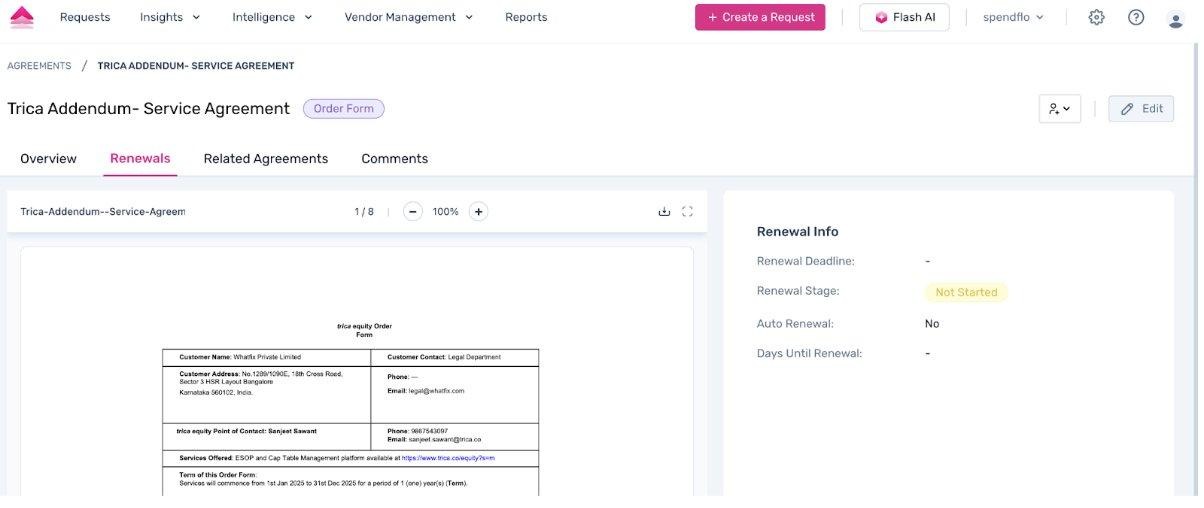
Figure 7 – Renewals tab showing Renewal Info: Renewal Deadline, Renewal Stage (Not Started), Auto Renewal (No), Days Until Renewal
Related Agreements Tab
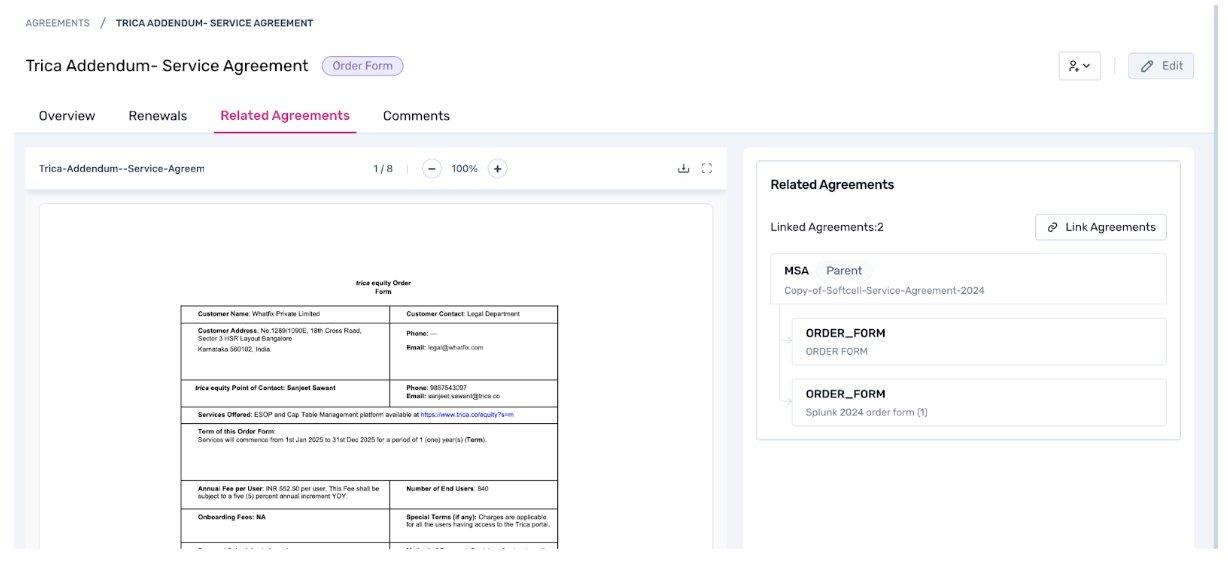
Figure 8 – Related Agreements tab showing Linked Agreements: 2 — MSA (Parent) "Copy-of-Softcell-Service-Agreement-2024" at the top, with two ORDER_FORM child documents listed beneath it
Comments Tab
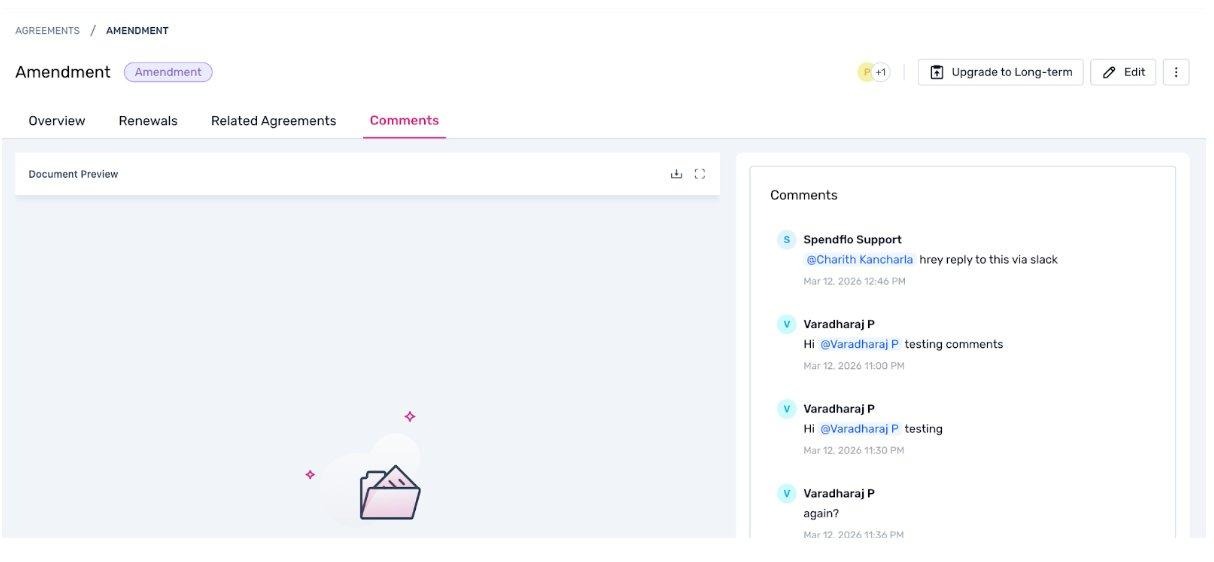
Figure 9 – Comments tab showing active comment thread with @mention support and timestamped entries from multiple users
Step 3 – Edit Metadata if Required: To edit agreement details, click the "Edit" button in the top right of the detail view. The form enters "Editing Actively" mode, with all metadata fields becoming editable. Mandatory fields (marked with *) include Vendor Name, Agreement Type, Start Date, End Date, Currency, and Total Cost. Make the required updates and click "Save Changes" to confirm, or "Discard Changes" to cancel.
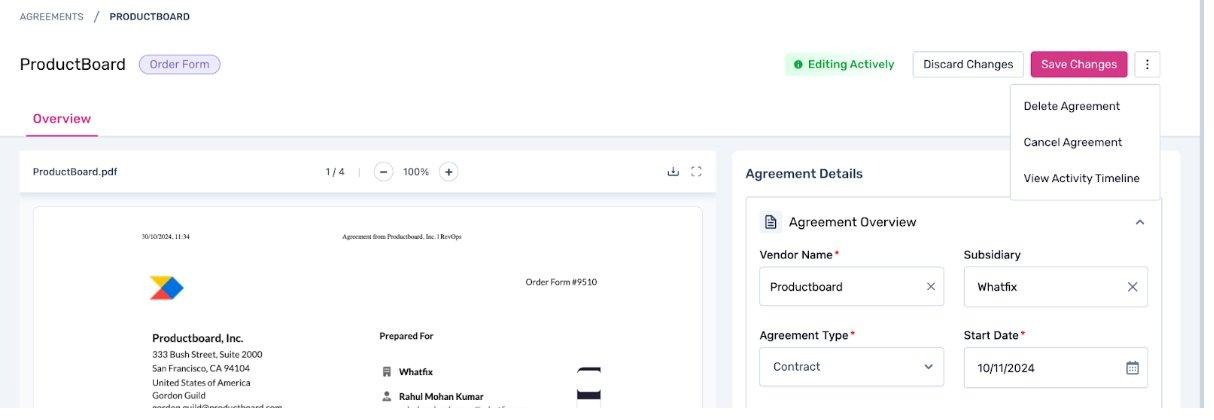
Figure 10 – Edit mode ("Editing Actively") showing editable Agreement Details form with Save Changes / Discard Changes buttons, and the ⋮ menu open with options: Delete Agreement, Cancel Agreement, View Activity Timeline
Step 4 – Additional Actions: Clicking the ⋮ (more options) menu in the top right of the detail view reveals additional actions:
Delete Agreement – Permanently removes the agreement record
Cancel Agreement – Marks the agreement as cancelled
View Activity Timeline – Opens a side panel showing a full chronological log of all actions taken on the agreement (edits, verifications, follower additions, cancellations, imports, etc.)
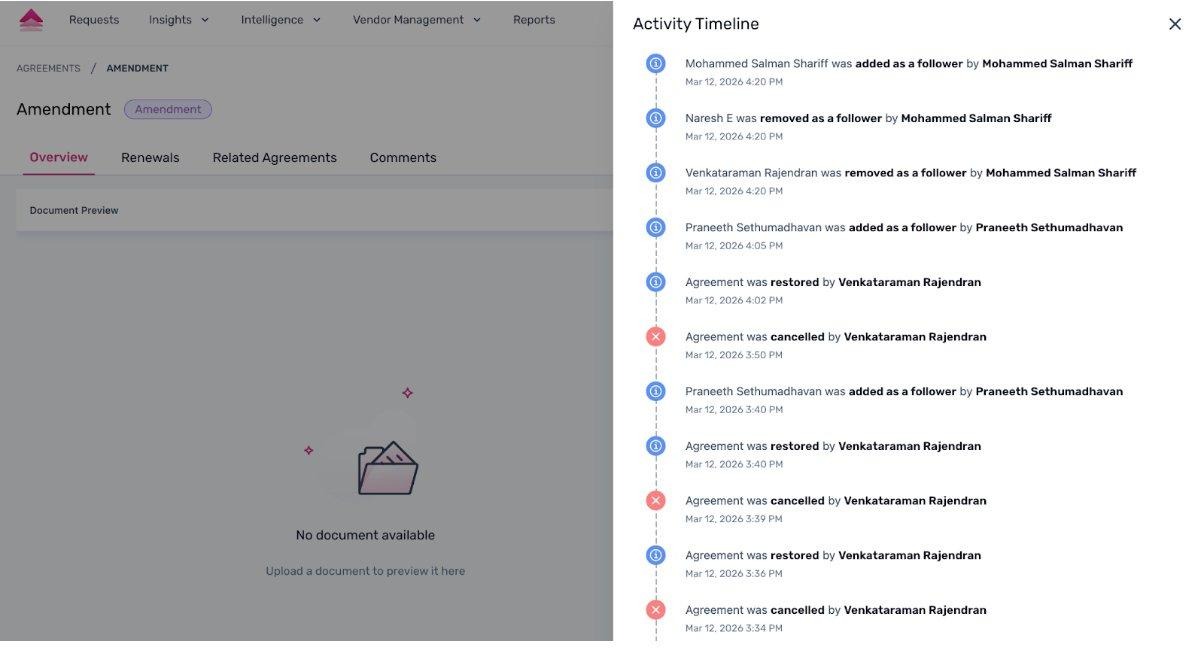
Figure 11 – Activity Timeline panel showing timestamped entries: follower added/removed, agreement restored, edited, cancelled, verified
Step 5 – Monitor via the Imports Tab: Navigate to Agreements → Imports to track all file upload batches. The Activity Timeline within an import batch provides a breakdown of extraction outcomes.
Managing Followers
From any Agreement Detail page, you can add followers to an agreement by clicking the avatar/follower icon in the top right area of the detail view. This opens the "Add Followers" panel, where you can search for and add team members. The Followers List displays all current followers with the option to remove them individually.
Followers receive notifications for key agreement lifecycle events such as upcoming renewals, auto-renewal warnings, and agreement cancellations.
What Happens After Ingestion
Regardless of the ingestion method used, Spendflo's AI performs the following actions automatically upon successful import — with no manual effort required from your team.
AI: Document Classification
Each document is automatically classified into one of the following types based on AI analysis of its content, structure, and language: MSA, Order Form, SOW, Invoice, Amendment/Addendum, or Others. The classification is displayed as a badge on the Agreement Detail page and as a column in the listing view. This is a mandatory, auto-detected field — every document is classified before any further processing takes place.
AI: Vendor Matching
Spendflo's AI reads the document and identifies vendor-identifying signals — such as legal entity names, addresses, email domains, and tax IDs — then matches them against the existing vendor list. If a confident match is found, the document is assigned to that vendor. If no match is found, a new vendor record is created automatically.
AI: Metadata Extraction
Once classified, the AI extracts all relevant metadata fields based on the document type — including agreement name, vendor name, start date, end date, currency, total cost, and document-type-specific fields (e.g., Order Form ID, SOW scope, Invoice number). These fields are pre-populated in the Agreement Detail view for your review.
Extraction Status Routing
Based on the AI's confidence in the extraction, documents are routed as follows:
Fully Extracted → appear under the Active tab (all mandatory fields successfully extracted)
Partially Extracted → appear under the Unverified tab (some fields could not be extracted; require manual completion)
Failed Extraction → flagged in the import batch with failure reasons; require corrective action
Duplicate → identified by the AI and not imported; flagged in the import summary
AI: Parent-Child Hierarchy Linking
Spendflo's AI automatically establishes parent-child relationships between related documents within the same vendor. For example, an Order Form is linked to its governing MSA, and an Invoice is linked to its corresponding Order Form or SOW. This hierarchy is visible under the Related Agreements tab on any Agreement Detail page, showing each document's classification and its role (Parent or Child).
You can also manually link or unlink documents by clicking the "Link Agreements" CTA on the Related Agreements tab, giving you full control to override or supplement the AI's suggestions.
Conclusion
The Agreement Ingestion feature in Spendflo provides a structured, AI-powered workflow for bringing your organisation's contracts into a centralised repository. By supporting multiple ingestion methods — Google Drive, Gmail, and File Upload — Spendflo accommodates varying contract storage practices across teams.
Once documents are ingested, Spendflo's AI engine handles the entire post-ingestion workflow automatically — classifying each document by type, extracting relevant metadata, matching documents to vendors, and intelligently linking related agreements into parent-child hierarchies. This means your team spends zero time on manual data entry and can immediately focus on what matters: managing obligations, tracking renewals, and making informed procurement decisions.
For any issues encountered during ingestion — such as failed extractions, unmatched vendors, or connection errors — review the Imports tab under Vendor Management → Agreements and use the Activity Timeline to identify and resolve specific failures. Partially extracted agreements will be available under the Unverified tab for manual completion.
Need Help?
If you encounter any issues or require further assistance, please reach out to your dedicated Customer Success Manager or contact the Spendflo support team.
? Email Support: support@spendflo.com
? Help Docs & FAQs: help.spendflo.com
? In-app Support: Click the ? (Help) icon in the top right of your Spendflo workspace to access documentation and support
Was this article helpful?
That’s Great!
Thank you for your feedback
Sorry! We couldn't be helpful
Thank you for your feedback
Feedback sent
We appreciate your effort and will try to fix the article