Once you submit a procurement request in Spendflo, you can still modify its details to keep your workflow accurate and up to date. This guide explains how to edit an active request, including reassigning tasks, updating deadlines, uploading documents, and changing the request owner.
Accessing the Submitted Request
To edit a request, you must first locate it within your workspace.
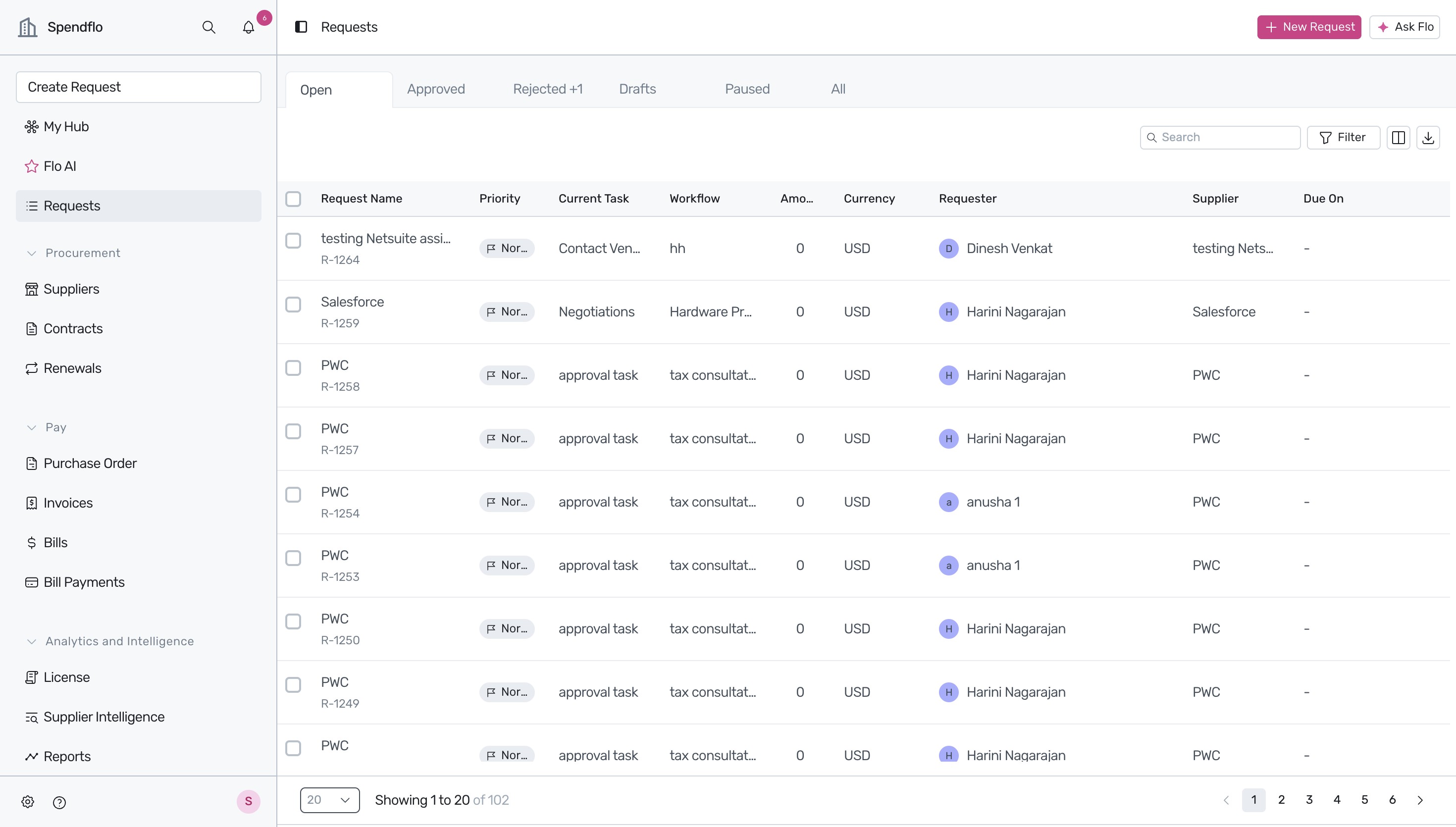
Navigate to the Requests page from the left sidebar to view your list of open procurement requests. Click on the specific request name you want to edit (for example, Salesforce R-1259).
Reassigning Tasks and Setting Due Dates
Within the request details page, you can manage the workflow tasks and timeline by updating task assignees and deadlines.
Upon opening the request, you will see the interactive workflow overview showing the progression of tasks.
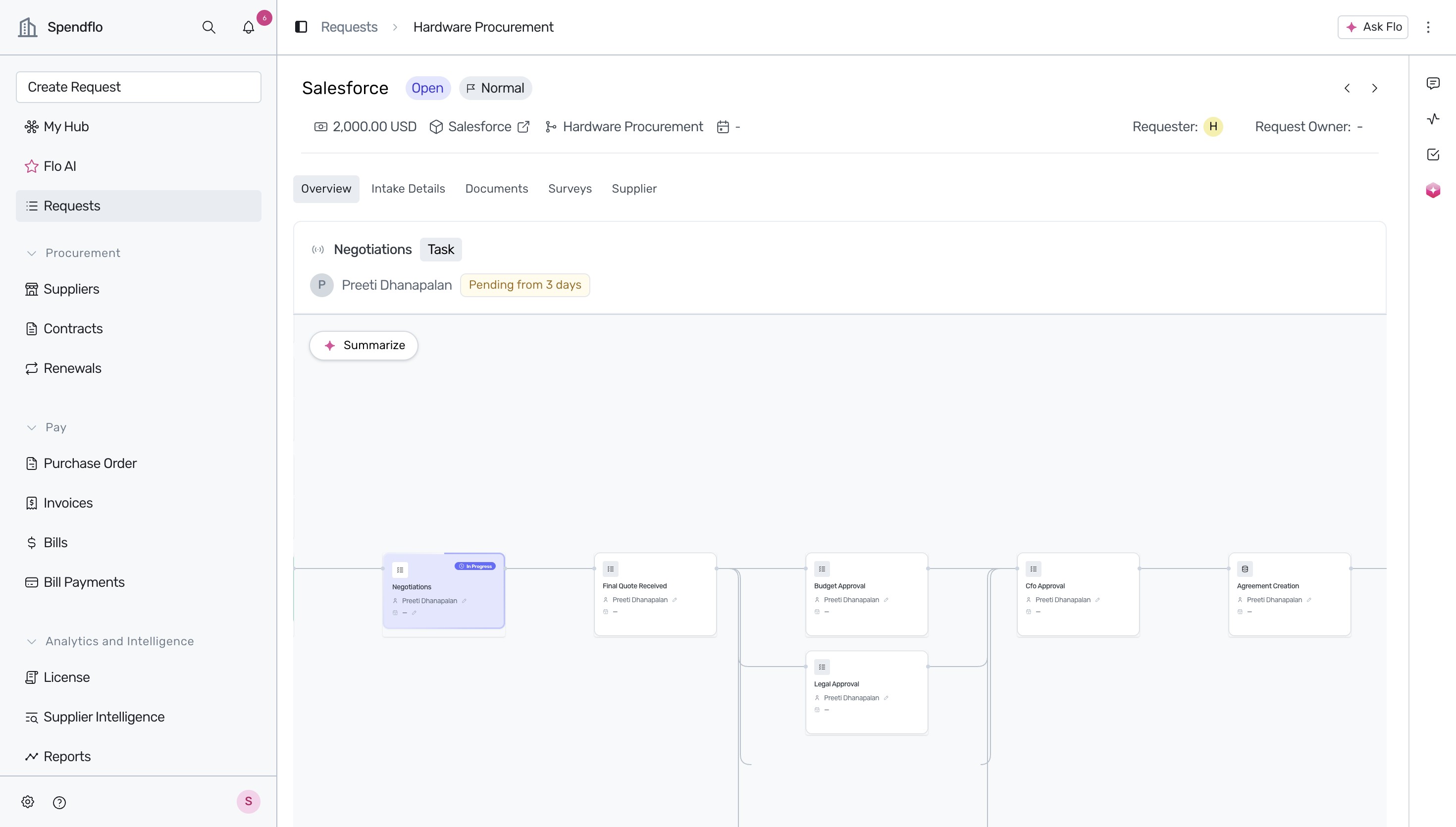
To reassign an active task, click on the current assignee's name (for example, Preeti Dhanapalan) under the task card (for example, Negotiations), and then select the new assignee (for example, Siddharth Sridharan) from the dropdown menu.
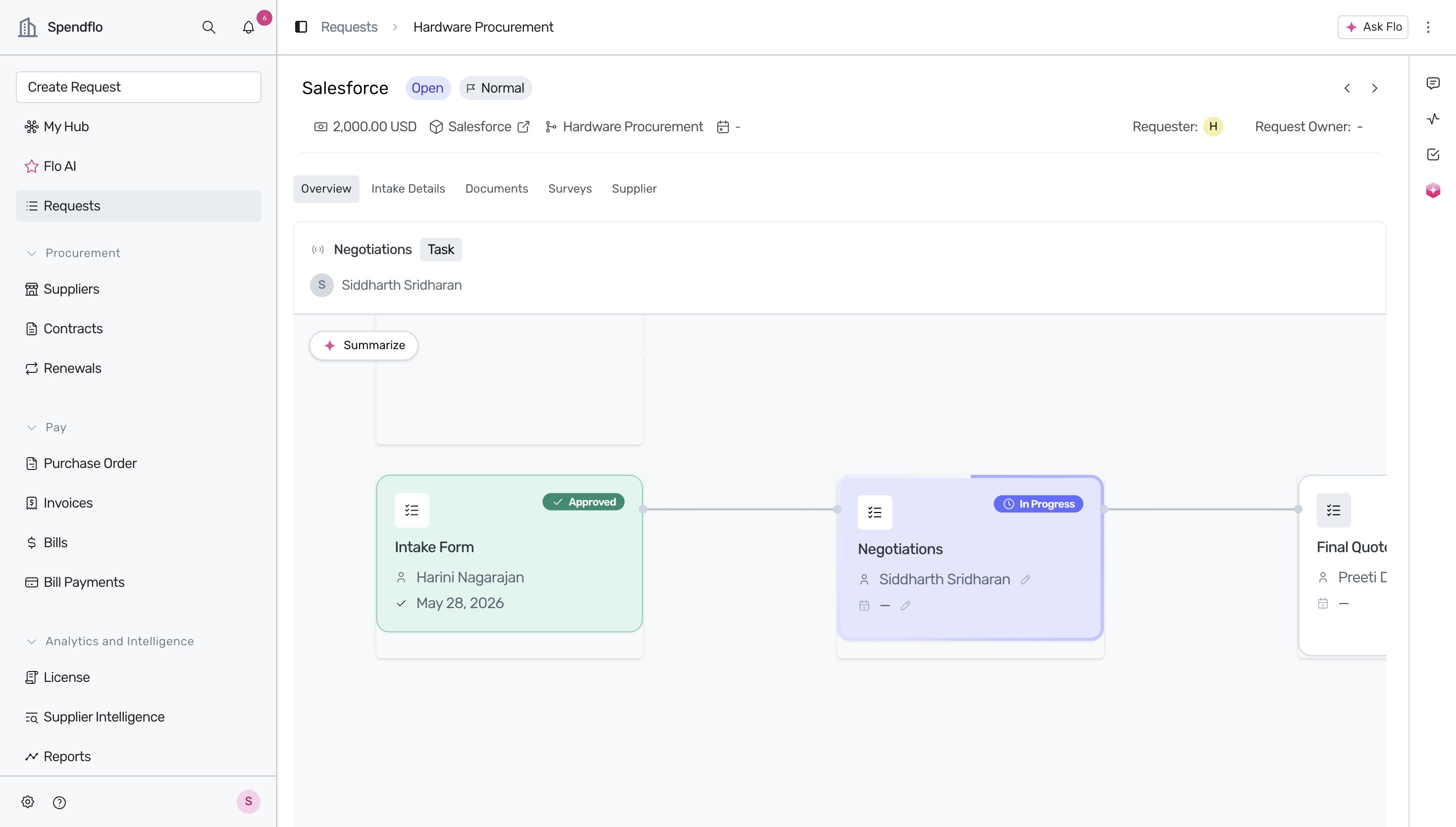
- To set a deadline for this task, click on the calendar icon below the assignee's name, and then select the appropriate due date from the date picker.
Uploading Documents to the Request
You can add relevant files, such as contracts or quotes, directly to the request to complete due diligence.
Switch to the Documents tab from the sub-navigation bar to view files associated with the request.
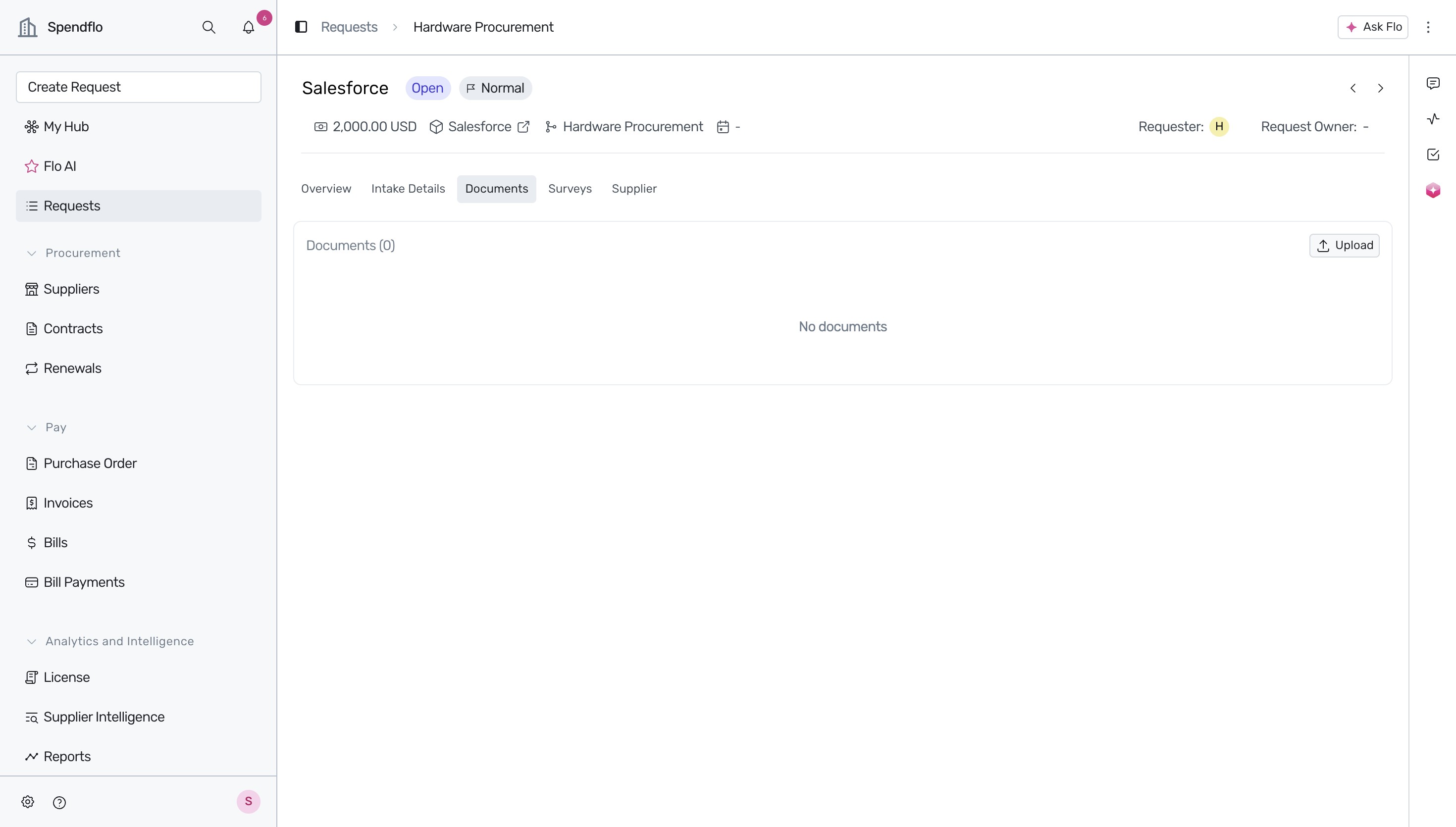
Click the Upload button in the top right corner of the section. In the modal that appears, select the Document Type (for example, Contract) from the dropdown list, and then upload the desired file.
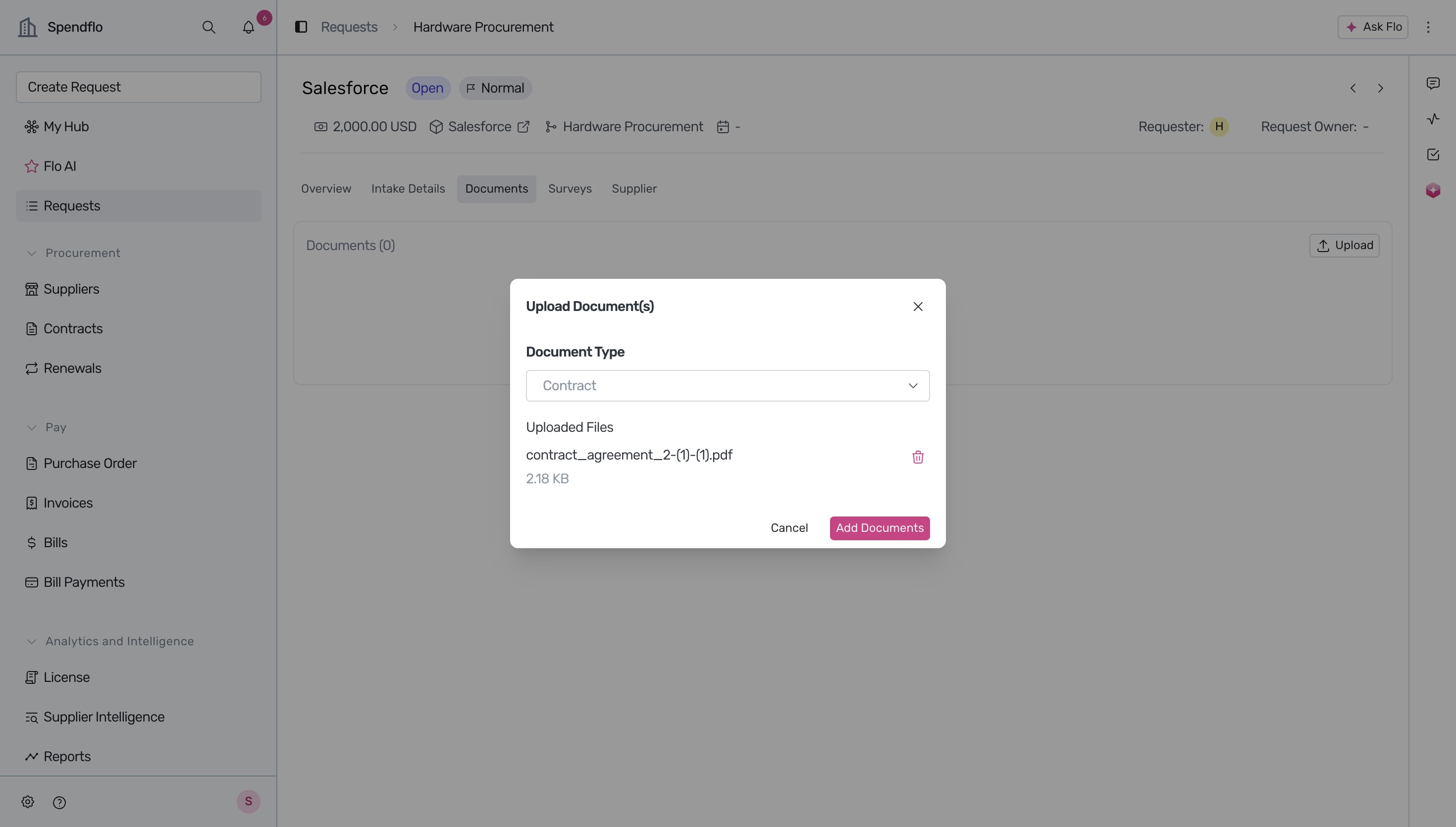
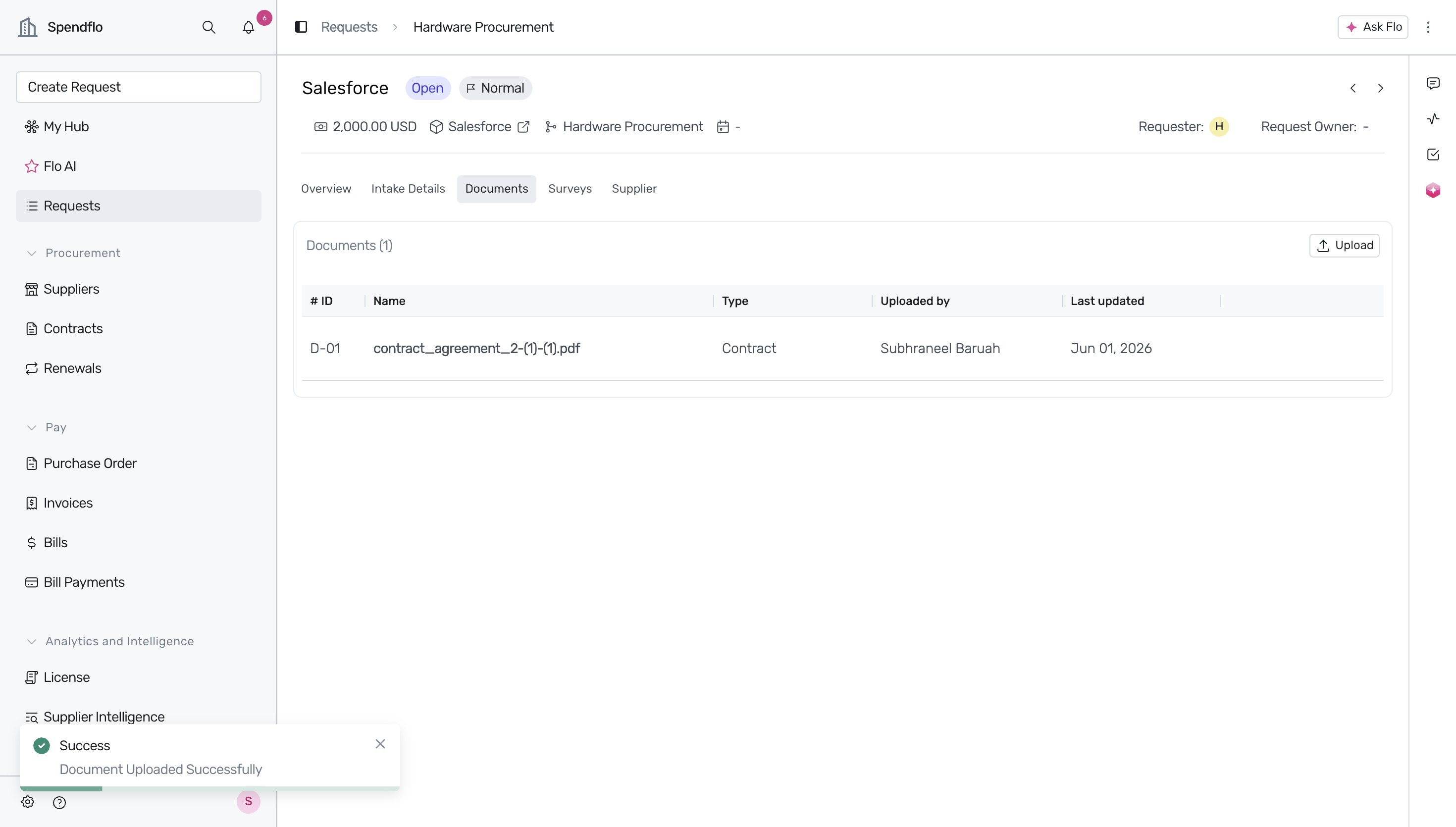
Click Add Documents to complete the upload process. A success notification will confirm that the document has been uploaded and it will now appear in the documents list.
Changing the Request Owner
If the responsibility for the procurement request changes, you can update the overall ownership.
To update the overall ownership of the request, click on the Request Owner field in the top-right corner of the header.
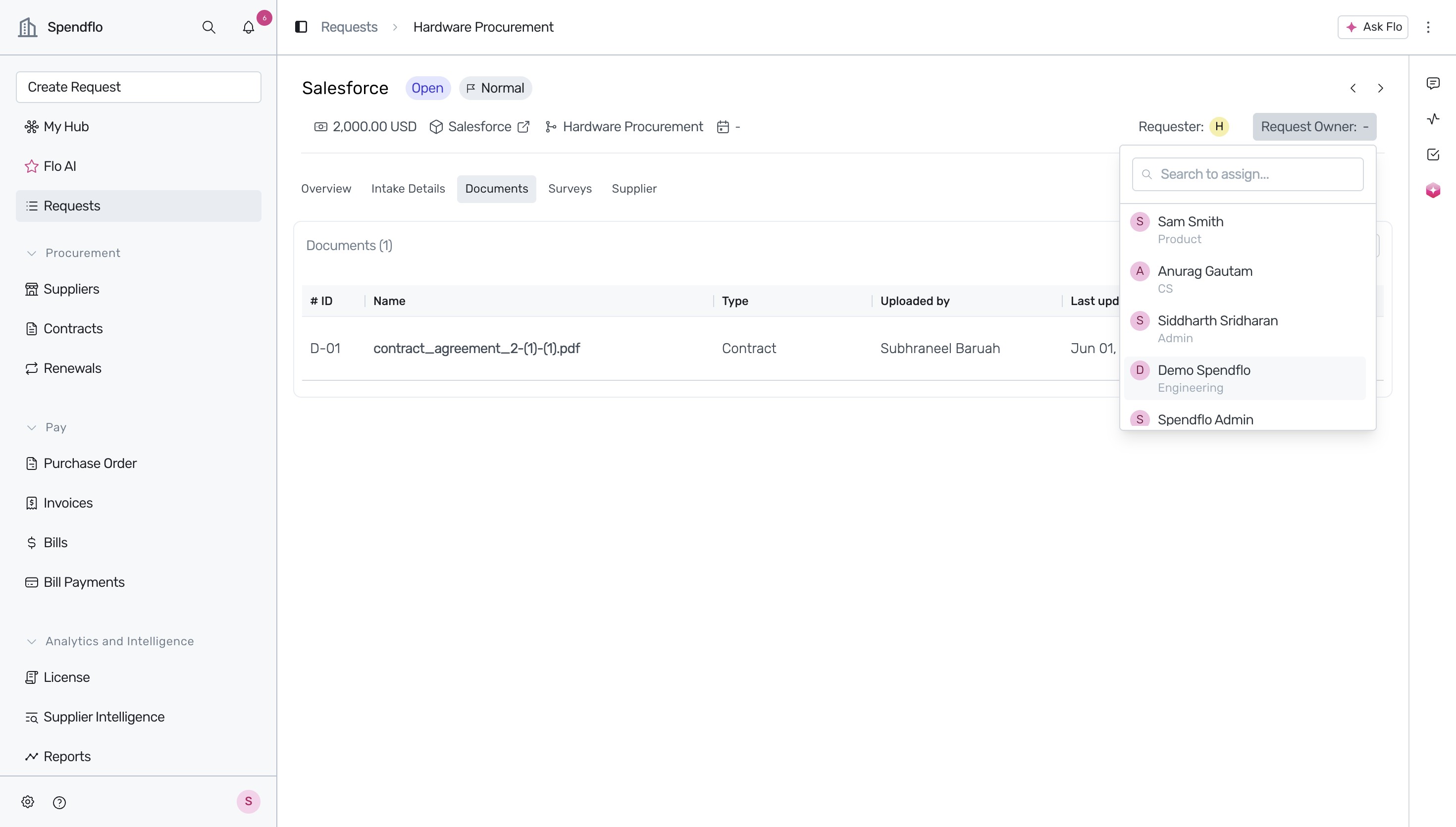
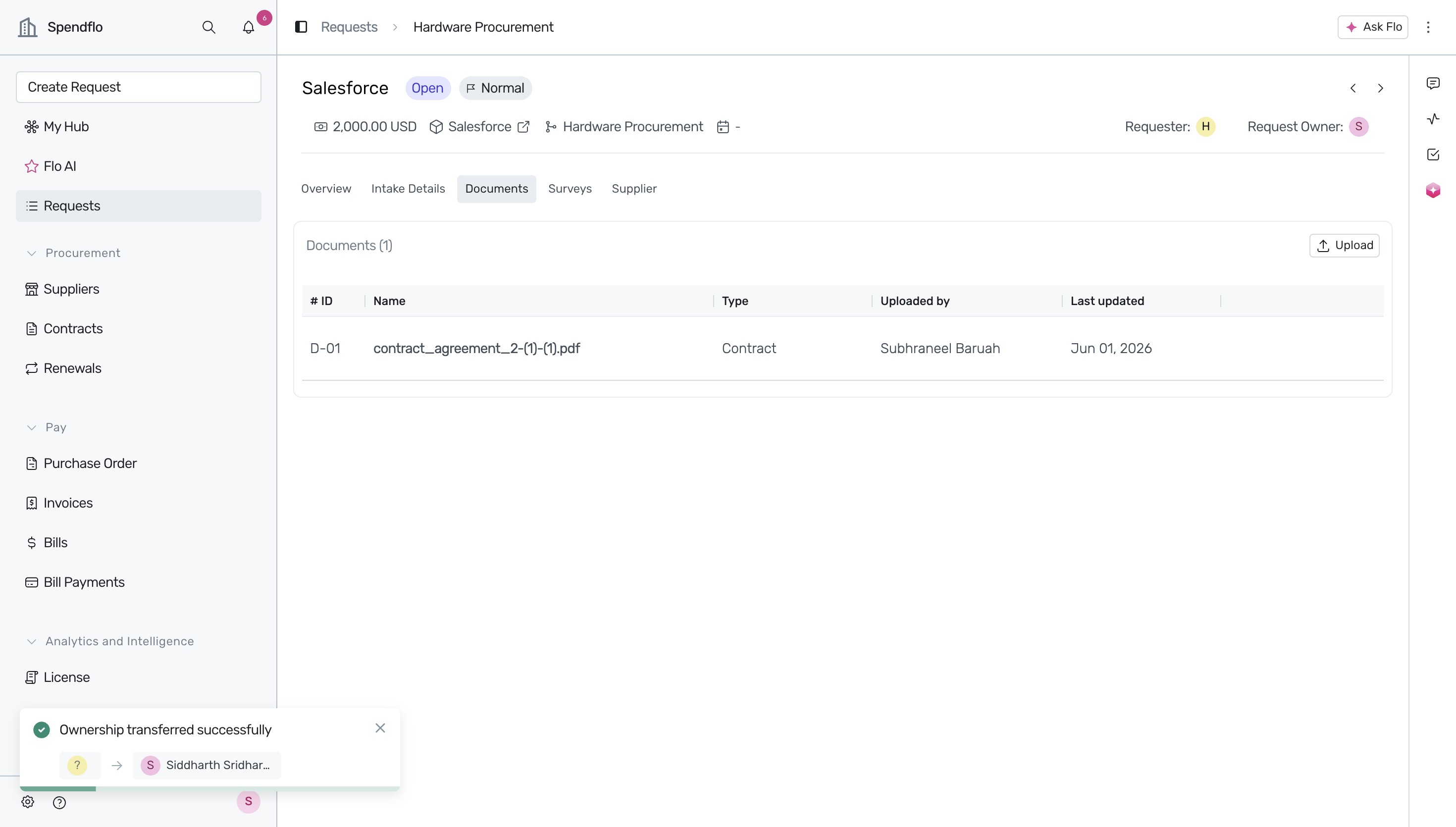
Select the new owner from the dropdown list. A confirmation toast message will appear at the bottom left indicating that ownership has been transferred successfully.
Next Steps
Now that you know how to edit a request after submission, you can explore other request management features:
Was this article helpful?
That’s Great!
Thank you for your feedback
Sorry! We couldn't be helpful
Thank you for your feedback
Feedback sent
We appreciate your effort and will try to fix the article