Managing contract renewals efficiently is key to optimizing your software spend and preventing unexpected service disruptions. In Spendflo, setting up renewal alerts ensures that your team is notified well in advance of upcoming deadlines. By customizing your alert channels, you can receive notifications where you work most, whether that is through Email, Slack, or direct In-app alerts.
Why Configure Renewal Alerts?
Configuring your alert preferences helps your organization stay on top of contract lifecycles. Key benefits include:
- Avoid Missed Deadlines: Stay proactive with automated alerts before contracts auto-renew. For more details on contract lifecycle stages.
- Multi-Channel Reach: Receive notifications via Email, Slack, or In-app channels so that critical updates are never missed.
- Streamlined Workflows: Ensure the right stakeholders are informed at the right time. To customize escalation paths and frequency.
Prerequisites
Before configuring renewal alerts, ensure that you have completed the following setup:
- Ensure you have access to the platform settings. To learn more about settings navigation, see About the settings page.
- If you plan to receive alerts on Slack, verify that the Spendflo Slack integration is active.
Step-by-Step Guide to Setting Up Renewal Alerts
Follow these steps to customize your renewal alert preferences:
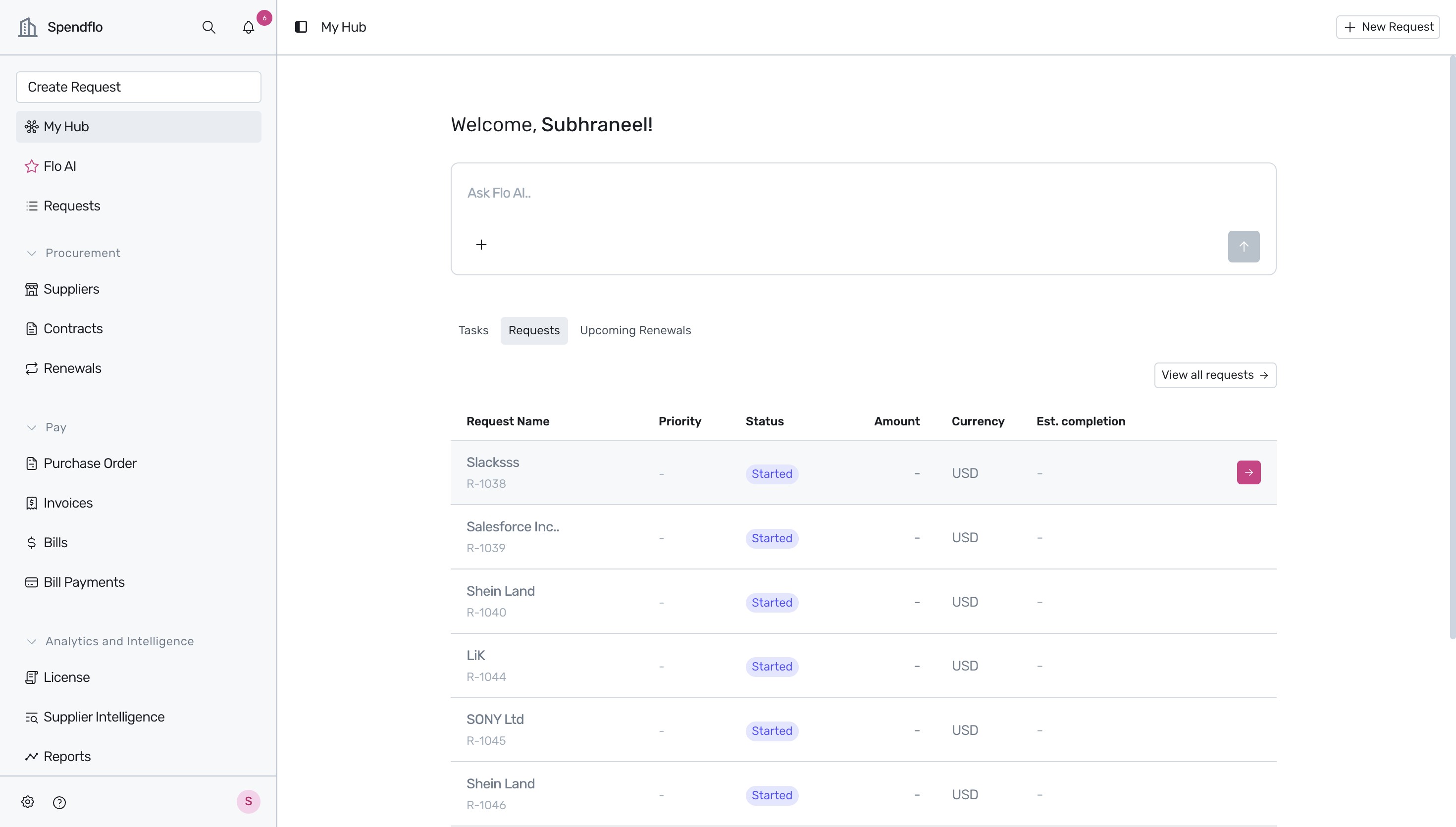
Navigate to the Spendflo dashboard. To begin configuring your alert preferences, click on the Settings gear icon in the sidebar.
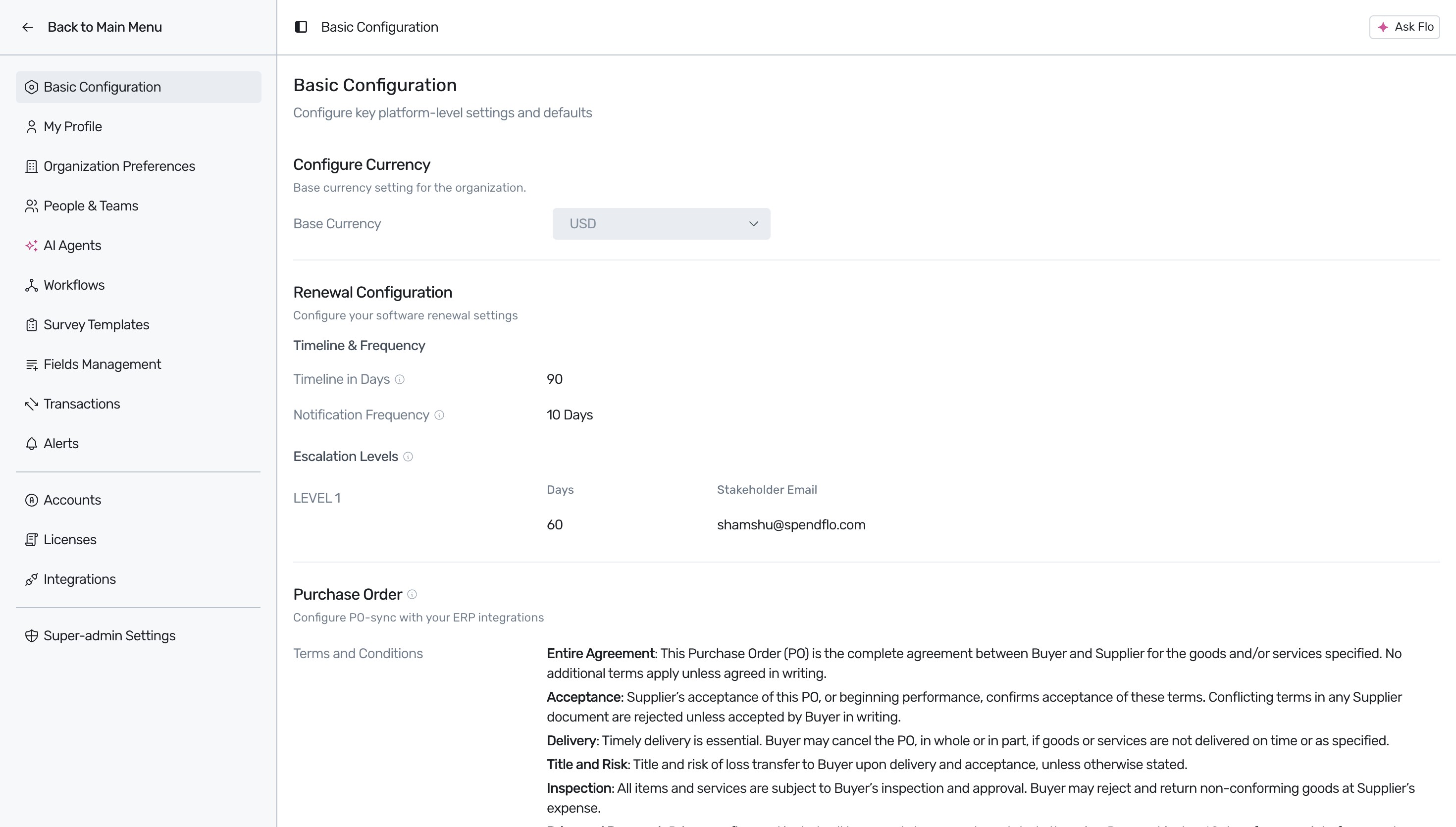
Once in the Settings area, select Alerts from the navigation sidebar to manage notification channels.
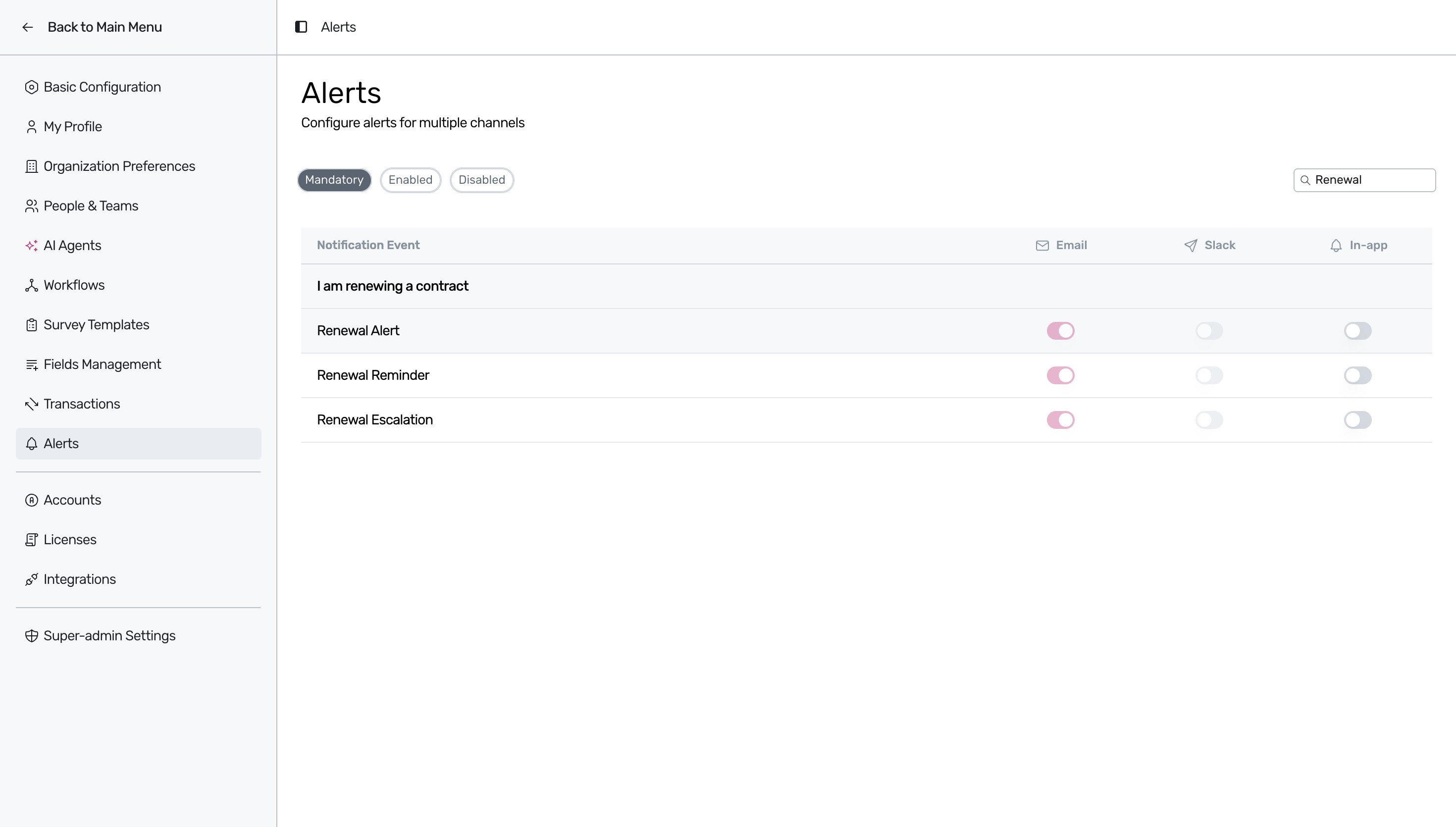
On the Alerts page, you will see a list of notification events categorized by channels like Email, Slack, and In-app.
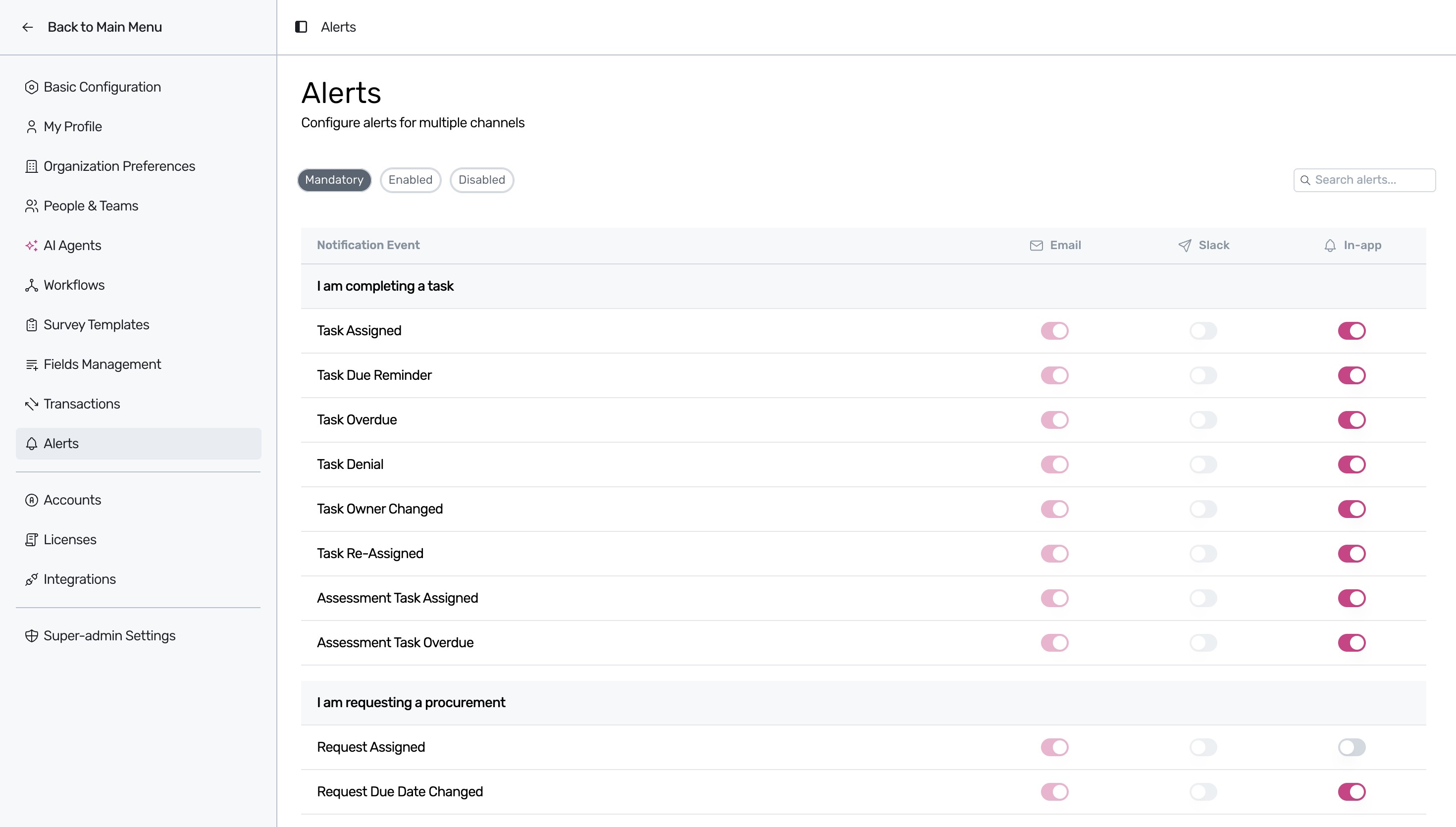
To quickly find renewal-related notifications, click on the Search alerts... input field and type 'Renewal'.
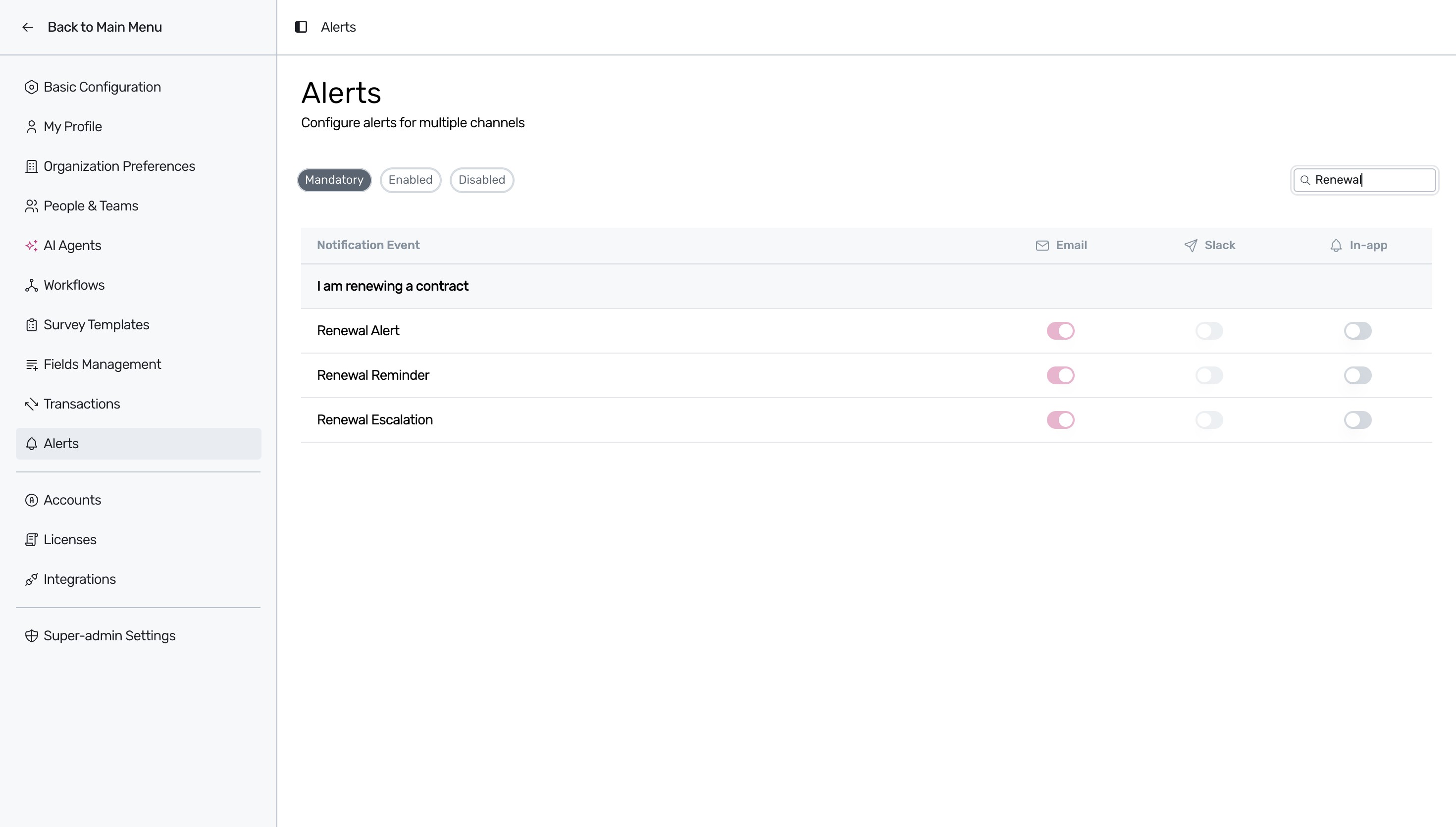
The search results will filter the list to display renewal events. Under the Mandatory tab, you can view the default mandatory alerts such as Renewal Alert, Renewal Reminder, and Renewal Escalation.
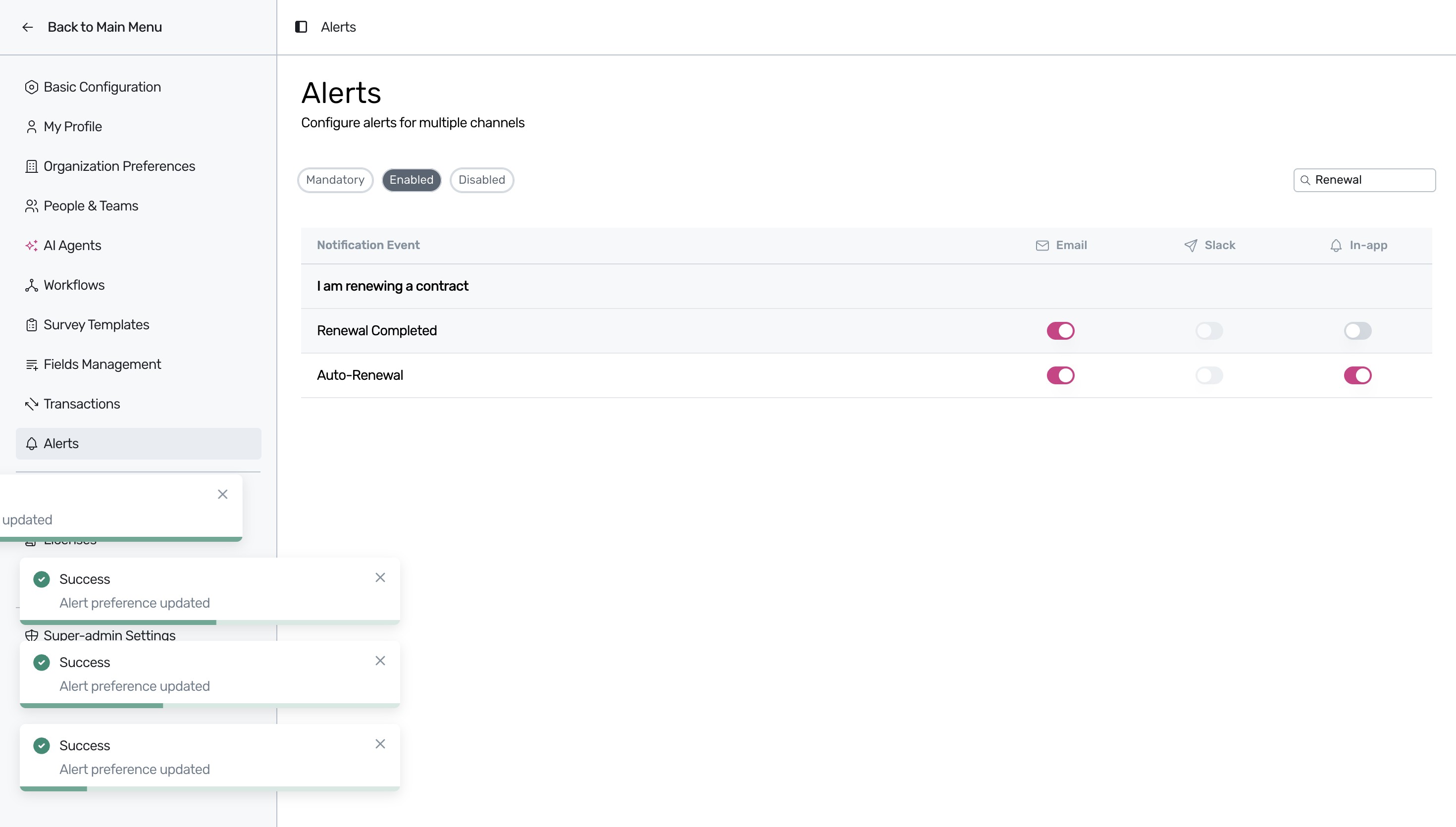
Click on the Enabled filter pill to view active alerts. Toggle the switch for any channel (Email, Slack, or In-app) under events like Renewal Completed or Auto-Renewal to update your preferences. A success toast notification will appear confirming the update.
- To view inactive notifications, click on the Disabled filter pill next to the Enabled tab.
Next Steps
Now that you have configured your renewal alerts, you can manage your contract pipeline more effectively. We recommend exploring the following resources to optimize your procurement workflow:
Was this article helpful?
That’s Great!
Thank you for your feedback
Sorry! We couldn't be helpful
Thank you for your feedback
Feedback sent
We appreciate your effort and will try to fix the article