Tasks are the building blocks of every workflow in Spendflo. Each task represents a specific action or set of actions that need to be completed as part of the overall workflow goal — such as assigning a buyer, completing a review, or obtaining approval.
All tasks in a workflow must be completed before the workflow can be closed, unless a task is bypassed due to a conditional rule defined on the task path.
What's Inside a Task
Each task is made up of four components:
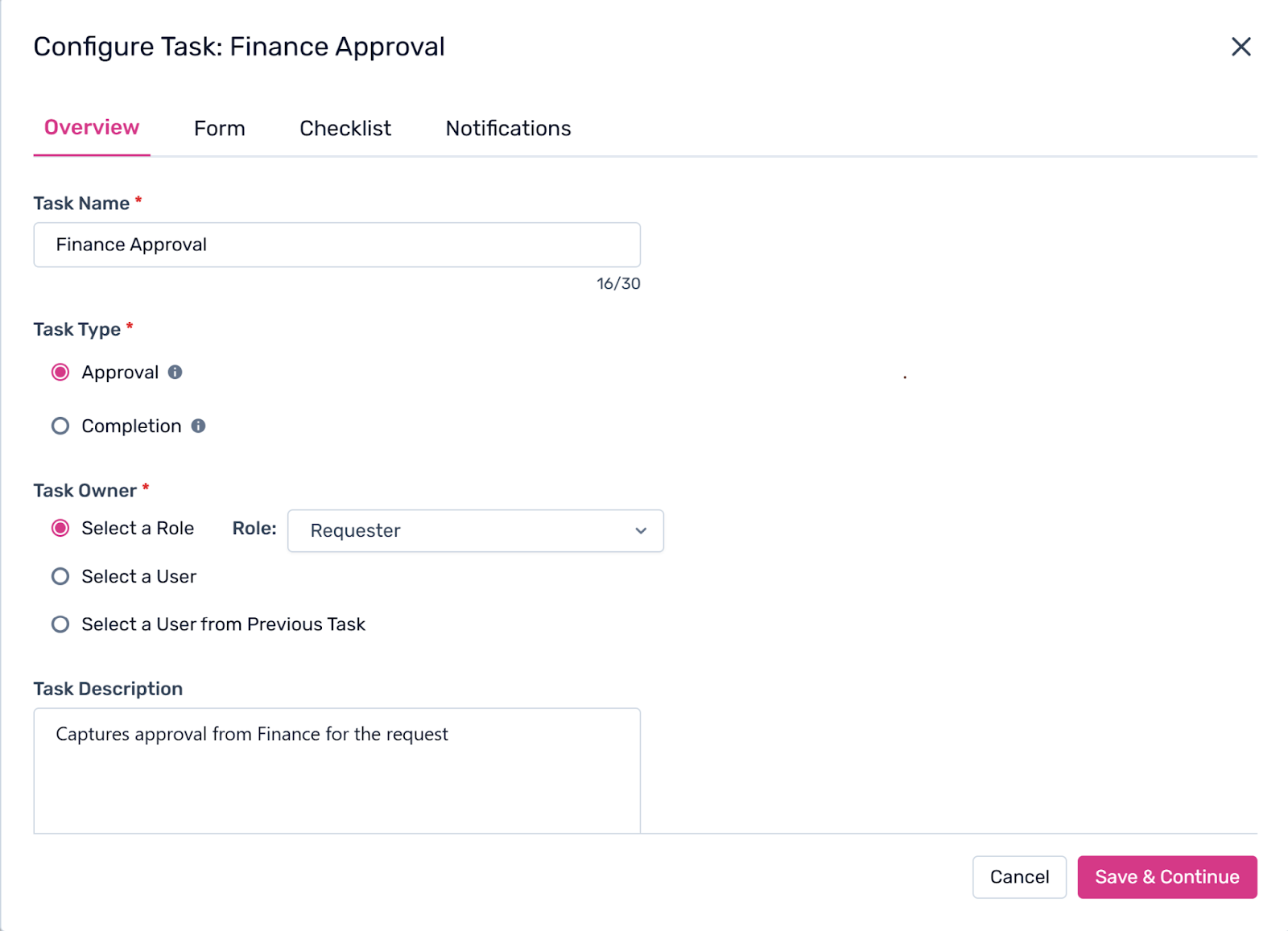
Overview
The Overview section holds the core details of a task - its name, type, owner, description, and the SLA timeline for completion. This is where you define who is responsible and when they need to act.
Forms
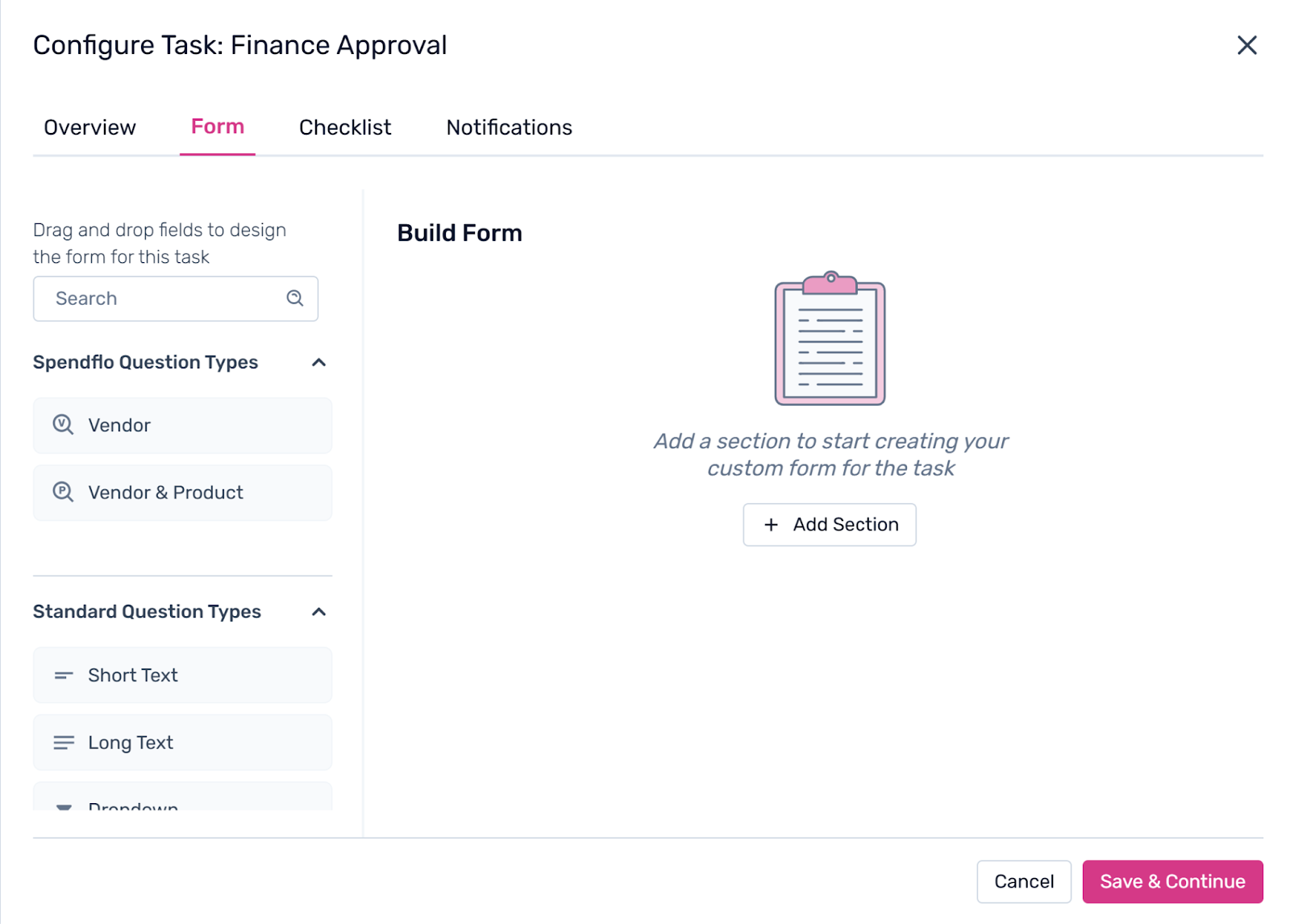
Forms are designed for requesters and are used to gather information needed to move the workflow forward. Admins can create, edit, and manage custom form fields tailored to your organisation's requirements.
Checklists
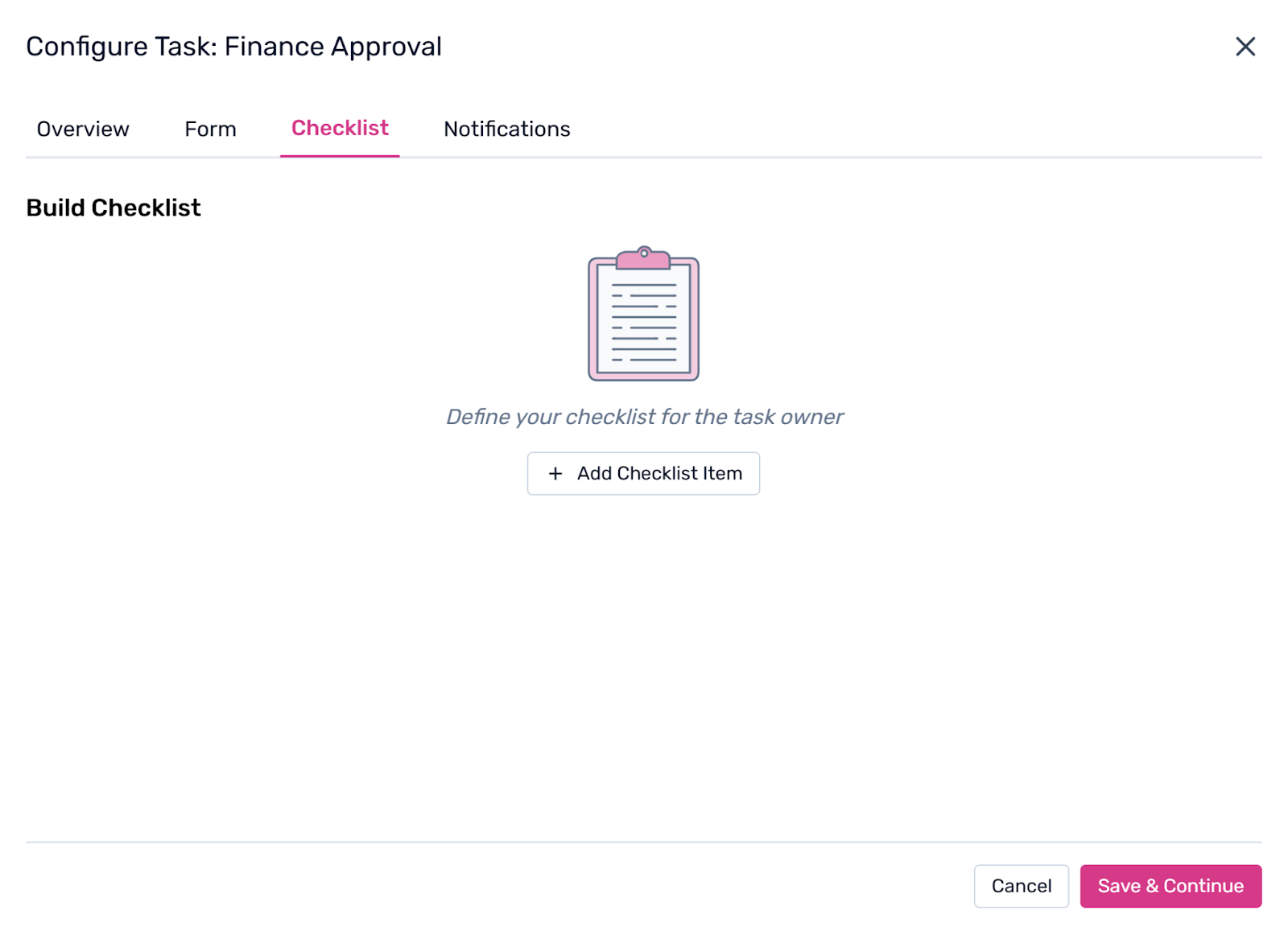
Checklists are built for approvers and list out items or actions that must be completed before a task can be marked as done. They help ensure nothing is missed during review or approval steps.
Notifications
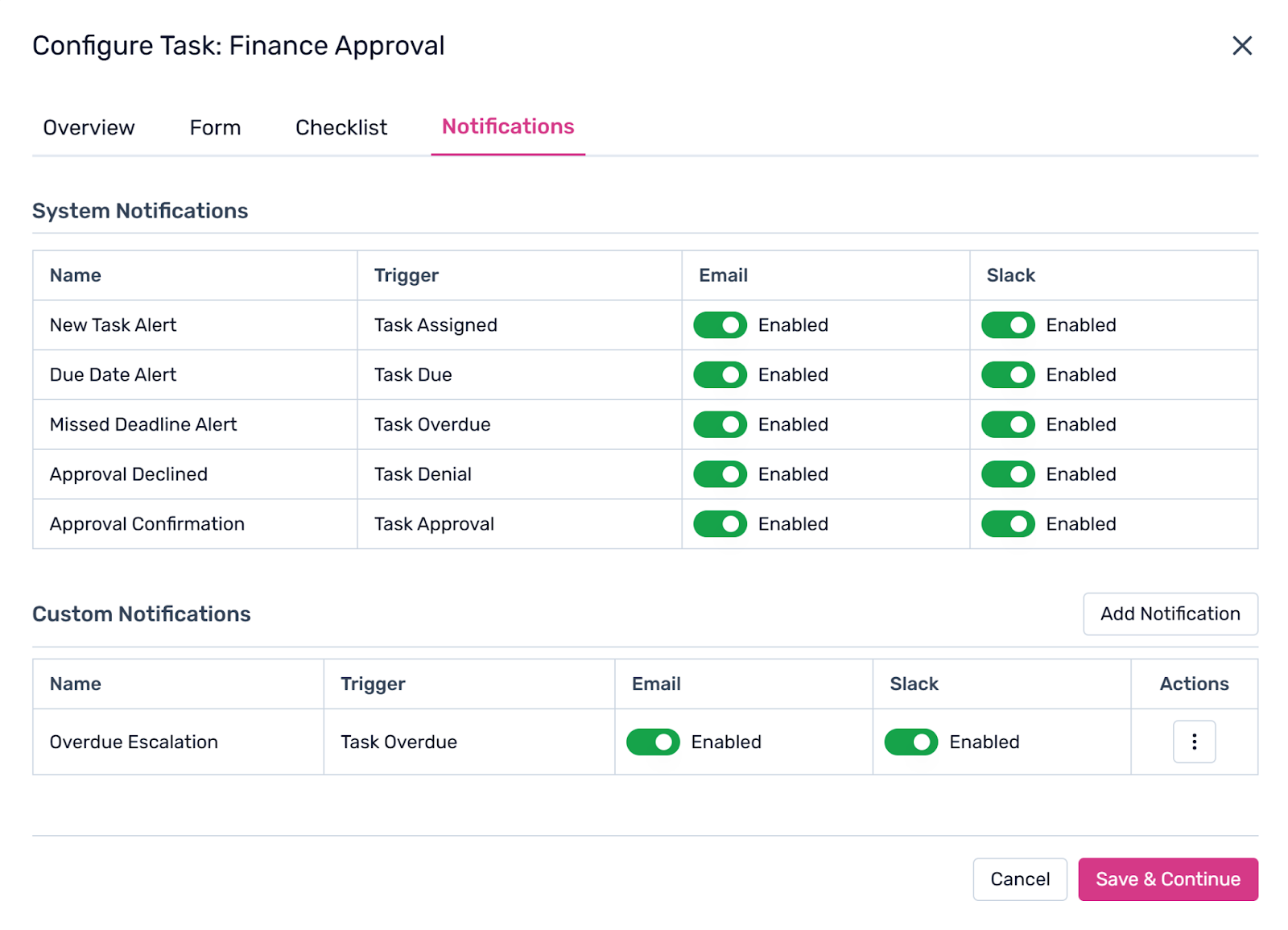
Admins can configure notifications to alert the right people at each stage of a task's lifecycle. You can set up custom notifications to keep additional stakeholders informed, and Slack notifications are also supported when Slack is connected to Spendflo.
How to Add a Task to a Workflow
Tasks can be added to a workflow at any point whether you are setting up a brand new workflow or updating an existing one. Here's how to do both.
Adding a Task to a New Workflow
When you create a new workflow, the Workflow Studio will display a default phase. To add your first task:
Click the + Add Task button inside the phase.
In the popup that appears, enter the task name and description.
Fill in the required configuration fields and click Create Task to save.
Adding a Task to an Existing Workflow
For active or draft workflows, hover over any existing task in a phase. A set of + icons will appear around the task - each position determines how the new task will be placed:
Left or Right + – Adds a sequential task. Left places the new task before the current one; right places it after.
Top or Bottom + – Adds a parallel task. The new task will run simultaneously alongside the current one.
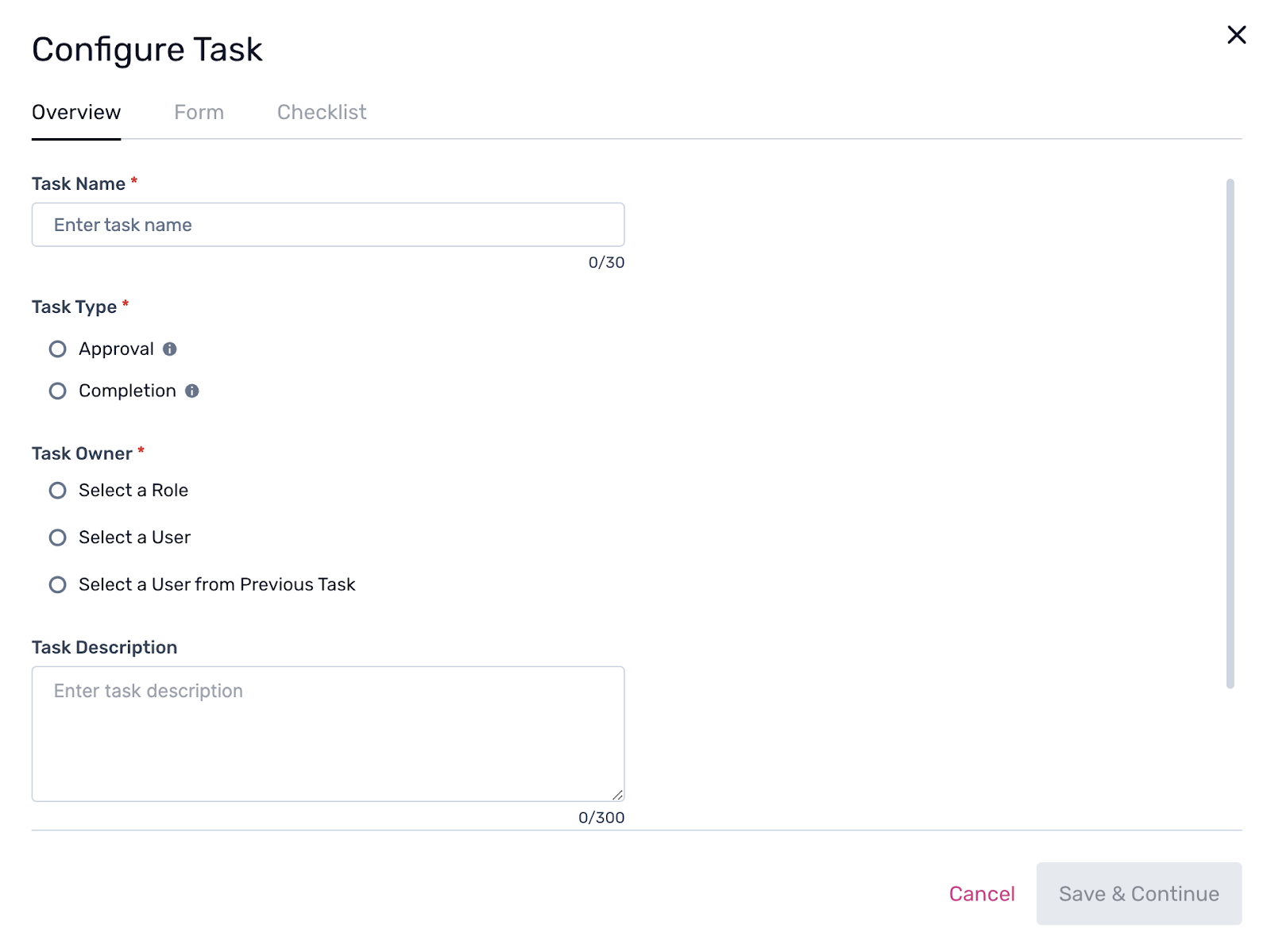
Clicking the left or right + will show a dropdown with:
Add Task
Add Condition
Add Record or Add Integration
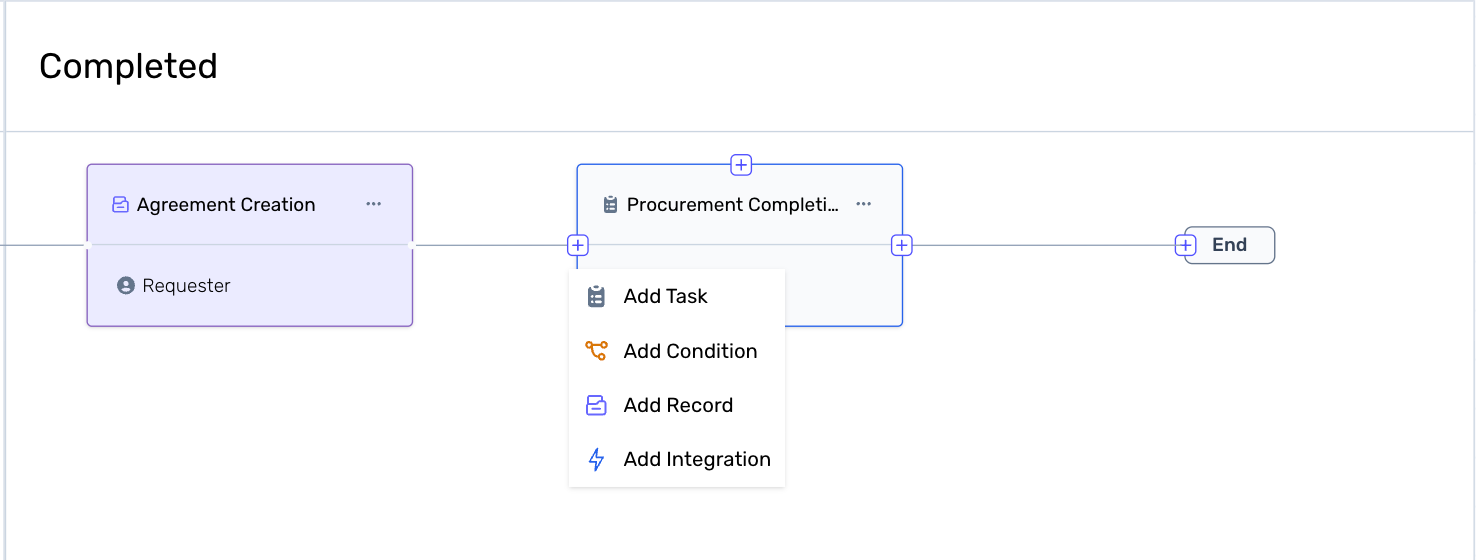
Clicking the top or bottom + will show a dropdown with:
Add Task
Add Record
Add Integration
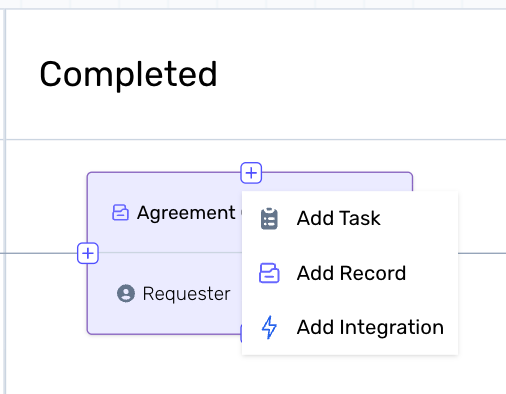
\
Select Add Task from either dropdown, fill in the task name and description in the popup, and click Create Task.
How to Add a Sequential Task
Sequential tasks run one after another. A sequential task will only begin once all tasks before it in the workflow have been completed. Use sequential tasks when an action depends on the outcome of a previous step — for example, a Manager Approval that must happen after a Buyer Assignment is done.
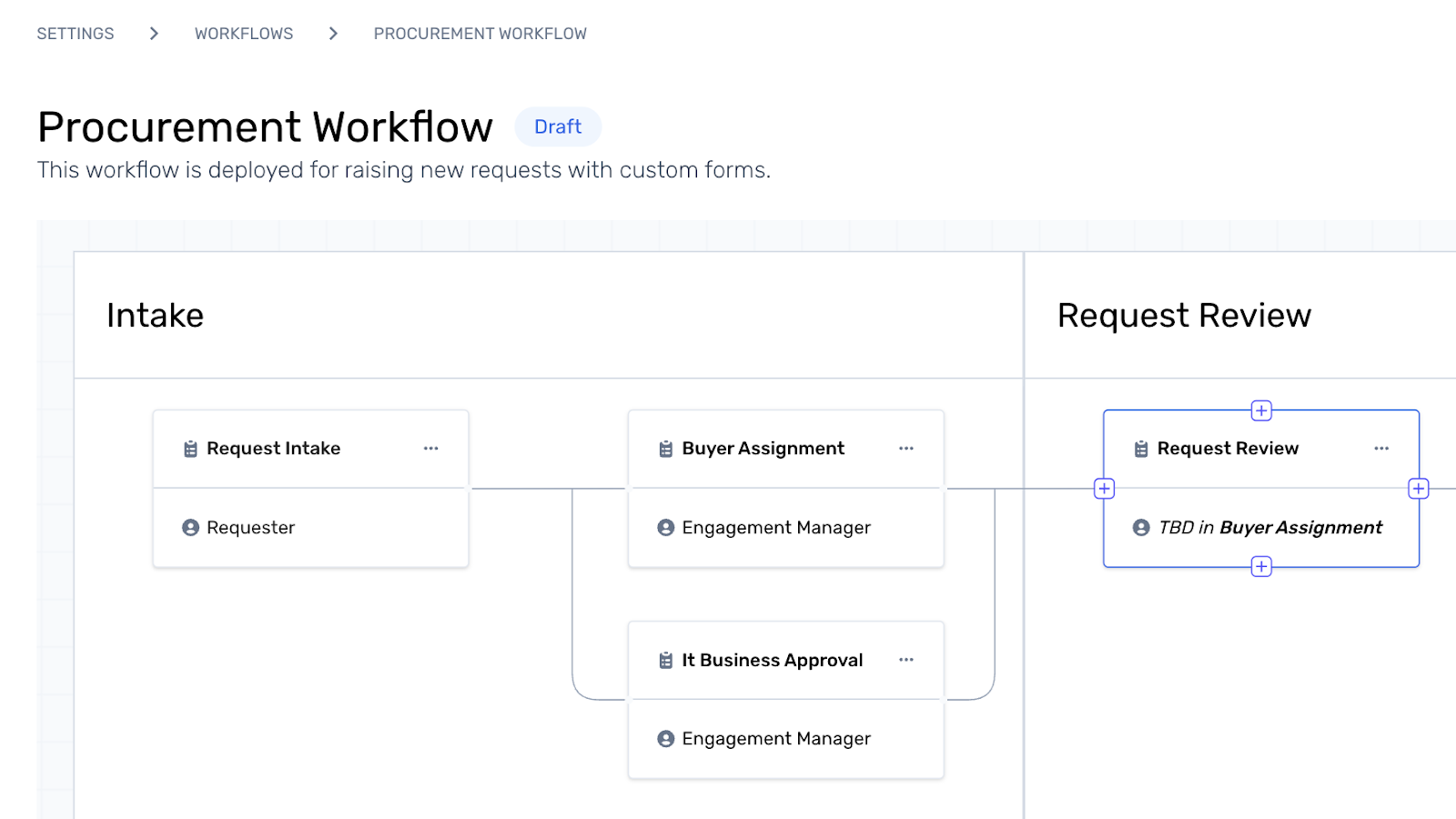
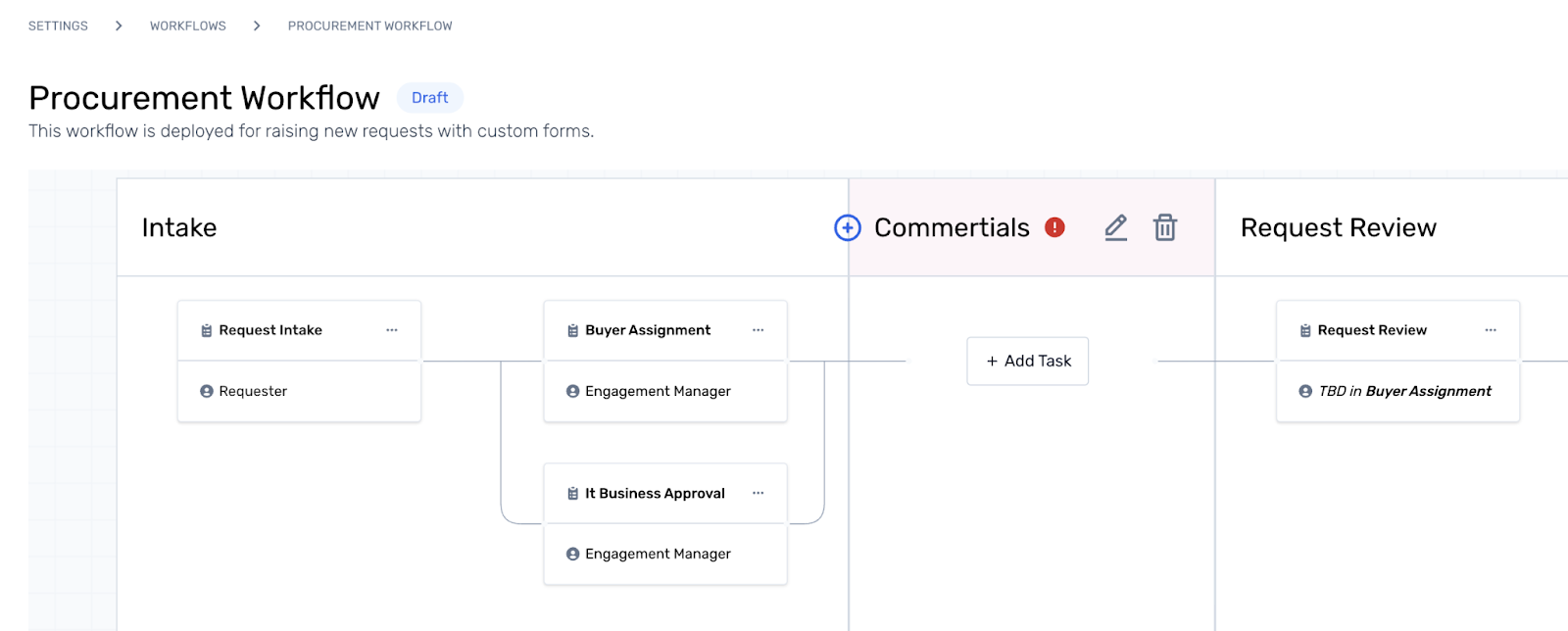
How to Add a Sequential Task
To add a task that runs after an existing one:
Open the workflow in the Workflow Studio.
Hover over the task that the new task should follow.
Click the + icon on the right side of the task to add a task after it, or the left side to add one before it.
From the dropdown, select Add Task.
In the popup, enter the task name and description, then click Create Task.
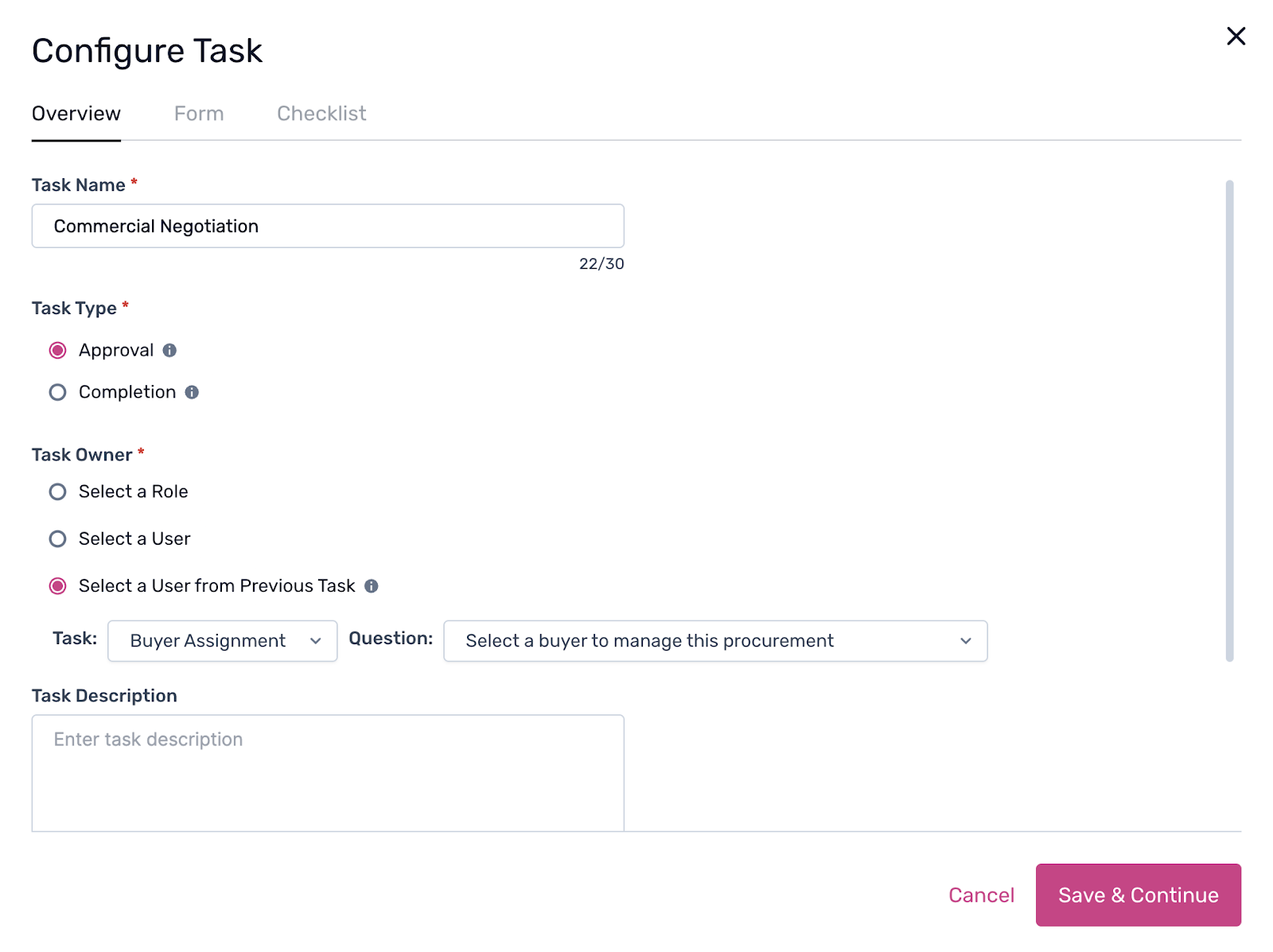
Note: The recommended order when building a workflow is: add phases first, then sequential tasks, then parallel tasks within each phase. This keeps the structure clean and predictable.
How Sequential Tasks Work
A sequential task only starts after all parallel tasks in the preceding phase or step are completed. This ensures the workflow moves forward in the right order and no step is skipped.
How to Add a Parallel Task
Parallel tasks run at the same time as other tasks within the same phase. Use parallel tasks when multiple actions can happen independently and don't need to wait for each other — for example, notifying a vendor and assigning a reviewer simultaneously. This reduces turnaround time and keeps workflows moving efficiently
How to Add a Parallel Task
To add a task that runs at the same time as an existing one:
Open the workflow in the Workflow Studio.
Hover over the task you want the new task to run alongside.
Click the + icon on the top or bottom of the task card.
From the dropdown, select Add Task.
In the popup, enter the task name and description, then click Create Task.
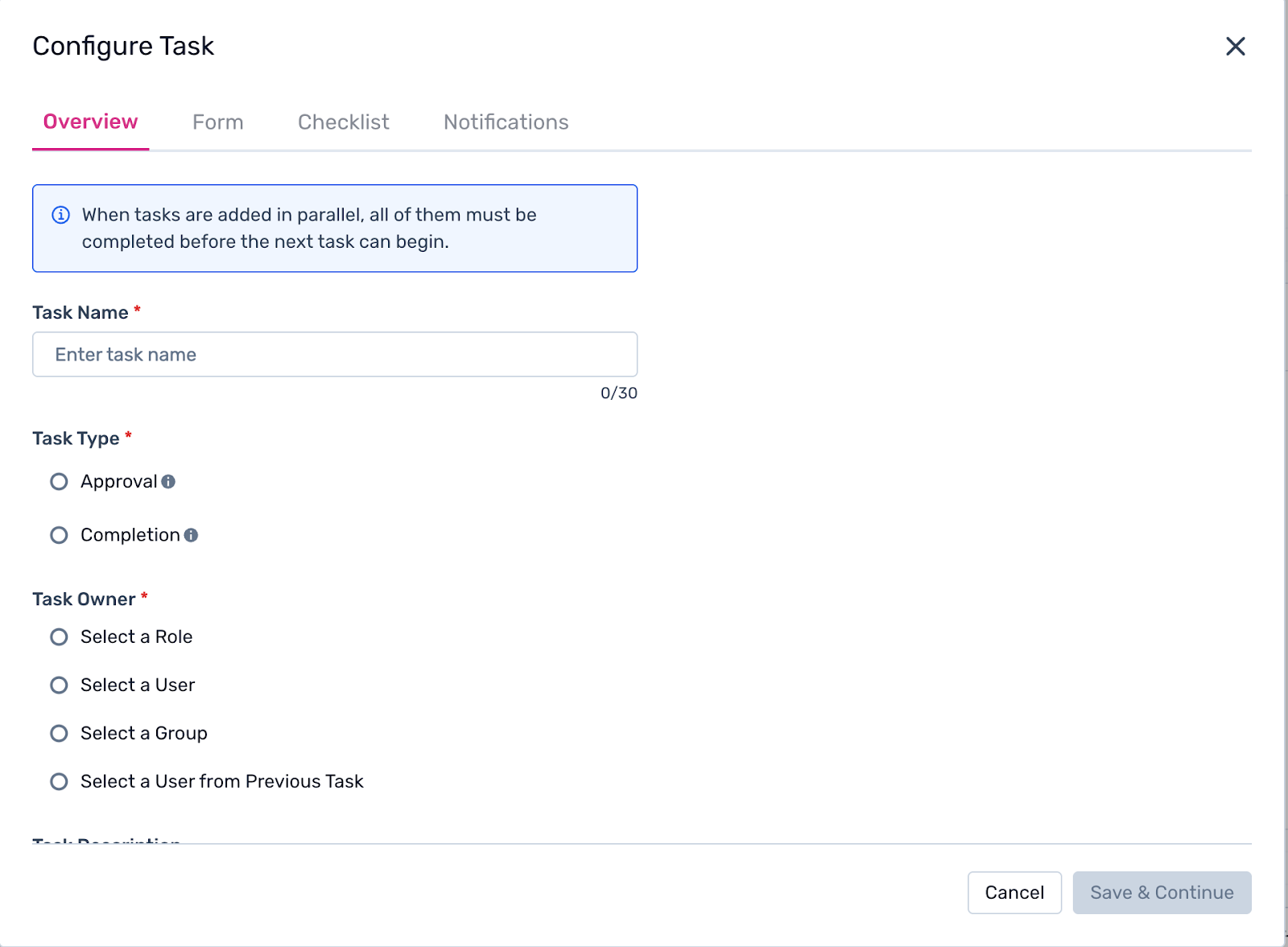
How Parallel Tasks Work
When parallel tasks are added to a phase, all of them are assigned and active at the same time. The workflow only advances to the next step once every parallel task in the current step is marked complete.
How to Delete a Task
If a task is no longer needed in a workflow, it can be removed directly from the Workflow Studio. Deletion is permanent, so make sure you no longer need the task before proceeding.
Steps to Delete a Task
Open the workflow in the Workflow Studio.
Hover over the task you want to delete. Click the ⋯ (three-dot menu) on the task card.
Select Delete from the dropdown.
A confirmation popup will appear. Click Delete again to permanently remove the task.
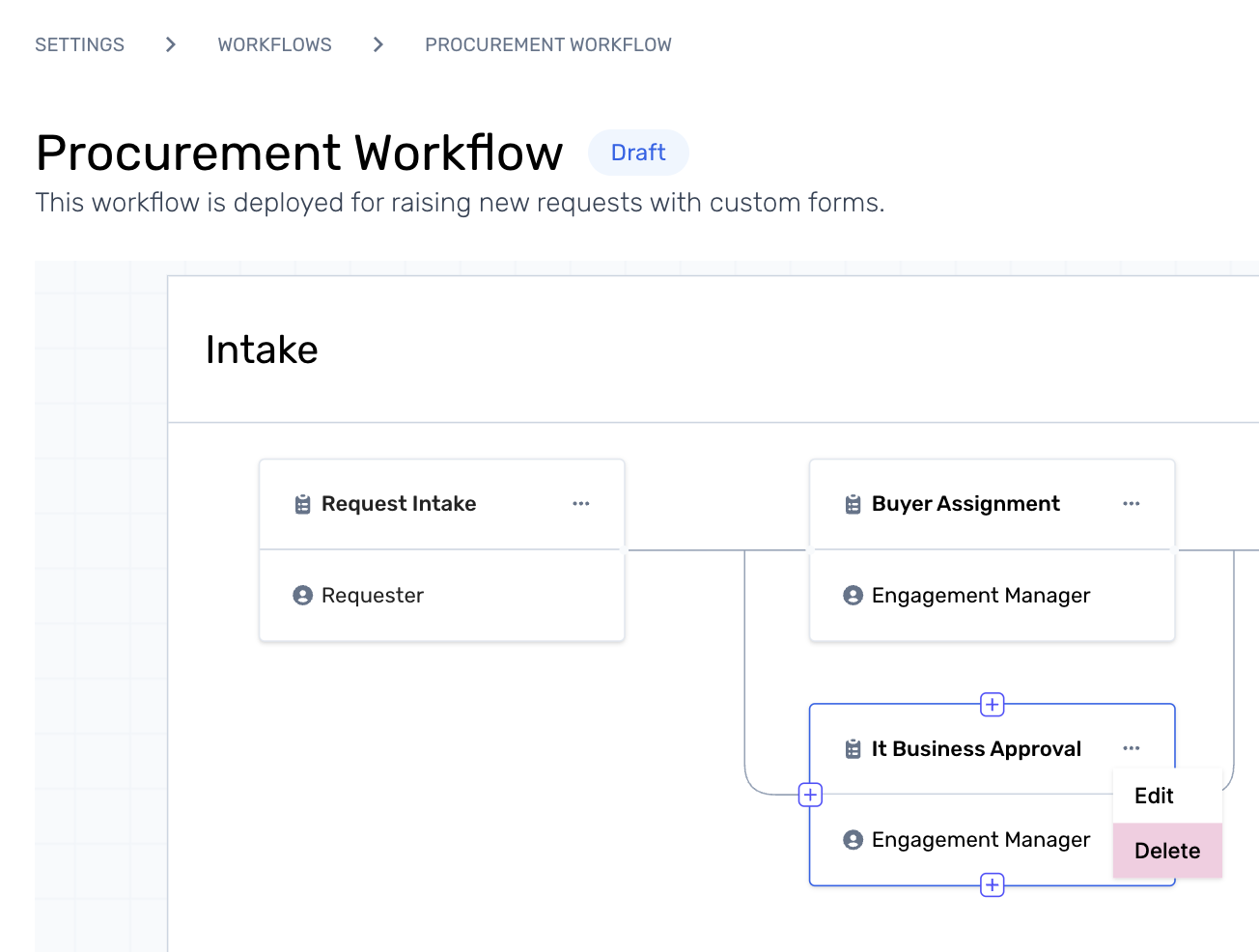
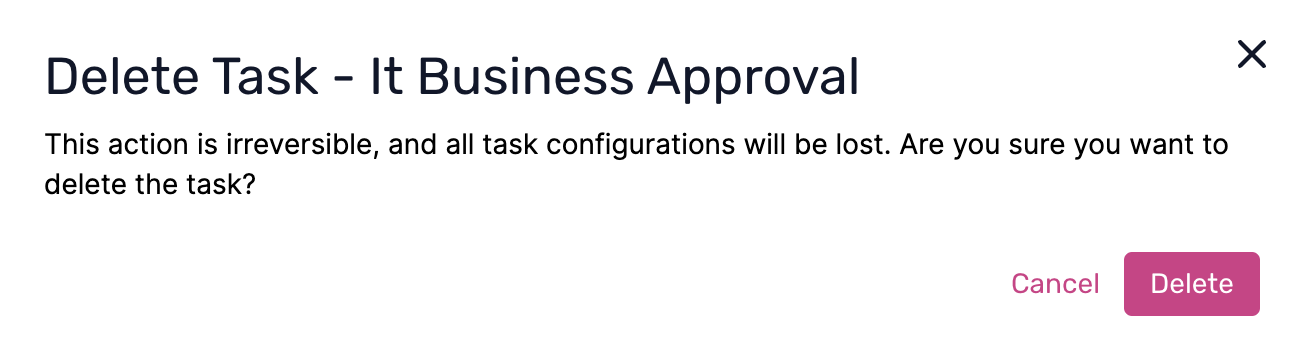
Note: This action cannot be undone. Once a task is deleted, it cannot be recovered. If you are unsure, consider editing the task instead.
Restrictions
The first task in the first phase of a workflow cannot be deleted — only edited. This ensures the workflow always has a valid starting point.
Was this article helpful?
That’s Great!
Thank you for your feedback
Sorry! We couldn't be helpful
Thank you for your feedback
Feedback sent
We appreciate your effort and will try to fix the article