Managing your organization's users and teams in Spendflo helps you track department-wise software spend, allocate budgets efficiently, and streamline approval workflows. By organizing individuals into specific teams, you gain clear visibility into application utilization and SaaS expenses across your company.
This guide explains how to create a new team and import team members using a CSV file. If you need to invite individual users first, see our guide on Inviting Spendflo users.
How to Create a Team and Import Members
Follow these steps to set up a team and add members to it:
Begin on the Spendflo home dashboard.
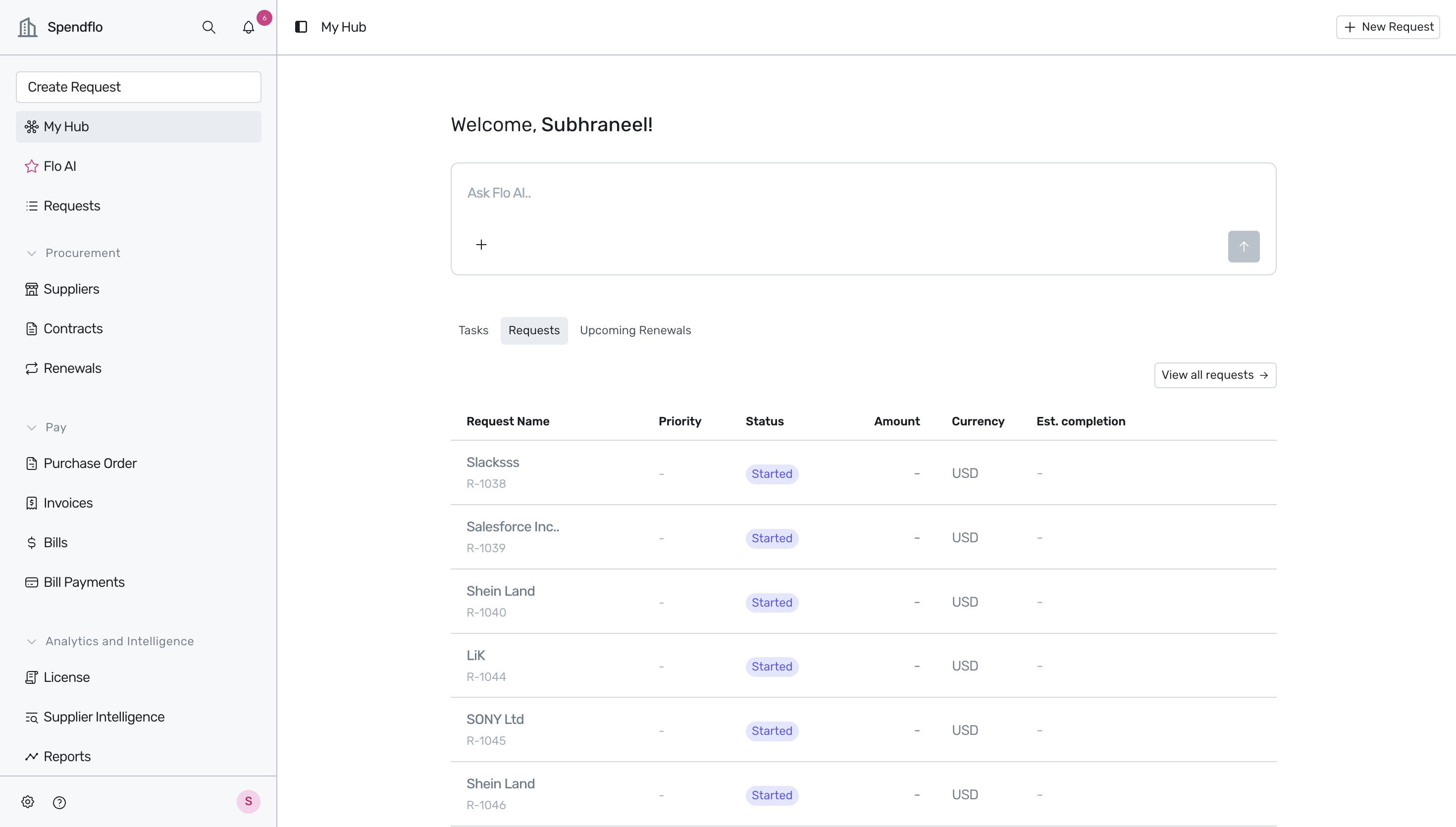
Navigate to the platform settings by clicking the gear icon in the sidebar.
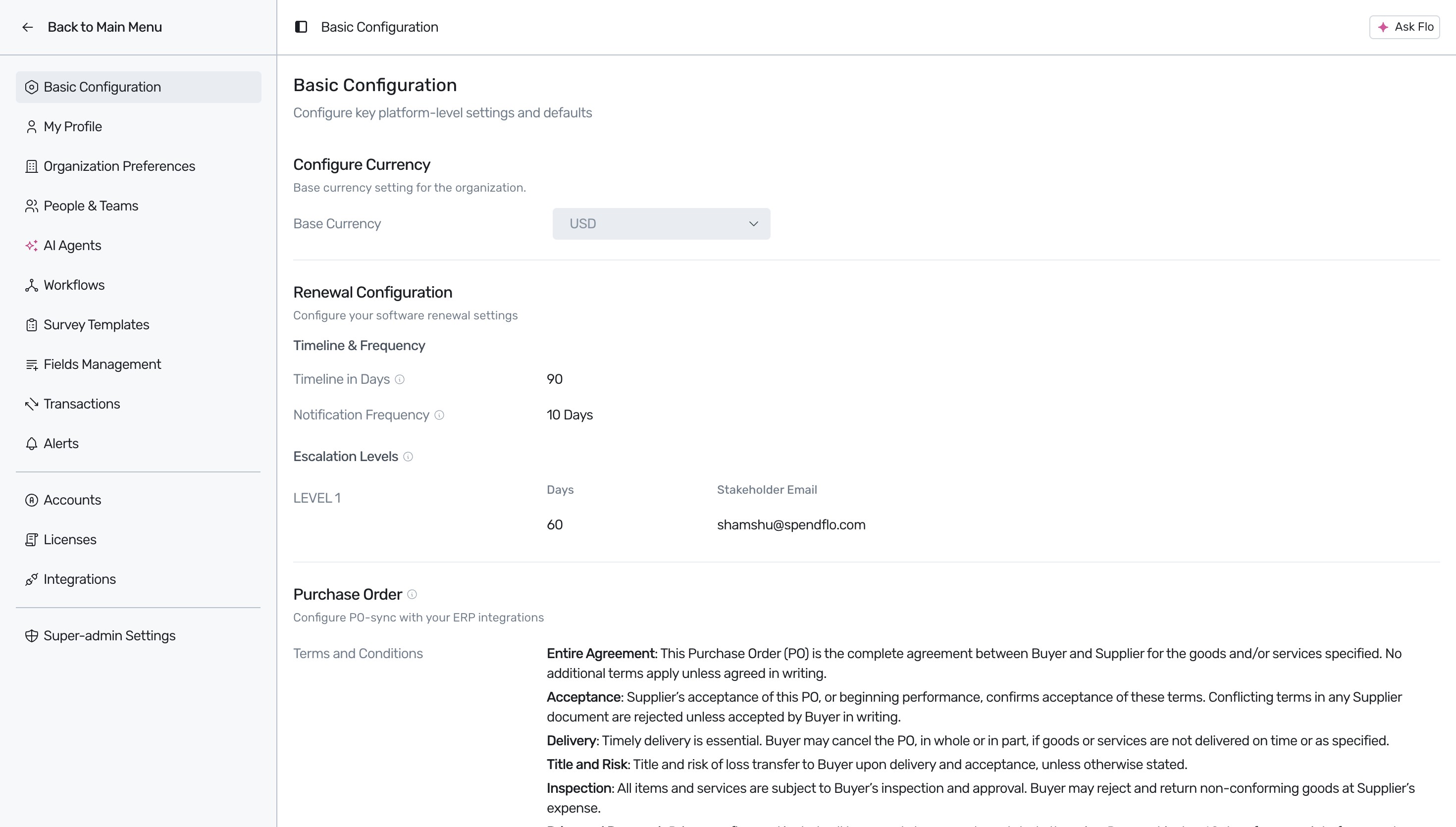
Click on People & Teams in the settings menu.
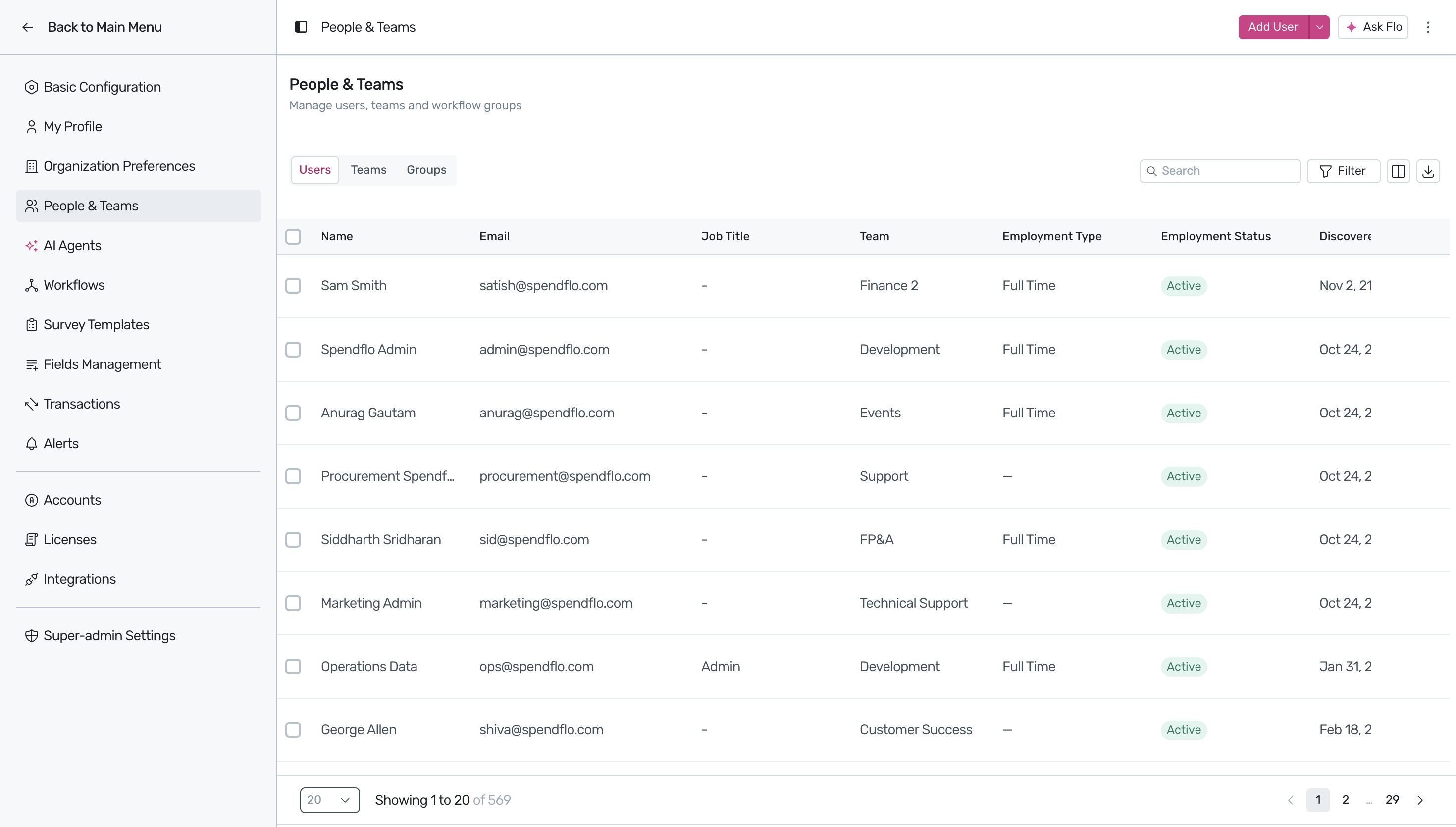
Switch to the Teams view by clicking on the Teams tab.
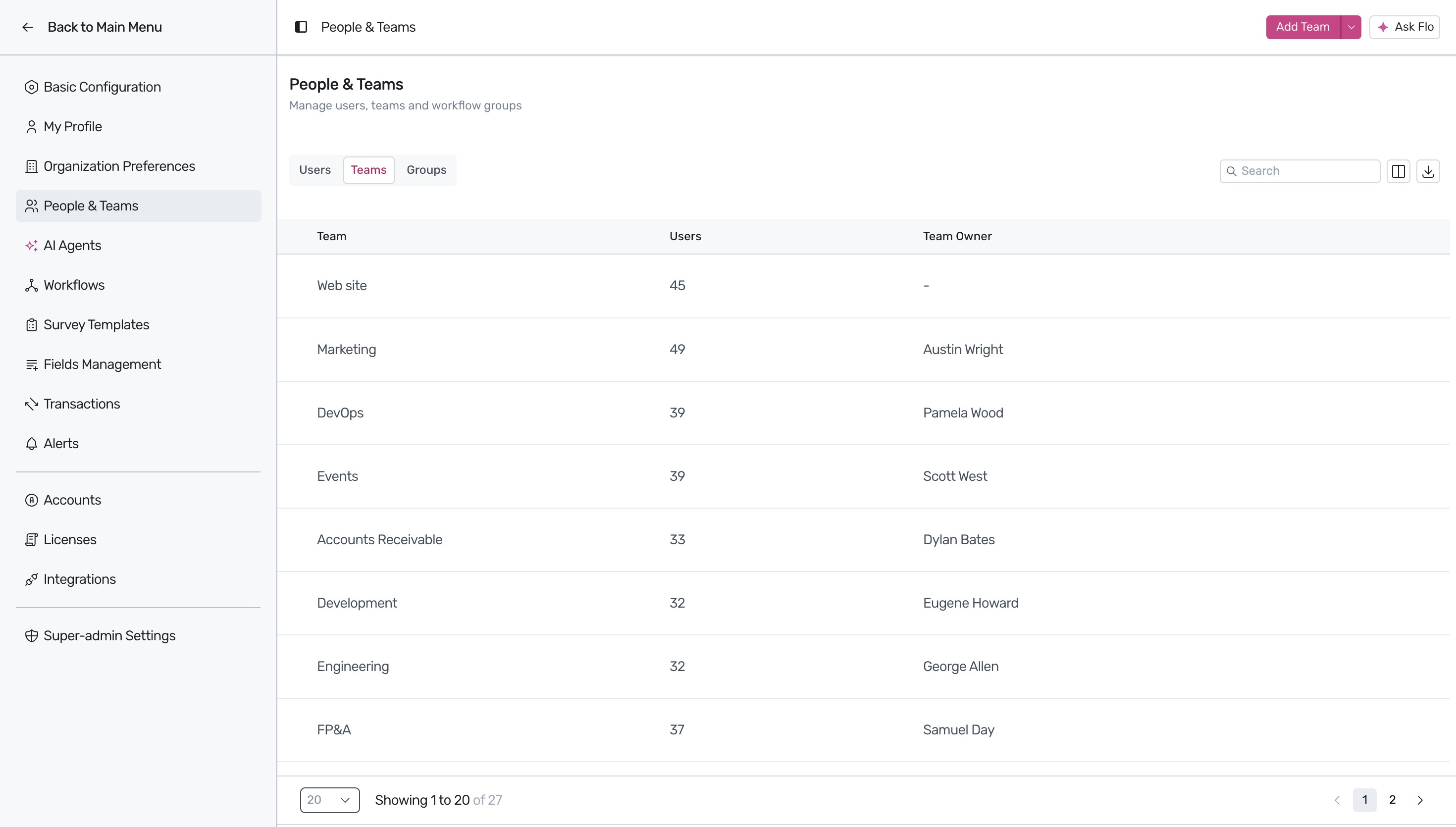
Click on the Add Team button to open the team creation dialog box.
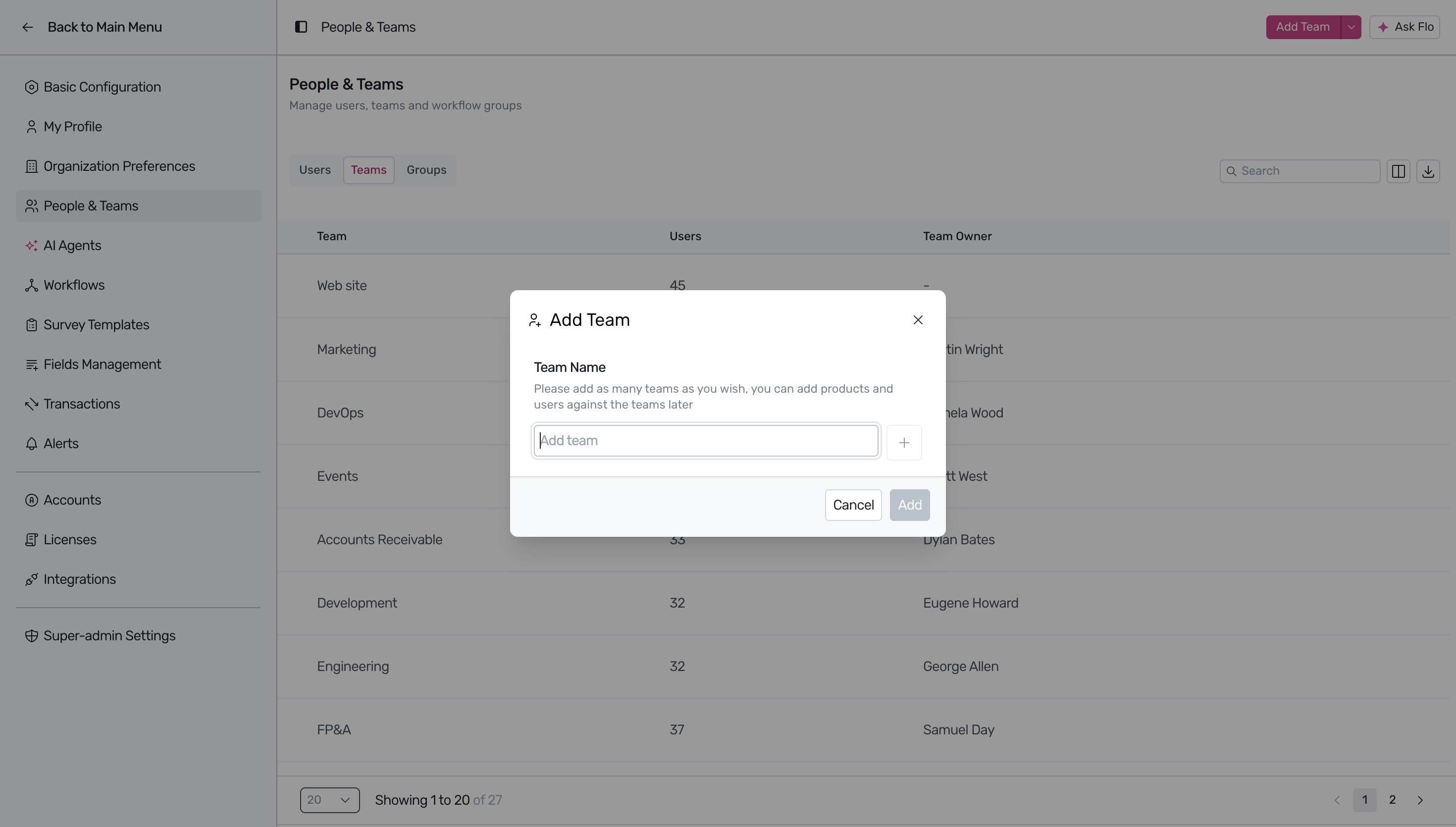
Enter the name of your new team in the input field.
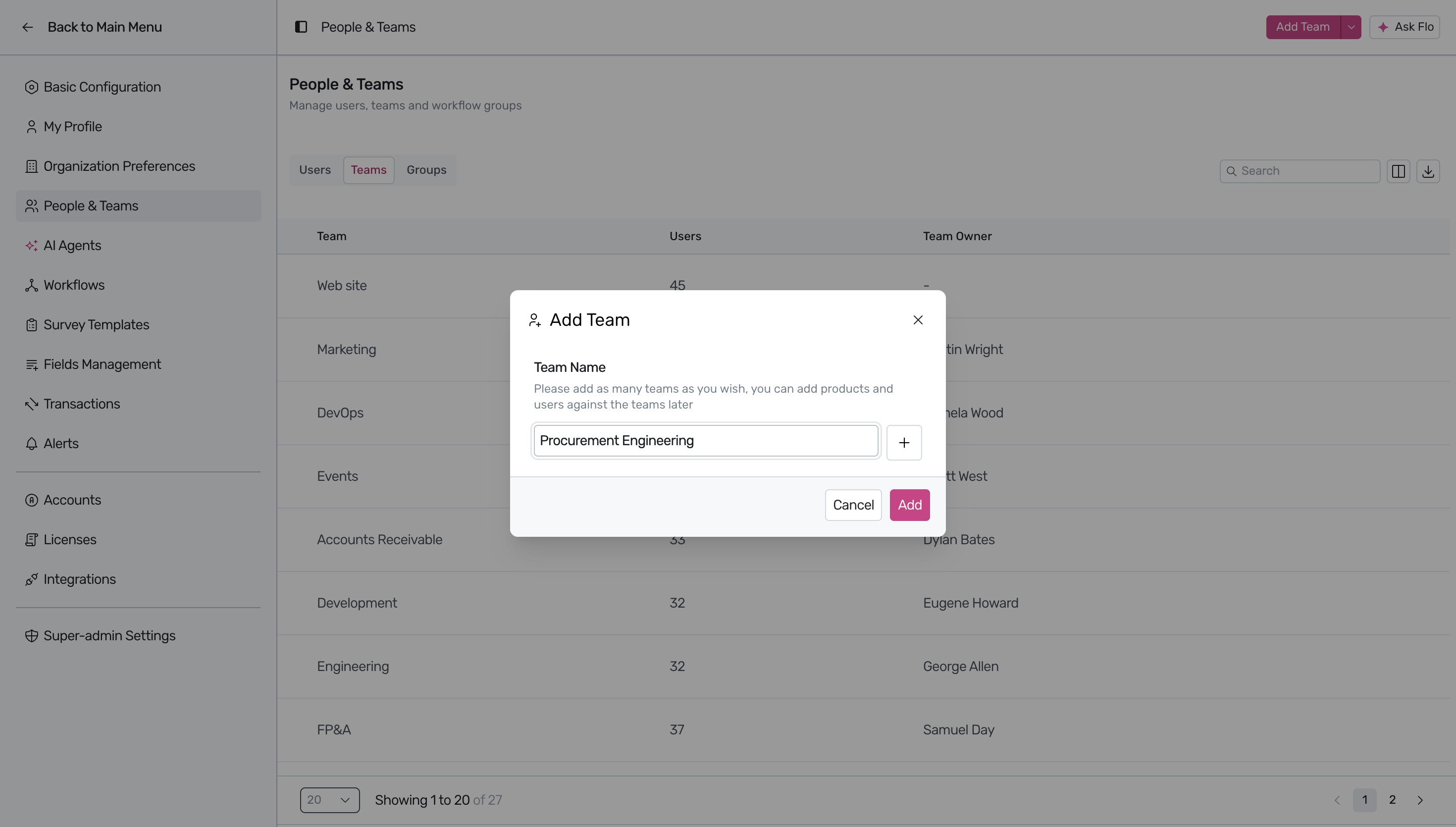
Click the Add button to confirm.
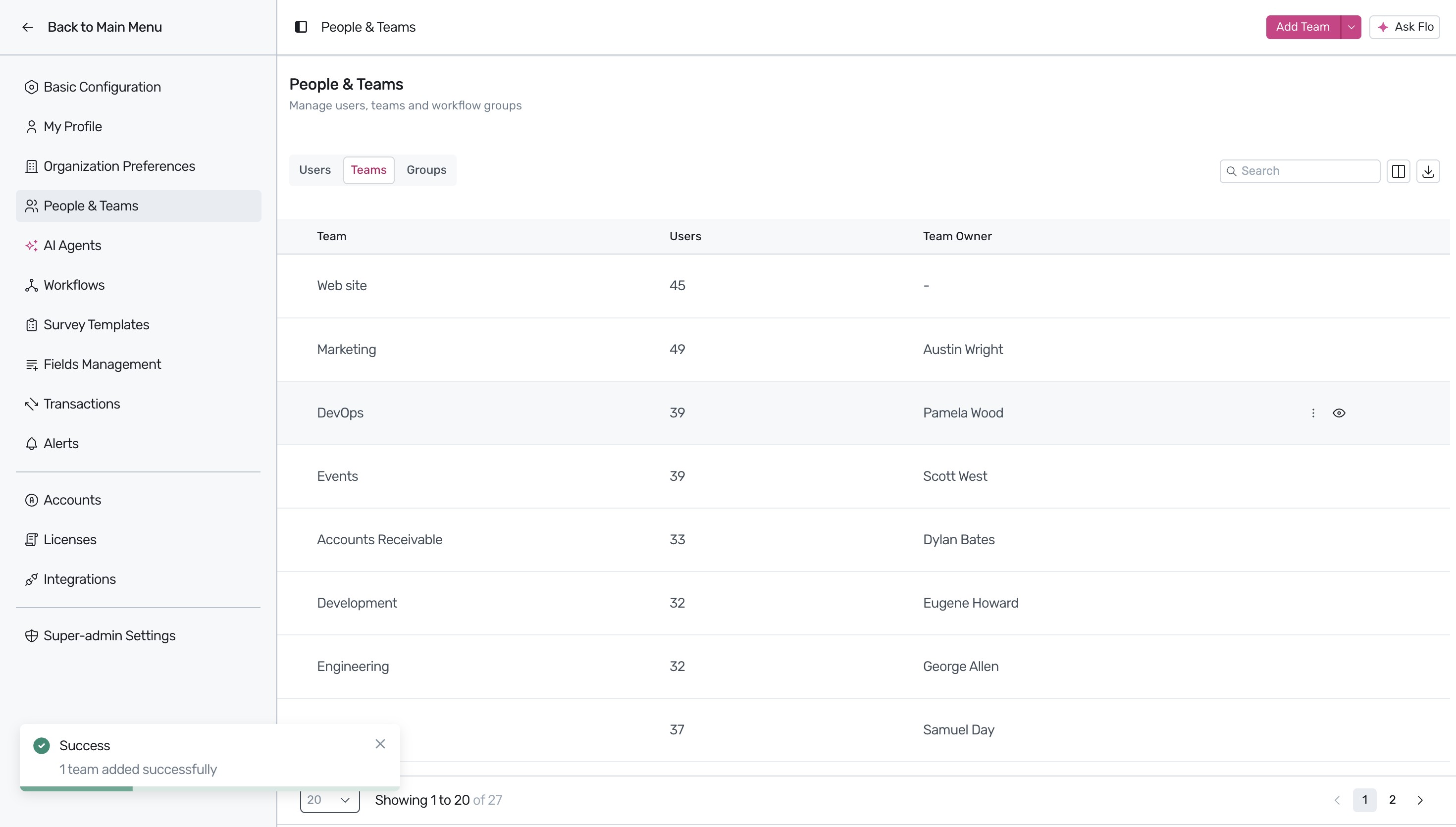
Locate your newly created team by navigating through the list of teams.
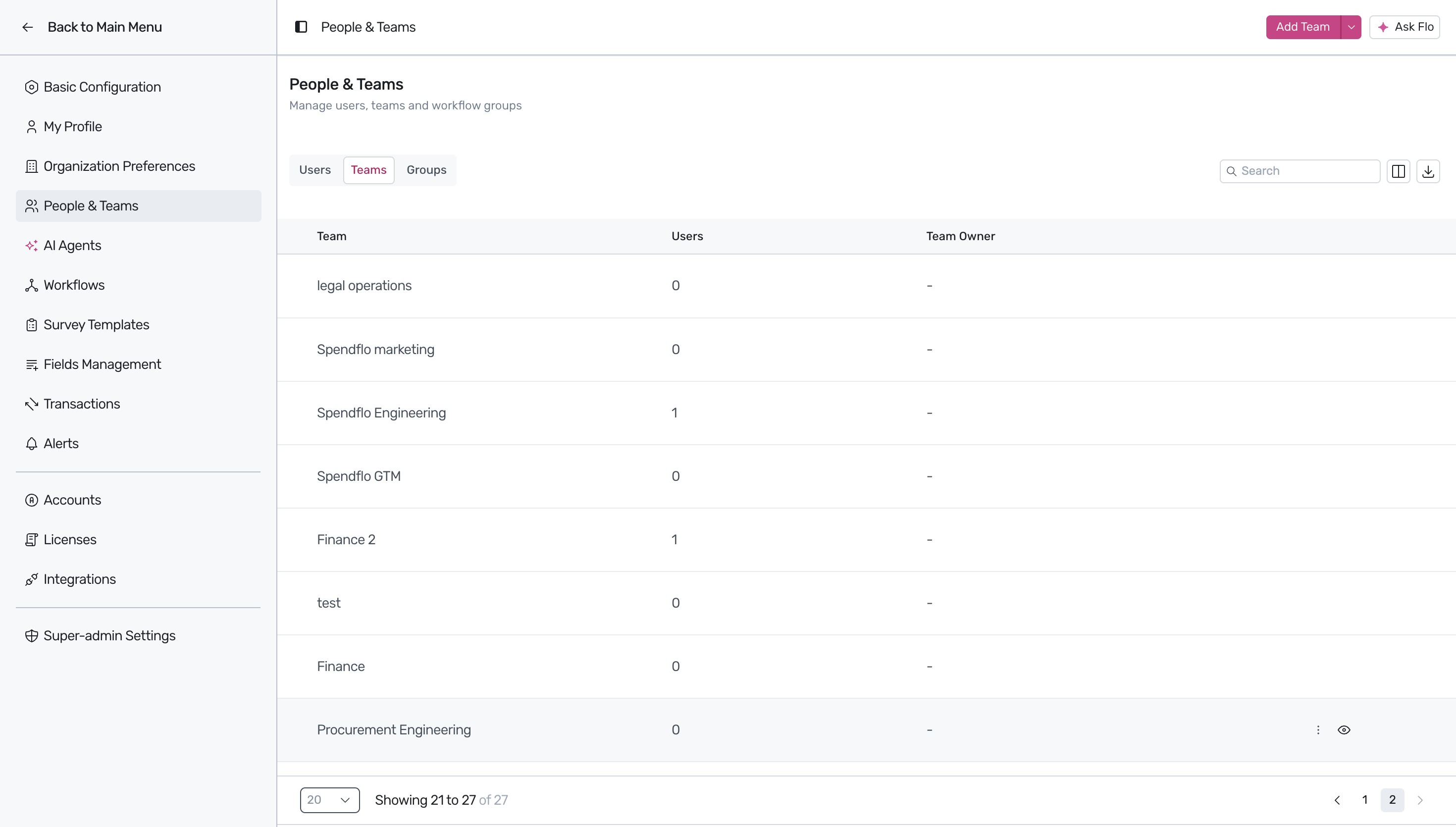
Click on the team name to open its details panel.
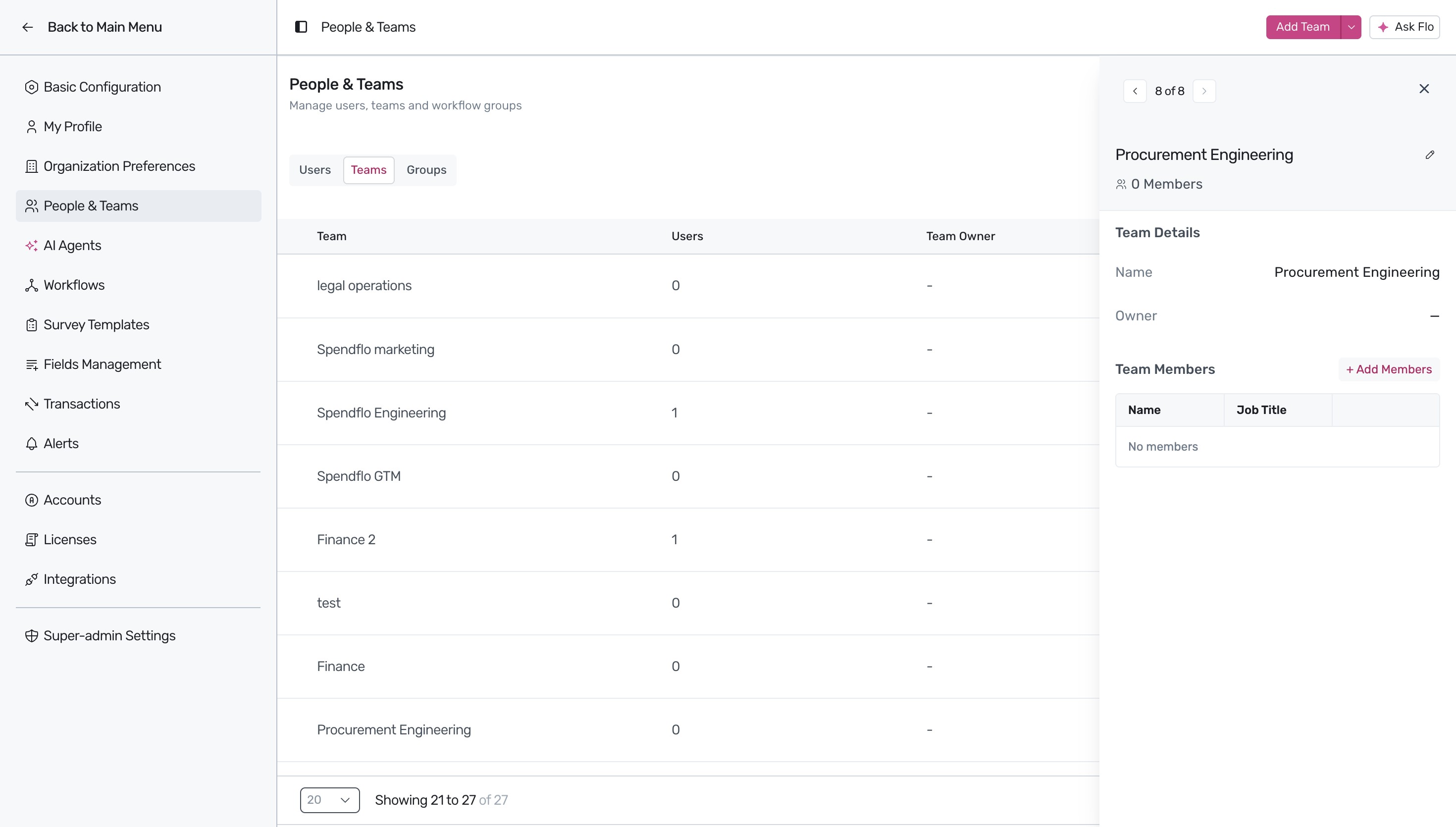
Click on the + Add Members button in the details panel and select Import from CSV.
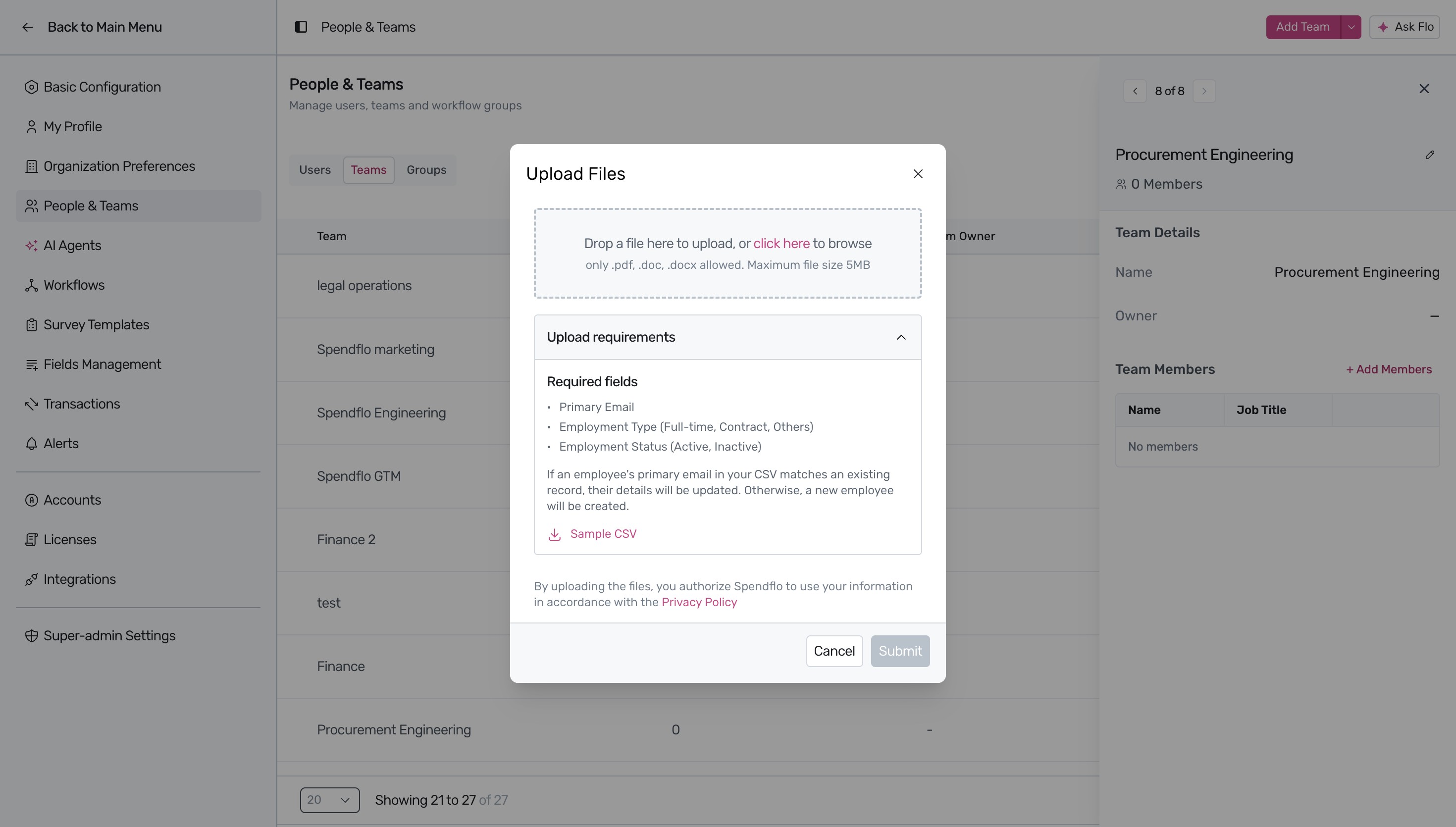
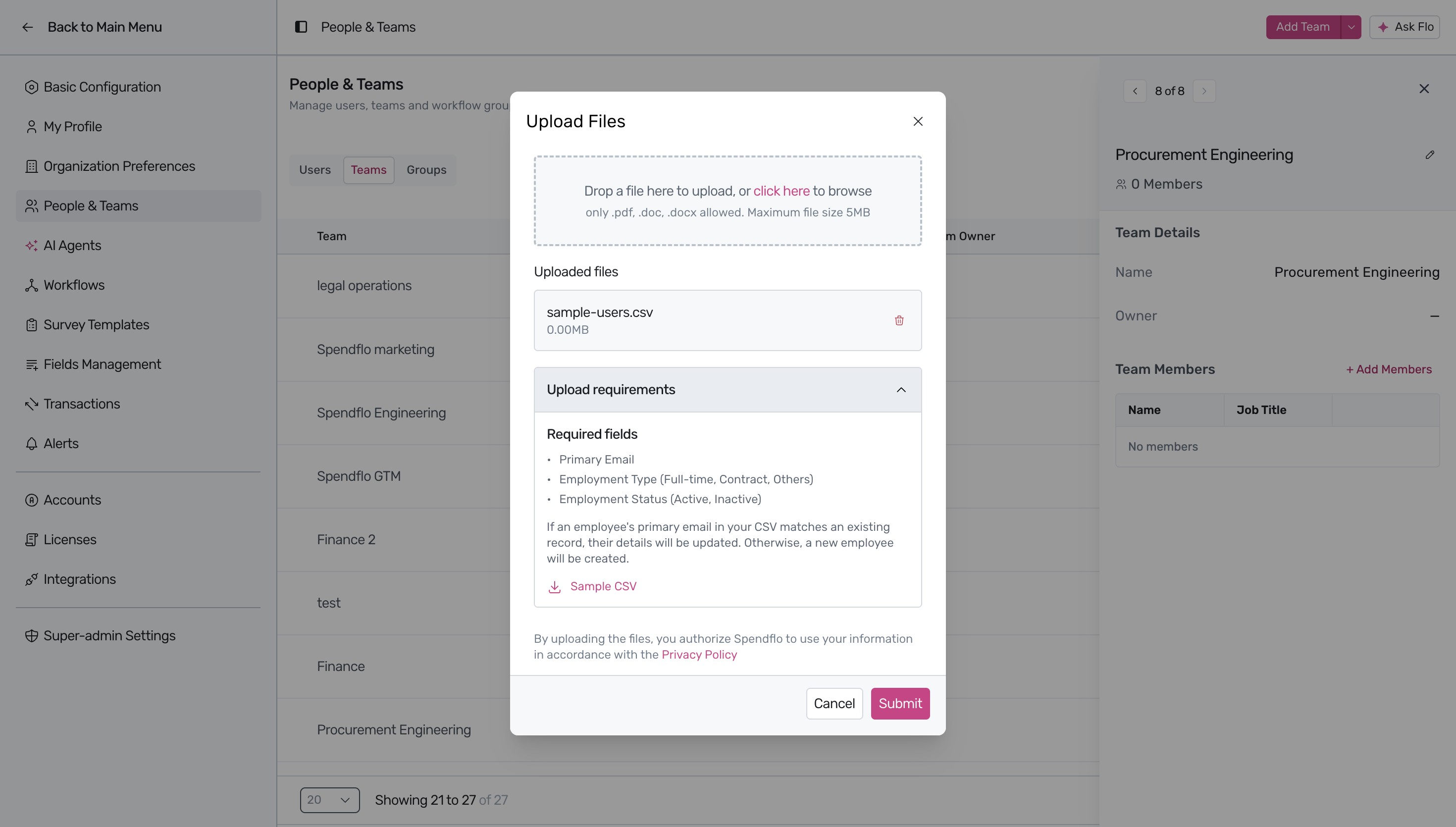
Click the upload link to select your CSV file and click the Submit button to complete the import.
Next Steps
After successfully importing your team members, you can manage their roles and permissions to ensure they have the correct level of access.
Was this article helpful?
That’s Great!
Thank you for your feedback
Sorry! We couldn't be helpful
Thank you for your feedback
Feedback sent
We appreciate your effort and will try to fix the article