Spendflo provides a seamless end-to-end workflow to manage your Accounts Payable (AP) and Purchase Order (PO) processes. This workflow connects an approved procurement request directly to a fully reconciled and paid bill. By automating these touchpoints, Spendflo helps finance and procurement teams maintain strict financial controls, eliminate manual data entry errors, and ensure that all SaaS expenses align with your organization's budget.
Before you begin, ensure that your organization profile is configured, including billing details and contacts.
Step-by-Step Workflow
Follow these steps to transition an approved request into a paid bill:
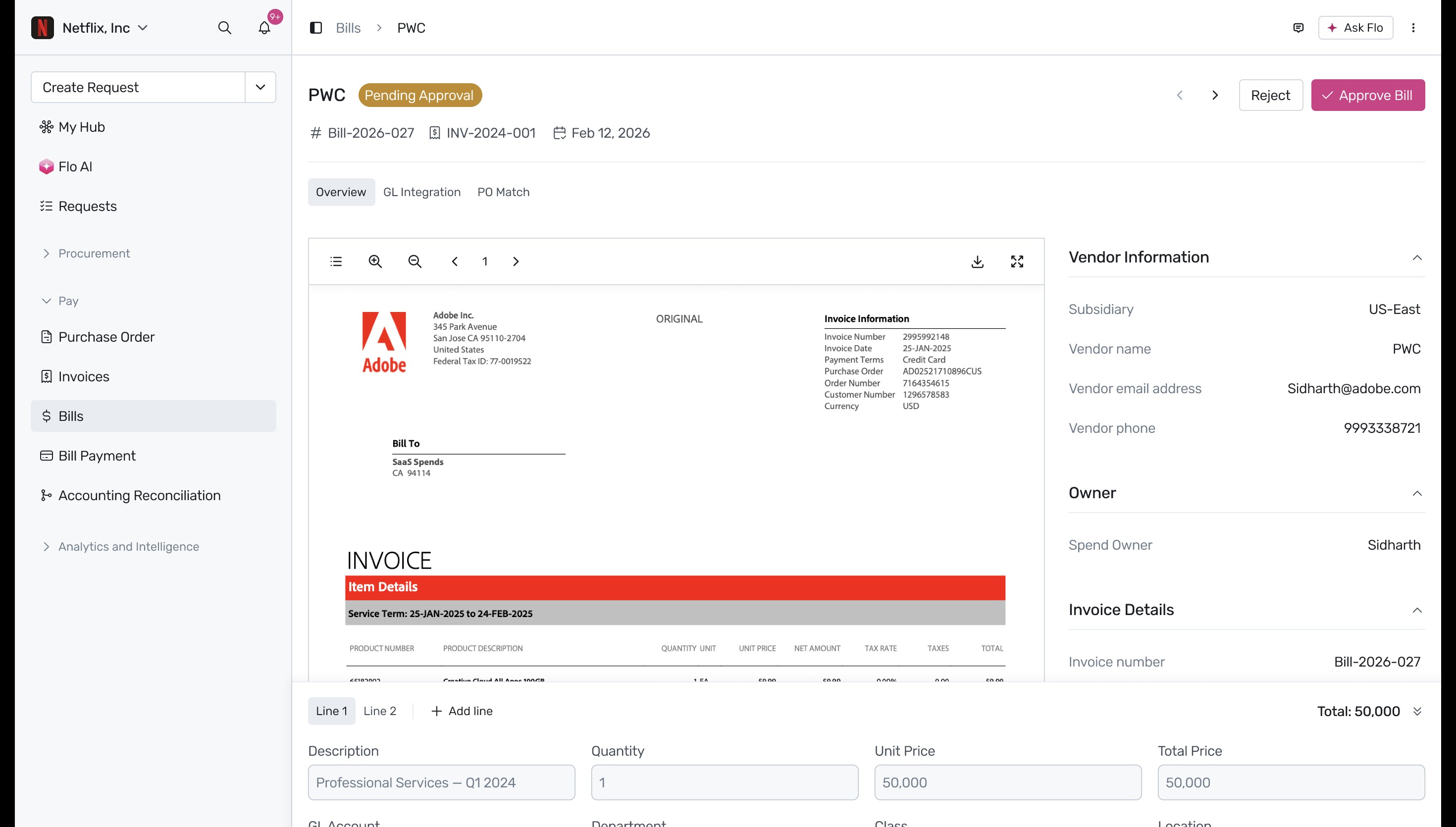
Navigate to the Bills section from the sidebar and select a bill in the Pending Approval status (for example, Bill-2026-027 for vendor PWC). This page allows you to review the uploaded invoice, vendor information, owner details, and line-item breakdowns.
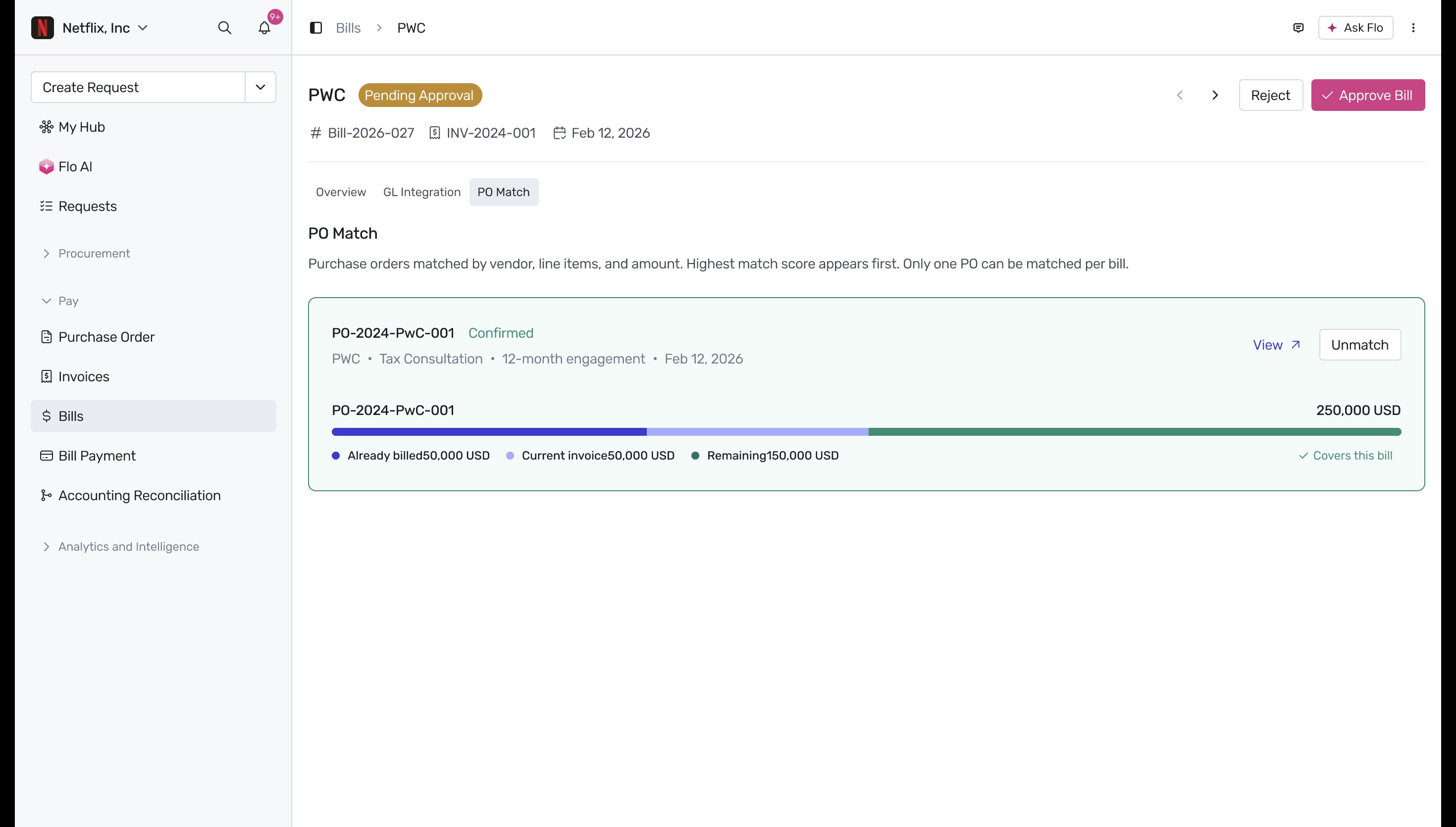
Click on the PO Match tab to verify that the bill is properly matched with an existing purchase order. Review the match details, including the already billed amount, current invoice amount, and remaining PO balance to ensure accuracy.
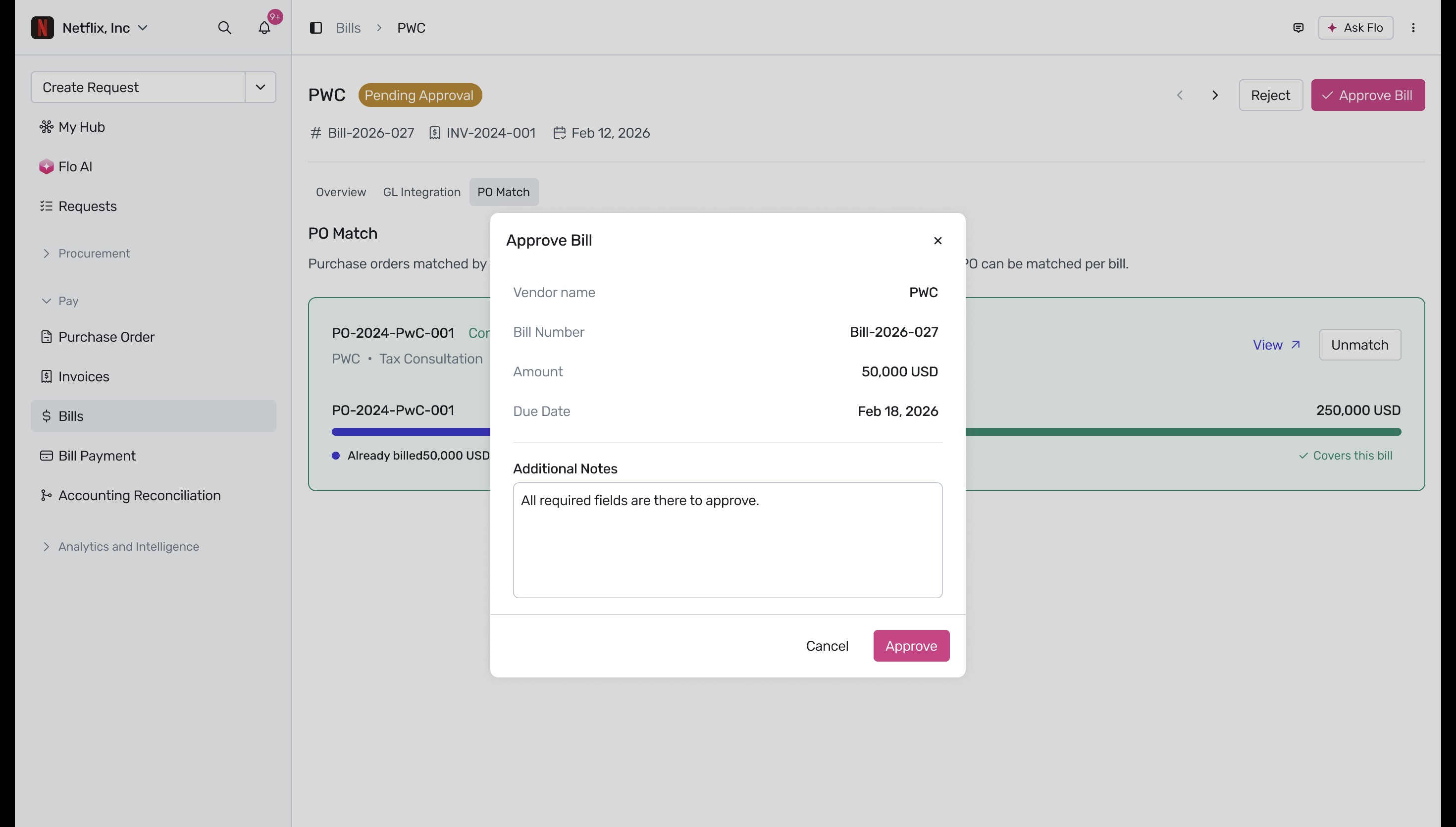
Click the Approve Bill button to open the Approve Bill modal. Verify the bill details, enter any relevant approval notes in the 'Additional Notes' field, and click Approve.
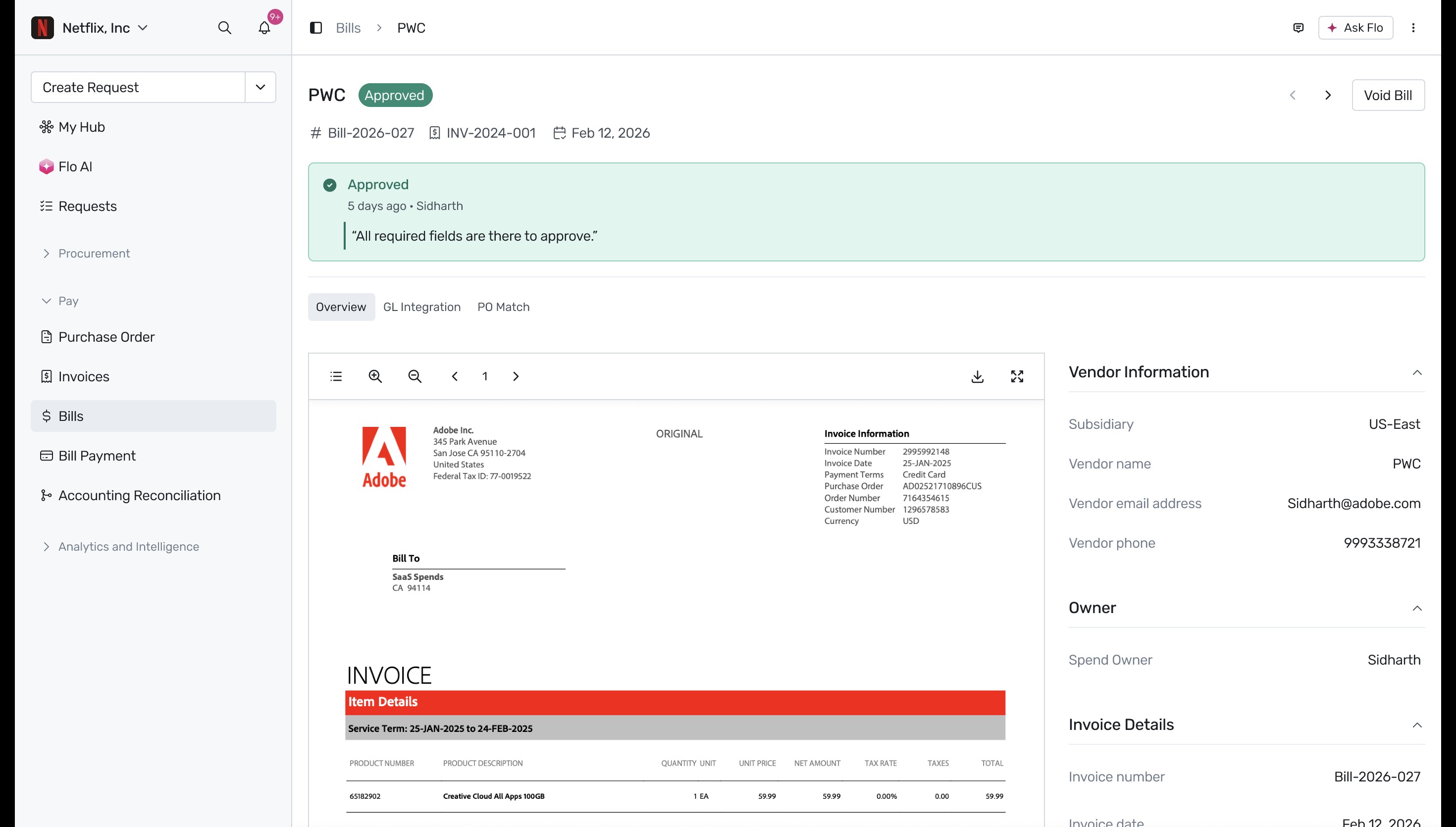
Once approved, the system updates the bill's status to Approved and displays a green confirmation banner containing the approval notes and the approver's name.
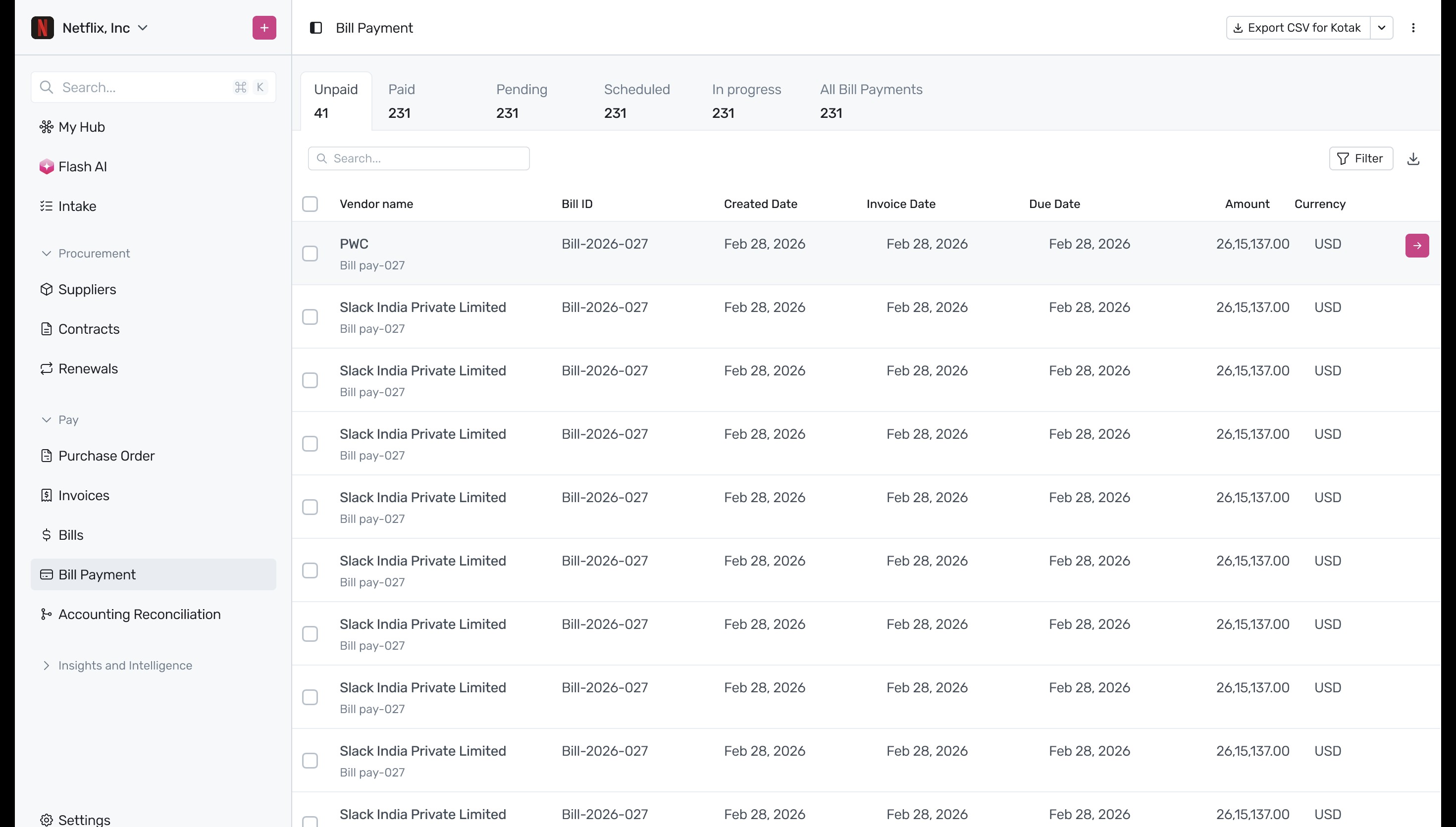
Navigate to the Bill Payment section from the sidebar. Under the Unpaid tab, locate the approved bill for PWC and click the pink arrow button to view its payment details.
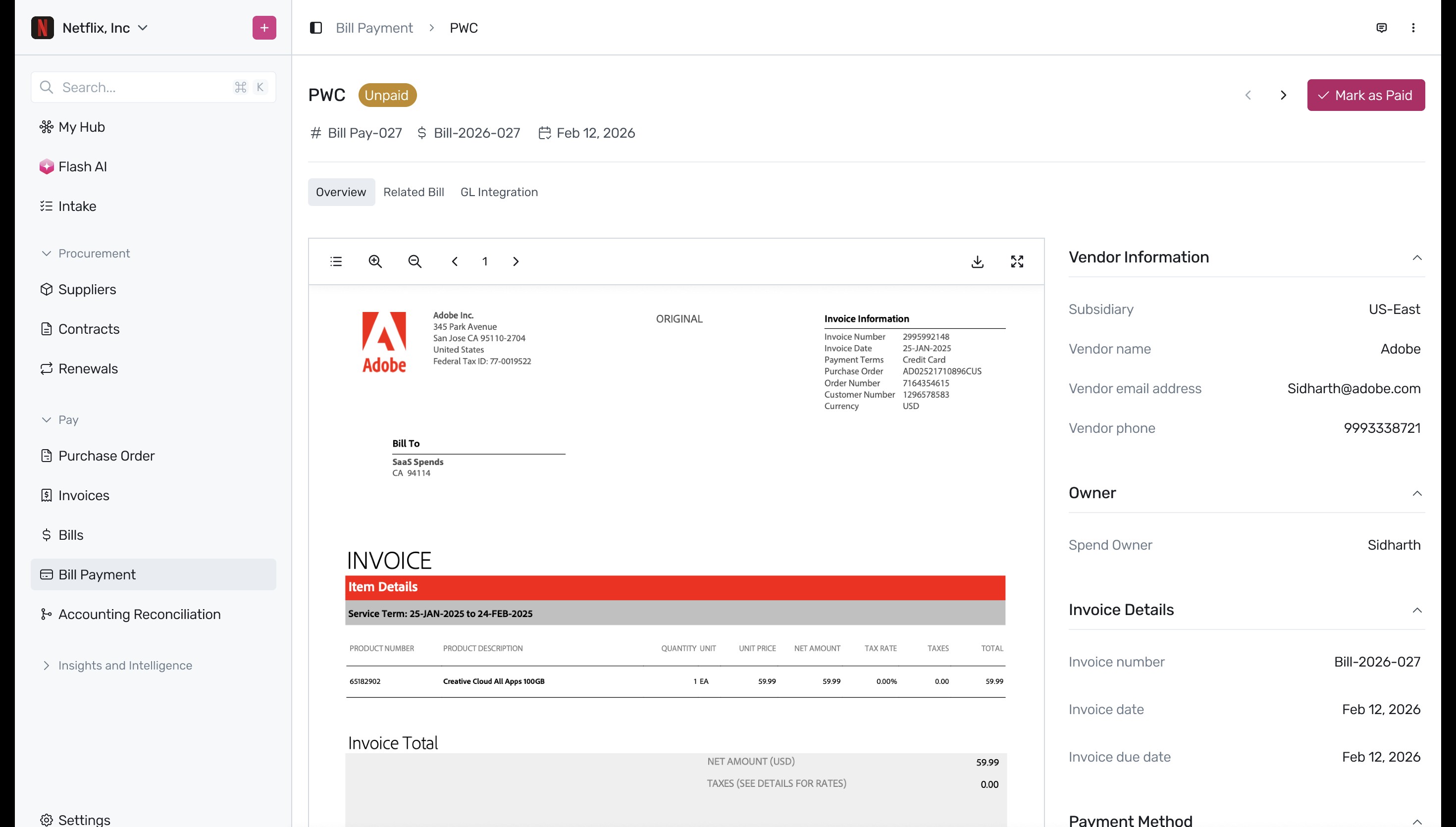
On the unpaid bill payment details page, review the payment and vendor information, then click the Mark as Paid button to initiate the payment recording.
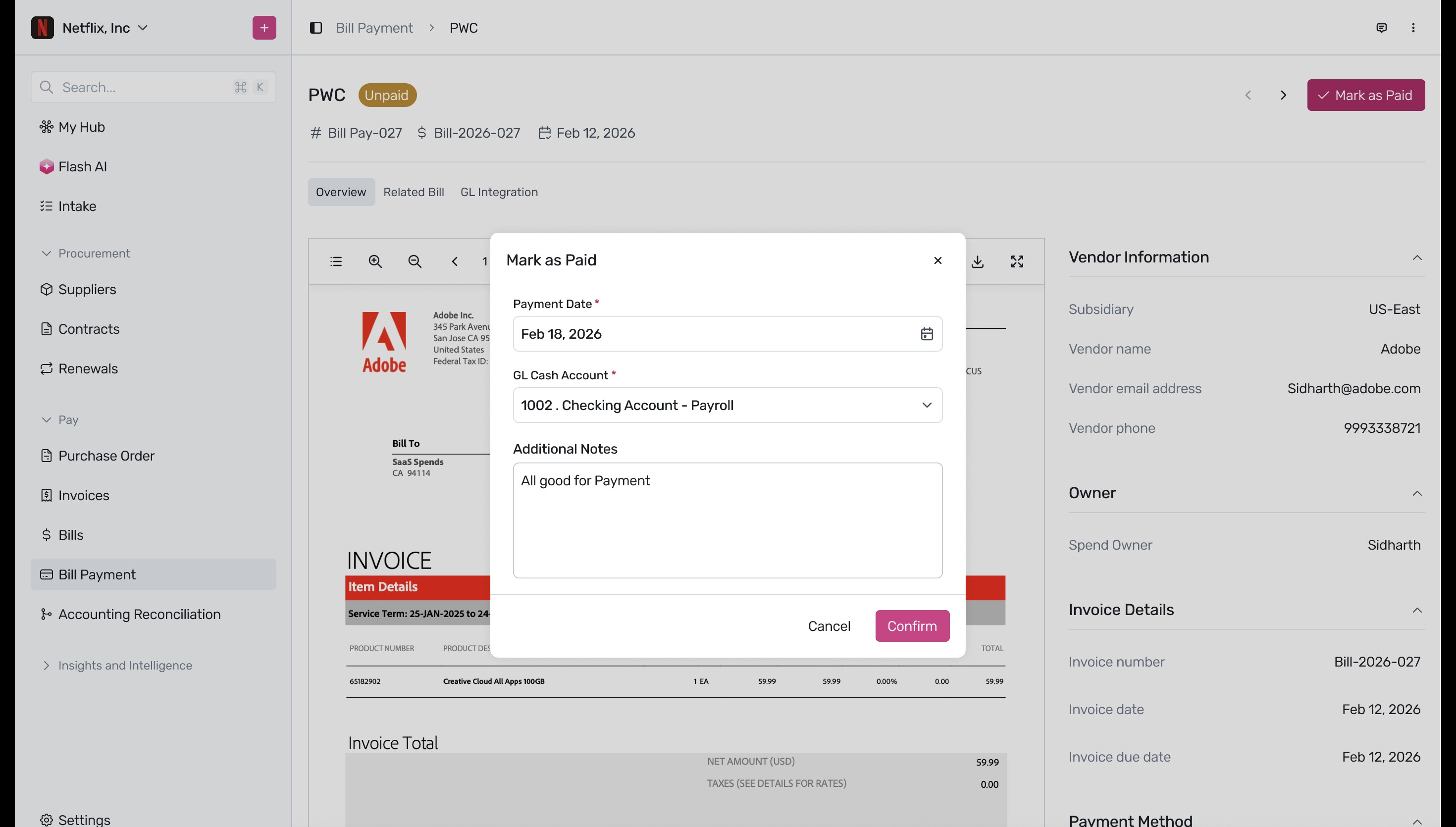
In the Mark as Paid modal, select the Payment Date, choose the correct GL Cash Account (for example, Checking Account - Payroll), add any additional payment notes, and click Confirm.
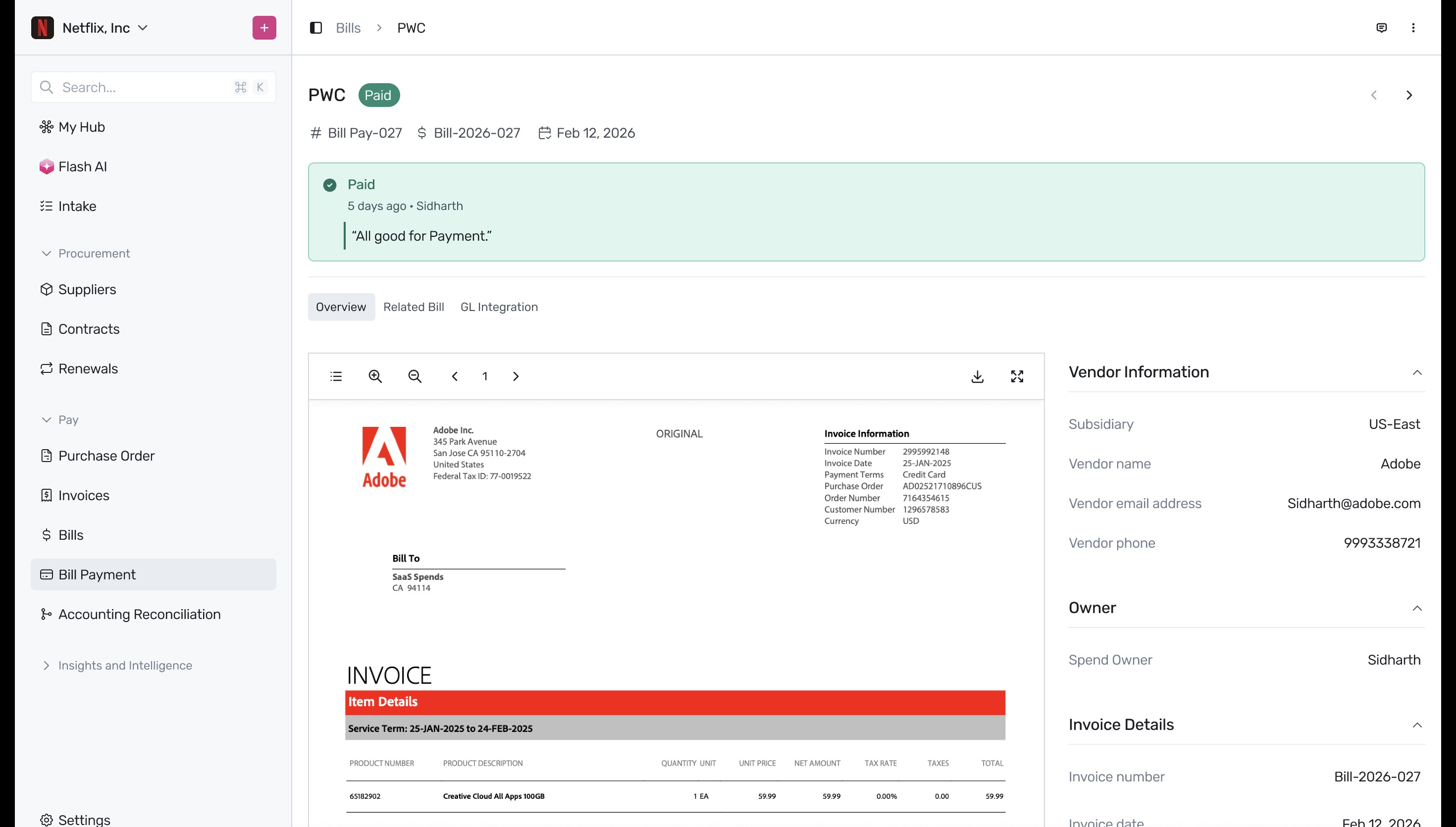
The bill's status will now be updated to Paid, and a green banner will confirm that the payment transaction has been recorded successfully.
Next Steps
Now that you have successfully approved and recorded payment for your bills, you can explore how to reconcile these transactions with your ERP.
Was this article helpful?
That’s Great!
Thank you for your feedback
Sorry! We couldn't be helpful
Thank you for your feedback
Feedback sent
We appreciate your effort and will try to fix the article