Overview:
Workflow conditions operate using a trigger-condition-action (TCA) system, where conditions lead to specific actions. These use IF-ELSE or AND-OR logic models to compare various fields across your workflow tasks.
Note: A minimum of two conditions are required to implement AND-OR and IF-ELSE logic structures.
Navigate to Platform Settings → Configure Workflows. All your workflows — both active and draft — will be listed here.
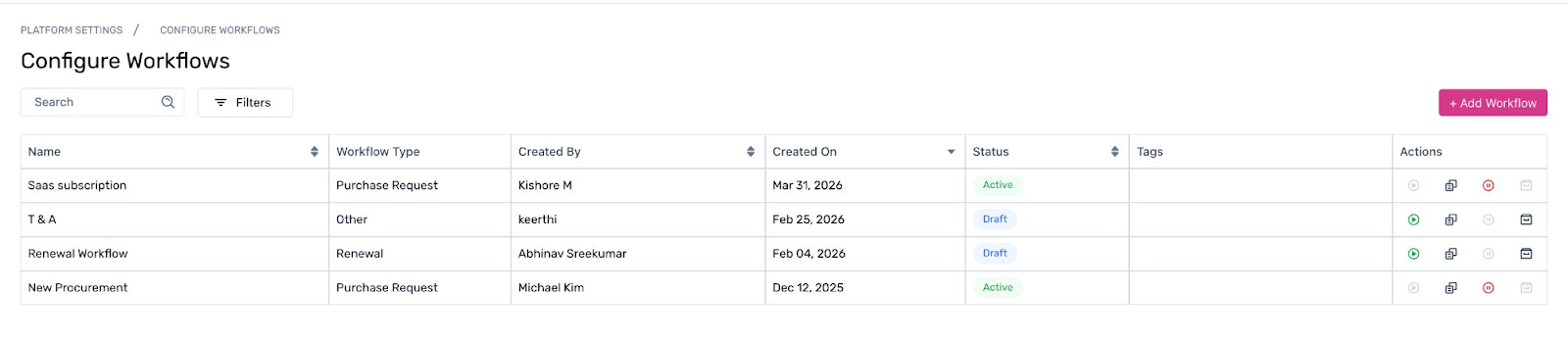
Click on any workflow from the list to open it in the workflow builder.
Hover over any task within a phase. A + icon appears on the left side of the path. Click it — two options will appear: Add Condition and Add Task. Select Add Condition.
A configuration pop-up appears where you can define the conditions using IF-ELSE logic. Fill in the required fields and click Save.
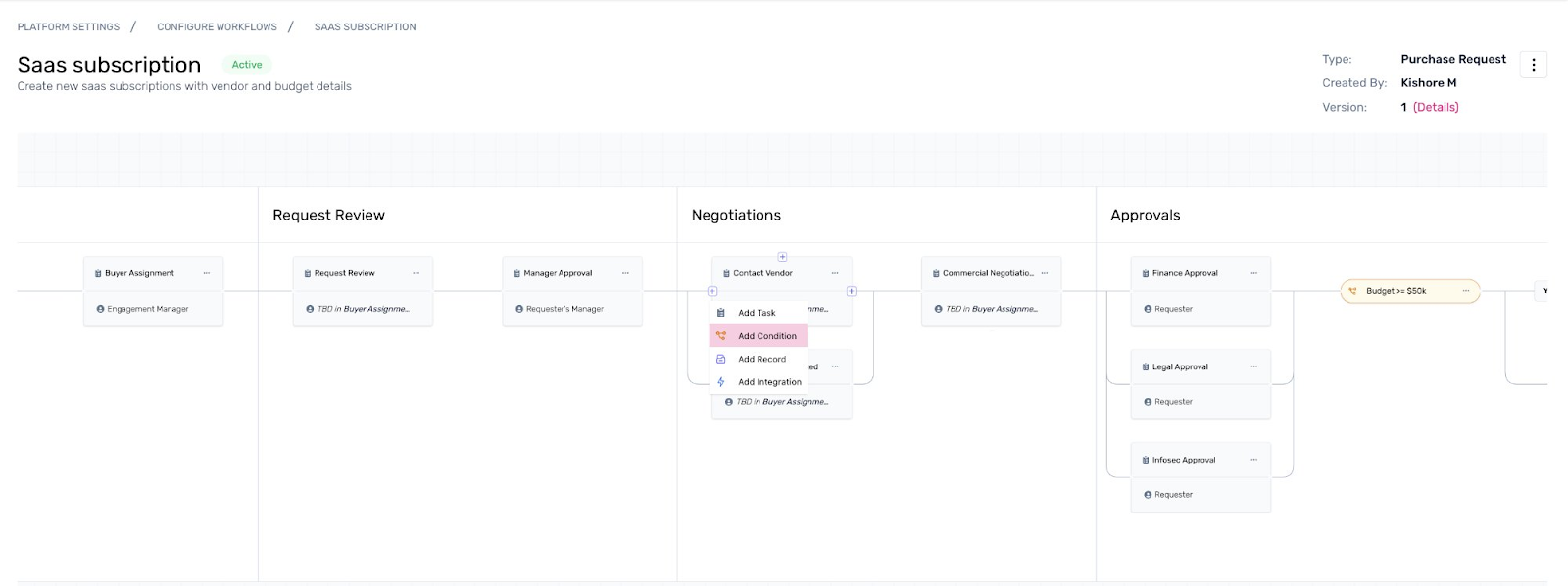
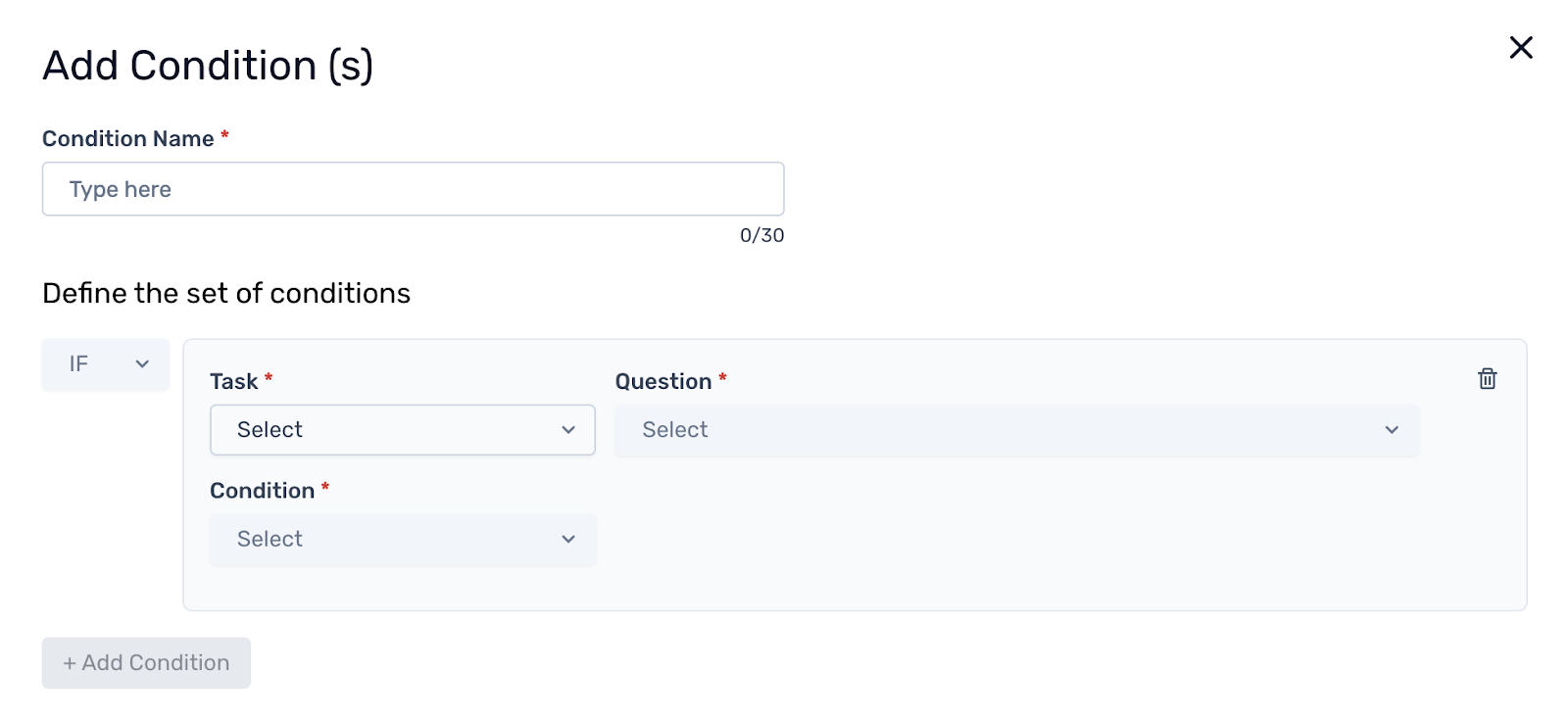
Once saved, the condition will appear in the workflow studio and can be edited or deleted at any time.
How to Configure Conditions on a Workflow
Once you have added a condition to a workflow, use the steps below to configure it with your specific rules and logic.
Within the workflow builder, hover over any task in a phase and click the + icon. Select Add Condition from the options that appear.
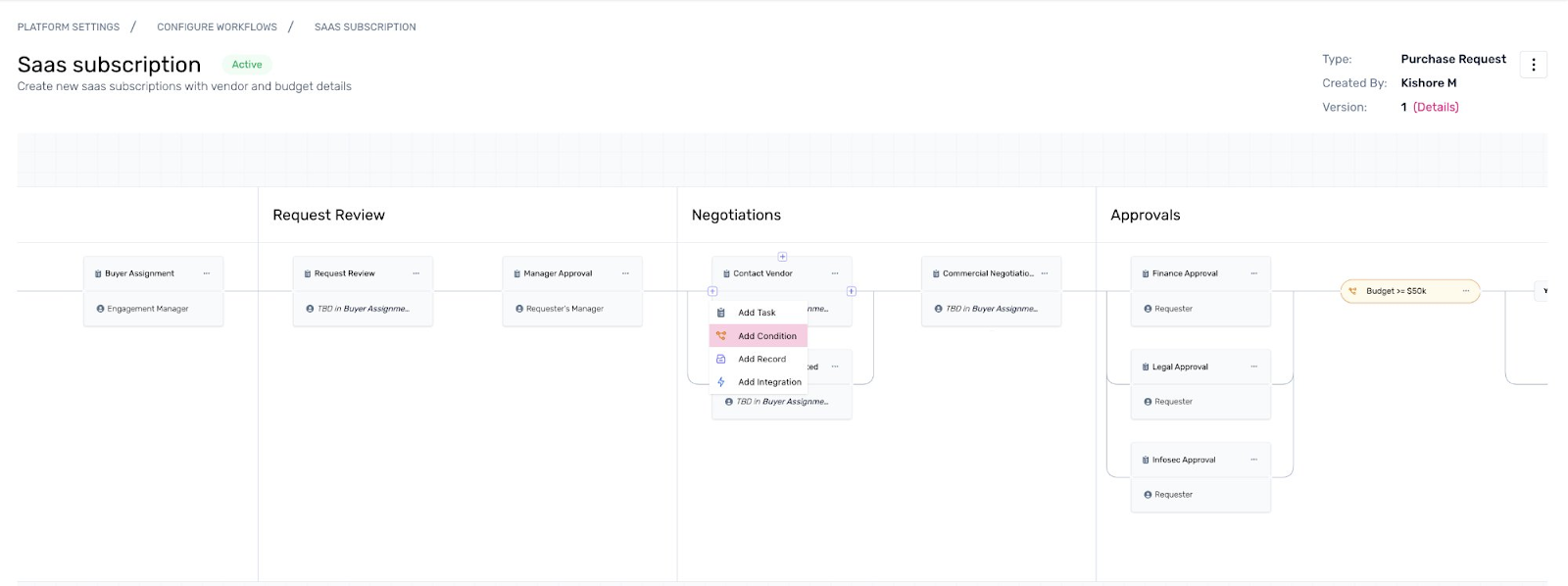
The Add Condition(s) pop-up opens. Start by entering a name for your condition in the Condition Name field.
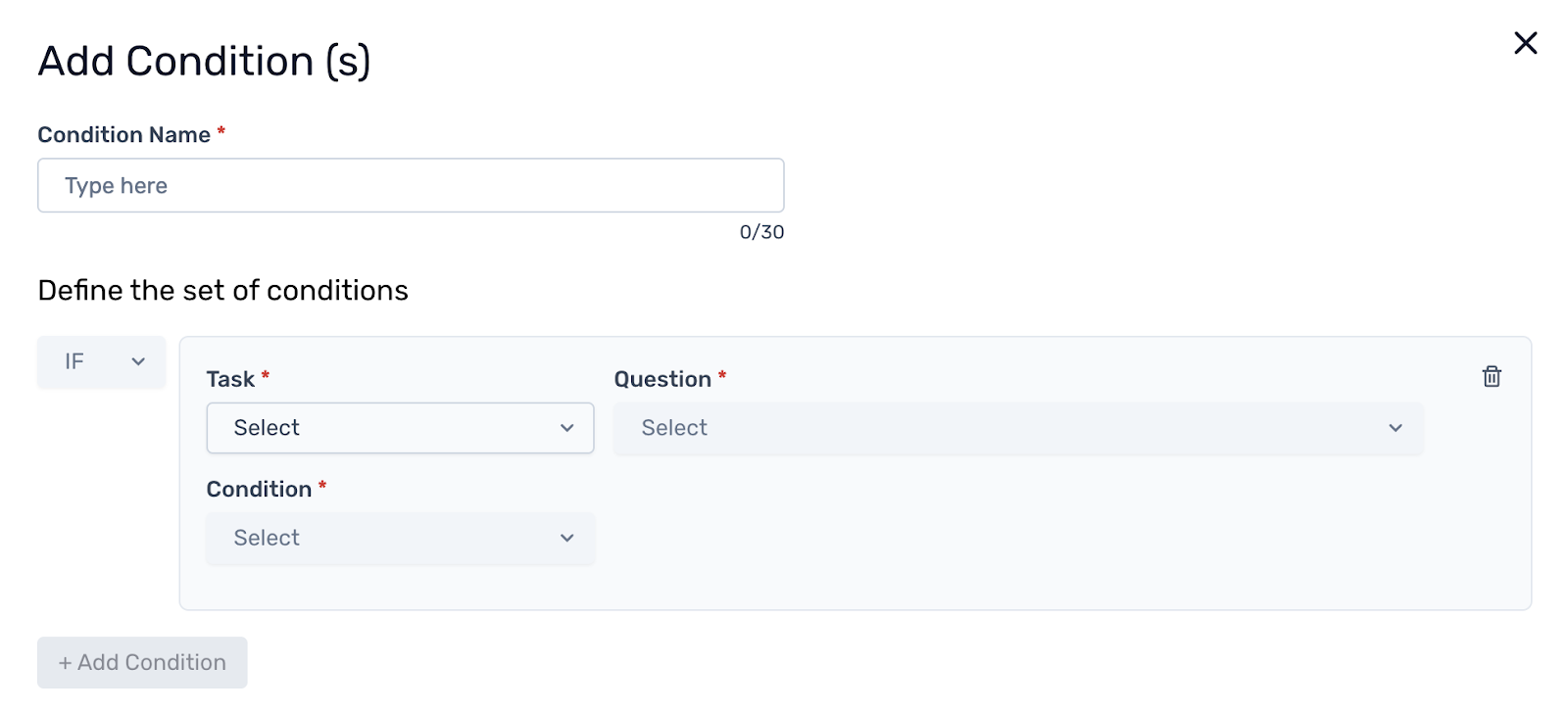
Under Define the set of conditions, configure each rule using the four parameters:
Task – select the workflow task this condition references
Question – select the specific question from that task
Condition – choose the comparison operator (e.g. >=, =, contains)
Value – enter the value to compare against
Note: Task and Question parameters must reference tasks from preceding phases only. You cannot reference tasks that come after the condition in the workflow.
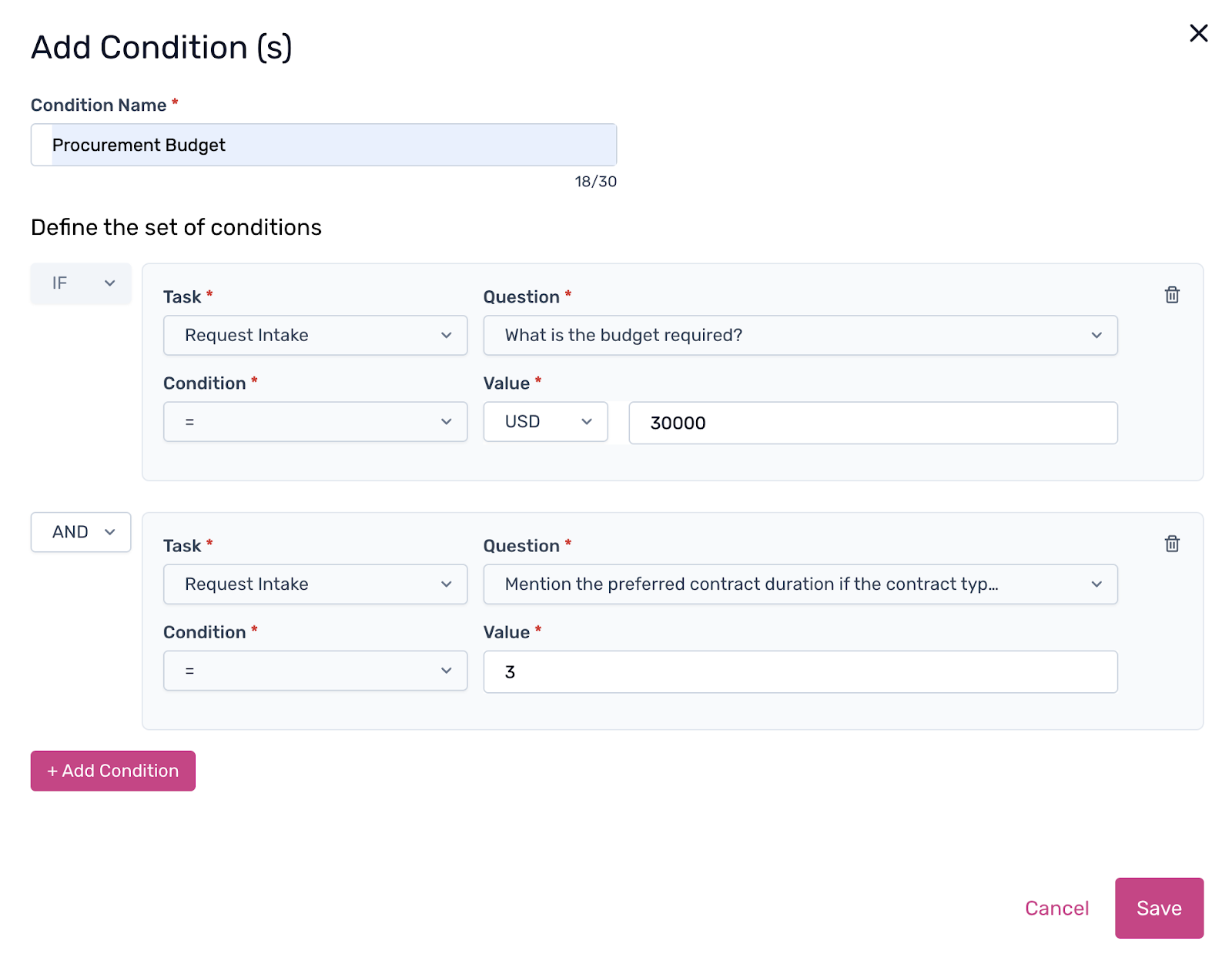
To add multiple rules, click + Add Condition and switch between IF and AND / OR operators using the dropdown on the left of each rule row.
Once all rules are configured, click Save. The condition will appear in the workflow studio, ready to route tasks based on the defined logic.
Was this article helpful?
That’s Great!
Thank you for your feedback
Sorry! We couldn't be helpful
Thank you for your feedback
Feedback sent
We appreciate your effort and will try to fix the article